
Menu & Ordering
Browse menu categories, customize items, and add to cart
Browse the full menu organized by categories, view item details, customize your order, and add items to your cart.
Browsing the Menu
Step 1: Click Menu in the header or select a service type to open the menu page
Step 2: Browse categories using the horizontal category tabs at the top
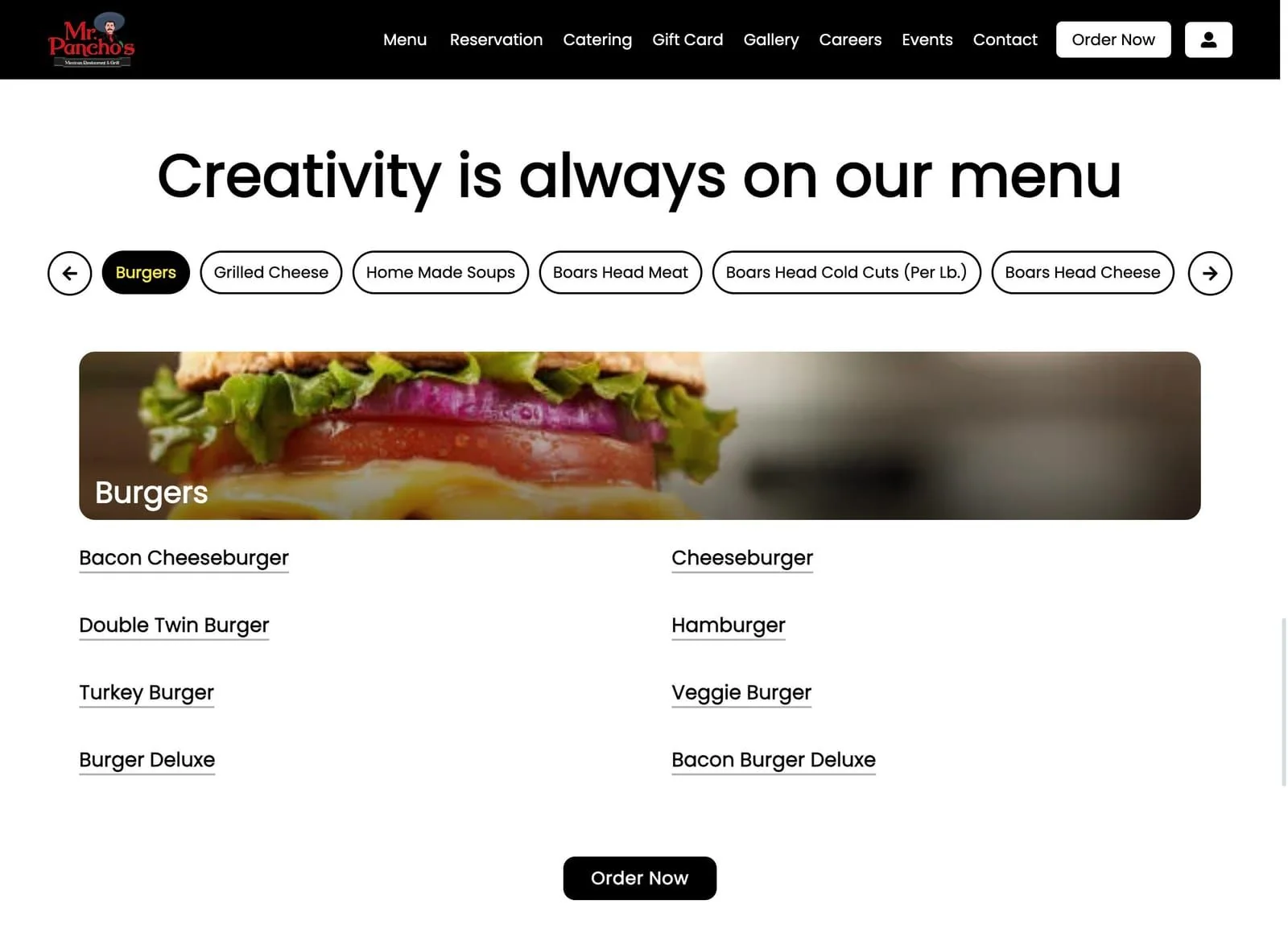
Step 3: Scroll through items in each category or click a category to jump directly to it
Step 4: Each product card shows the item name, description, price, and dietary badges
Viewing Product Details
Step 1: Click on any menu item to open the product details popup
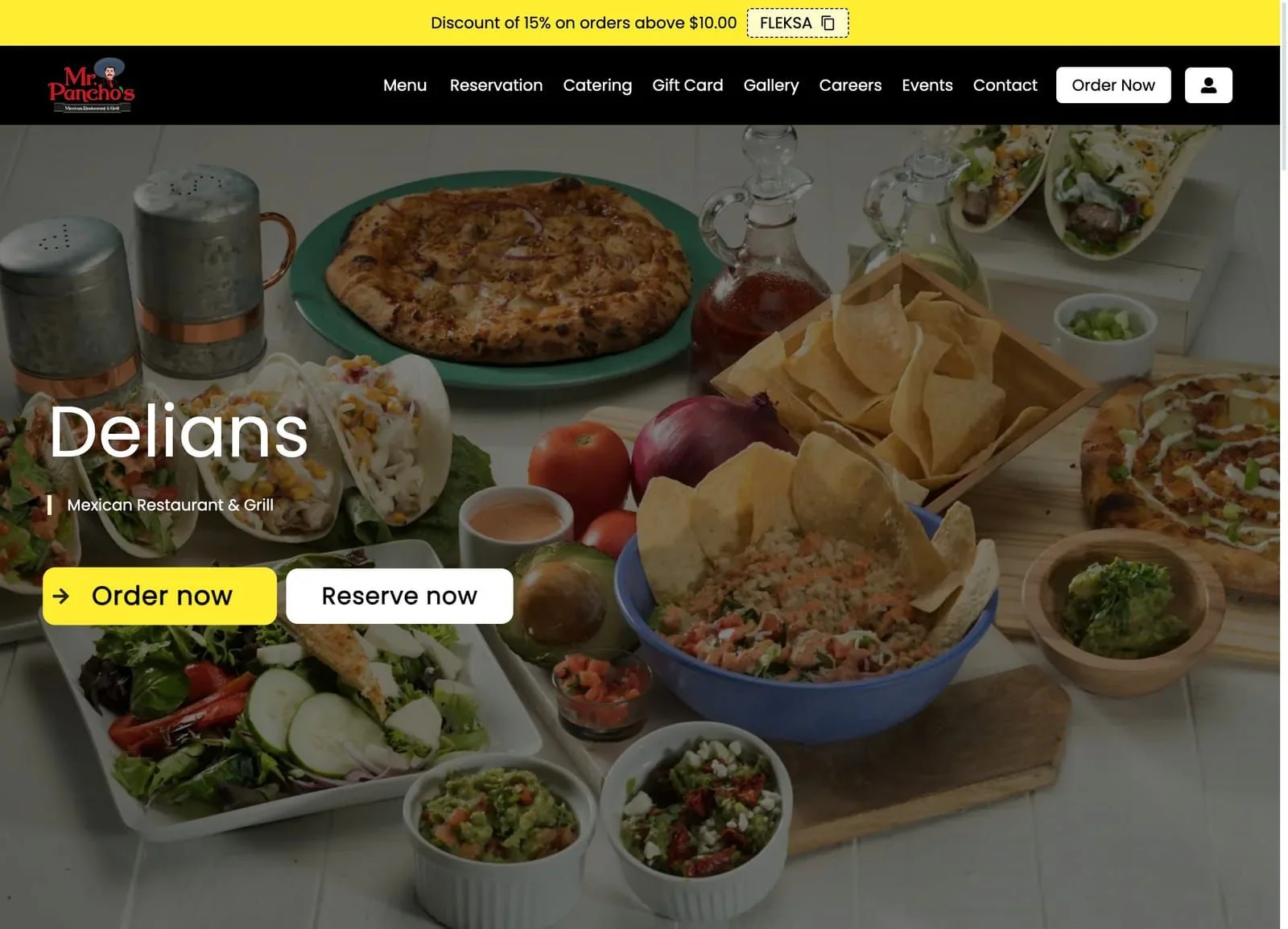
Step 2: View the full description, ingredients, and allergen information
Step 3: See all available photos for the item
Step 4: Review customization options (sizes, add-ons, modifications)
Adding Items to Cart
Step 1: Click on the item you want to order
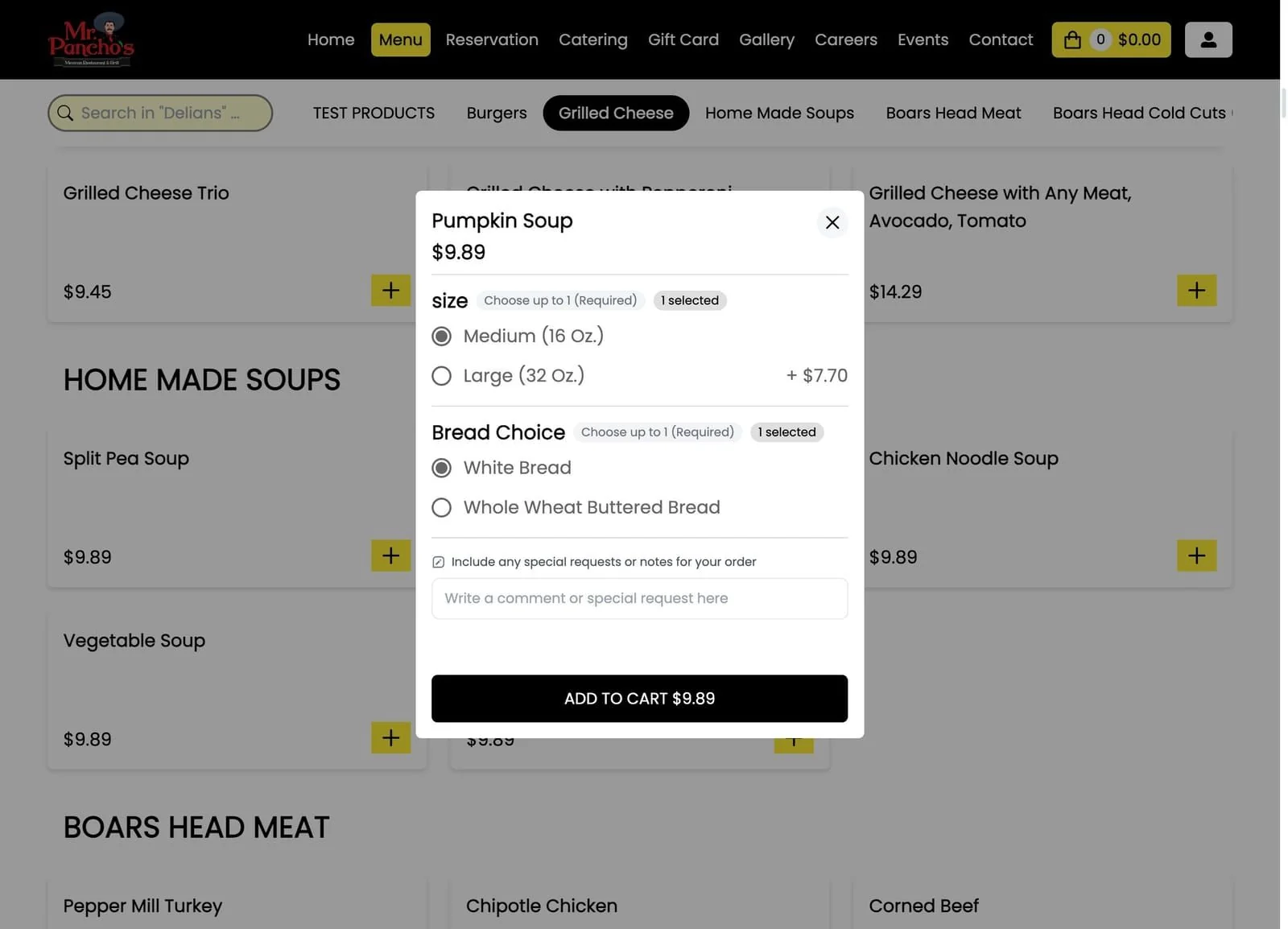
Step 2: Select your size or variant if options are available
Step 3: Choose any required options (must select before adding)
Step 4: Add optional extras like toppings or sides
Step 5: Enter special instructions in the notes field (e.g., "no onions")
Step 6: Adjust the quantity using the +/- buttons
Step 7: Click Add to Cart
Customization Options
Sizes and Variants
| Type | Example |
|---|---|
| Size | Small, Medium, Large |
| Portion | Single, Double |
| Base | Thin crust, Thick crust |
Required Options
- Must select before adding to cart
- Example: "Choose your sauce" for pasta
- Shows error if not selected
Optional Add-ons
- Extra toppings with additional cost
- Sides and drinks
- Premium upgrades
Special Instructions
- Free text field for notes
- Examples: "Extra napkins", "No ice", "Allergic to nuts"
Dual Pricing System
The website shows different prices based on your selected service type:
| Service | Price Display |
|---|---|
| Dine-in | Base price |
| Pickup | May differ from dine-in |
| Delivery | Often includes delivery premium |
When you switch service types, cart prices update automatically.
Menu Features
Search
- Search bar at the top of the menu
- Find items by name instantly
- Results appear as you type
Dietary Filters
- Vegetarian
- Vegan
- Gluten-free
- Allergen exclusions
Badges
Items display relevant badges:
- 🌱 Vegetarian
- 🌿 Vegan
- 🌶️ Spicy
- ⭐ Popular
Item Availability
Sold Out Items
- Marked as "Sold Out"
- Cannot add to cart
- Updates automatically when back in stock
Time-Based Availability
- Breakfast items: Available until 11am
- Lunch specials: 11am-3pm
- Happy hour: 4pm-6pm
Service-Specific Items
- Some items only available for dine-in
- Others excluded from delivery
- Menu updates based on selected service
Favorites (Logged-in Users)
Step 1: Click the heart icon on any item to save as favorite
Step 2: Access favorites from your account page
Step 3: Quickly reorder favorite items with one click
Step 4: Favorites sync across all your devices
Best Practices for Ordering
| Tip | Benefit |
|---|---|
| Check dietary filters | Find items that match your needs |
| Read descriptions | Know what's included |
| Review customizations | Get exactly what you want |
| Add special instructions | Communicate preferences clearly |
Troubleshooting
Menu Not Loading
| Cause | Solution |
|---|---|
| Network issue | Check internet connection |
| Page not refreshed | Pull down to refresh |
| Service unavailable | Restaurant may be closed |
Item Not Available
| Cause | Solution |
|---|---|
| Sold out | Check back later |
| Outside availability hours | Order during specified times |
| Not available for service type | Switch to a different service |
Can't Add to Cart
| Cause | Solution |
|---|---|
| Required option not selected | Select all required options |
| Item sold out | Choose a different item |
| Quantity is zero | Increase quantity to at least 1 |
Wrong Prices Showing
| Cause | Solution |
|---|---|
| Wrong service type selected | Change service type in header |
| Browser cache | Hard refresh the page |
| Price recently updated | Refresh to see current prices |