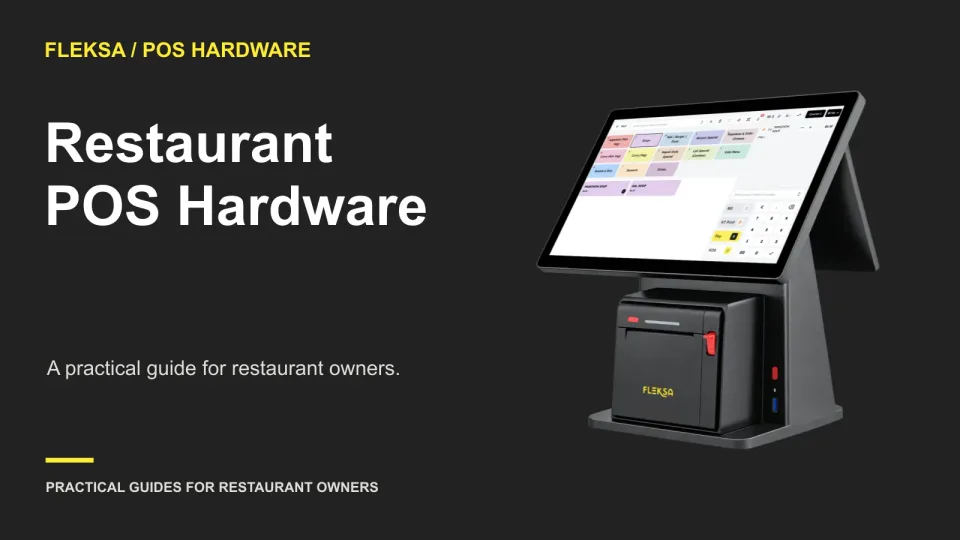
Most restaurants need a way to enter orders, take payments, send tickets to the kitchen, and keep those devices connected. That may mean a counter terminal and printer for a small operation, or several terminals, handhelds, kitchen displays, and a kiosk for a busier one. Buy for the actual service workflow, not for the longest equipment list.
Start by mapping where an order begins and where it must go. Then check whether the equipment you already own is supported by the proposed software and payment processor. Compare a reuse plan and a new bundle using complete written quotes, including installation and ongoing costs. Finally, verify the setup in a non-live environment before staff depend on it.
Inventory devices by service workflow
Walk through a normal shift, including the busiest 15 minutes. Note where guests order, where staff enter changes, where payments happen, and where food and drink are prepared. Count the places that need access at the same time, rather than counting only employees.
Terminals and payment devices
A counter terminal gives staff a fixed place to enter orders, make changes, and manage checks. A restaurant with a bar and a separate pickup counter should consider whether both locations need access during a rush. One shared terminal can save hardware cost, but a line of staff waiting to use it can slow service.
Include the payment device in the inventory even if it is sold separately from the POS screen. Ask which processor and connection the proposed setup requires, who supplies the device, and whether a replacement can be obtained quickly. Do not assume an existing card reader can move to a new provider.
Handhelds, printers, and kitchen displays
Handhelds can put order entry closer to tables or guests in line. Before deciding how many to request, consider shift overlap, charging locations, and whether staff can comfortably carry a device alongside plates or other equipment. Ask how payment is handled on the proposed handheld setup rather than assuming every device takes payments.
Printers may be needed for receipts, kitchen tickets, or both. Identify each destination: a hot line, bar, dessert station, and pickup counter may need different information. A kitchen display system, or KDS, gives the kitchen another way to receive orders. Decide whether a station needs a screen, a printer, or a combination, and ask the vendor to confirm the routing options.
Place screens and printers where staff can see or collect tickets without crossing a busy cooking area. Account for counter space, heat, spills, and access to power. Check who will replenish printer paper and where spare rolls will be stored.
Kiosks and the network behind them
A kiosk can provide a guest-facing ordering point, but it also needs floor space, power, network access, and a clear path for guests and staff. Think about where a queue would form and who helps a guest who cannot complete an order. Ask how kiosk orders reach the kitchen and how payment works in the quoted configuration.
All of these devices depend on the surrounding setup. Inventory network equipment, available ports, Wi-Fi coverage, power outlets, and any cabling work. Identify who controls the network and who will troubleshoot it. Ask the provider what happens to order entry, printing, and payments if connectivity fails; do not assume payments will work offline.
For an overview of the device categories Fleksa offers, review its restaurant hardware alongside your workflow map.
Check compatibility before reusing equipment
Reuse can reduce upfront spending, but an old tablet or terminal is not automatically compatible. Record the manufacturer and exact model, operating system and version where applicable, connection type, age, condition, and location for every device. Photograph labels if that makes the inventory easier to verify.
Send the list to the prospective provider and ask for written confirmation of each complete combination: device, operating system, POS or KDS software, printer connection, and payment processor where relevant. A yes to a brand name is not enough. A printer may connect by one method while the proposed installation requires another, or a tablet may need an operating-system version it cannot run.
| Equipment | Record and check | Decision to request in writing |
|---|---|---|
| Counter terminal or tablet | Exact model, OS version, condition, power supply | Supported for the intended POS role, including any required accessories? |
| Payment device | Model, current provider, connection, ownership | Can the proposed processor use it, or must it be replaced? |
| Receipt or kitchen printer | Model, connection type, location and ticket purpose | Supported connection and routing for each intended station? |
| Kitchen screen or kiosk | Model, OS, mounting, network and power | Supported for the intended role and installation? |
Mark each item as confirmed for reuse, requiring a change, or not yet confirmed. For a device that needs a change, ask for the cost of the cable, mount, upgrade, or technician visit as well as the expected result. Do not count it as a saving until the provider has confirmed the complete configuration.
Also check ownership. Leased equipment, a processor-supplied reader, or a device tied to an existing agreement may have return obligations or fees. Review the agreement and ask the current supplier before building the new plan around it.
Condition matters even when a device is compatible. A terminal with a failing power connector may be cheaper to replace before launch than during a Saturday dinner rush. Conversely, a sound printer with confirmed support may be worth keeping. Ask what support and replacement options apply to reused devices, and who is responsible if one fails.
If your workflow depends on other software, review the available integrations and ask the provider to confirm the particular connection and setup you need. An integration listing alone does not establish that every device or workflow is supported.
Compare the complete cost of each bundle
Ask for two quotes built around the same workflow: one that retains confirmed compatible equipment and one that replaces it. Each quote should identify quantities, device roles, processor requirements, installation, training, and recurring charges. If a quote omits a cost, mark it as unknown rather than treating it as zero.
Separate one-time hardware purchases from software subscriptions, processing charges, leases, warranty or support fees, and replacement costs. Ask whether shipping, mounting, cabling, network work, taxes, and old-equipment removal are included. For a lease, request the total paid over the term, ownership at the end, and any early-exit or return charges. A low monthly payment does not by itself show which option costs less.
Hypothetical example: A restaurant compares two quotes for the same counter and kitchen workflow over 12 months. The reuse option includes a $600 new terminal, $200 for connection and installation work, and $50 per month for software. Its existing printer has written compatibility confirmation. The total is $600 + $200 + ($50 × 12), or $1,400.
The replacement option includes a $1,000 terminal-and-printer package, $100 installation, and the same $50 monthly software charge. Its total is $1,000 + $100 + ($50 × 12), or $1,700. On these assumptions, reuse costs $300 less over the first year. Both totals include only the listed hardware, installation, and software. They exclude payment processing, tax, shipping, network upgrades, support beyond the quoted items, and any replacement after a failure. Those exclusions must be priced before a real decision.
Now ask what would change the result. If the old printer needs an unquoted repair or special connection, add that cost to reuse. If the new package includes support that the reuse quote lacks, price comparable coverage or note the difference. A replacement device may also reduce downtime risk, but do not assign it an invented dollar value.
For Fleksa software pricing, check the current plans page; pricing details were checked in November 2026. Confirm the current hardware quote and applicable fees separately. Software plan pricing should not be mistaken for the complete cost of a working restaurant setup.
Run a deployment acceptance checklist
Put the agreed workflow and device list into an acceptance checklist before installation. Name the person responsible for each check and agree on how unresolved issues will be handled. Use a non-live or test environment with the provider to check the setup.
- Power and placement: Check that each device reaches an appropriate outlet and can be placed where staff need it. Inspect cable paths, charging locations, and mounting. Confirm who supplies any additional electrical work.
- Network: Verify connections at the actual counter, kitchen, dining, and kiosk locations. Check handheld coverage along the routes staff will use. Ask the provider to explain expected behavior during a connection loss and how service is restored.
- Order routing: Use non-live sample orders that include items for different preparation stations. Confirm that each ticket or display receives the intended information and that a change or cancellation reaches the right place. Check receipt routing separately.
- Staff ergonomics: Have the people who will use the setup walk through an order, a modification, and a pickup. Check screen visibility, reach, queue space, and whether a handheld is comfortable to carry and charge between uses.
- Payment setup: Confirm the processor, device configuration, support contact, and the provider's approved verification procedure. Arrange any required payment acceptance verification with the provider.
- Recovery and handoff: Ask how staff should report a failed printer, screen, or network connection; who supplies a replacement; and where setup records are kept. Document open issues and their owners before sign-off.
Repeat the relevant checks when a device is moved or the network changes. A printer that works beside the counter during setup still needs to work at its final kitchen location. Keep a copy of the confirmed device inventory and routing map where the manager and support provider can find it.
Ready to compare configurations? Review Fleksa hardware and request a demonstration against your device inventory, order routes, payment requirements, and written quote. Bring the staff who will use the equipment, and ask for unresolved compatibility questions to be answered before ordering.
Frequently asked questions
Can I use my existing tablet or printer with a new restaurant POS?
Possibly. Provide the exact model, operating system, connection type, and intended role, then get written confirmation for the complete setup. Compatibility with a brand does not guarantee compatibility with every model.
Does every restaurant need a kiosk or kitchen display?
No. Choose devices based on where guests order, how tickets reach each preparation station, available space, and staff needs. A counter terminal and printer may be enough for one workflow; another may justify additional devices.
What should a restaurant POS hardware quote include?
Request device quantities and roles, purchase or lease terms, installation, software charges, processor requirements, support, and replacement arrangements. Ask separately about tax, shipping, network work, and any fees not included in the quote.