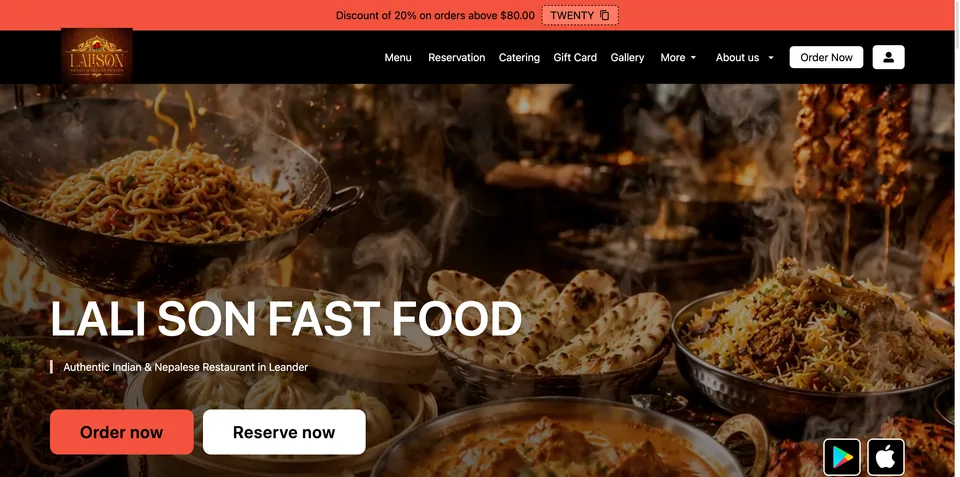
GloriaFood is being discontinued. Its service update states an end-of-life date of April 30, 2027, while Oracle's restaurant page schedules full end of service for March 31, 2027 (both checked November 5, 2026). These official notices conflict. Check your account notices and ask GloriaFood support to confirm your account's service and data-access dates in writing. Plan around the earlier date until you have confirmation.
Use this guide to collect your records, prepare a replacement ordering system and check your customer links. Export and import options can differ by account and provider; confirm them before relying on a transfer.
Collect your GloriaFood records
Check which exports are available in your account and ask GloriaFood support about formats, access dates and missing fields. Save records securely, limit access to personal data and follow applicable privacy and retention requirements.
Step 1 — Capture your menu
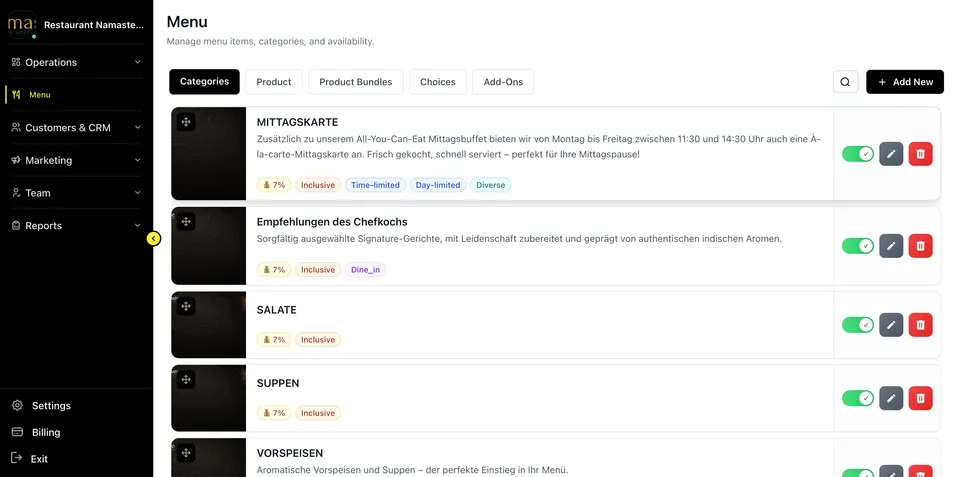
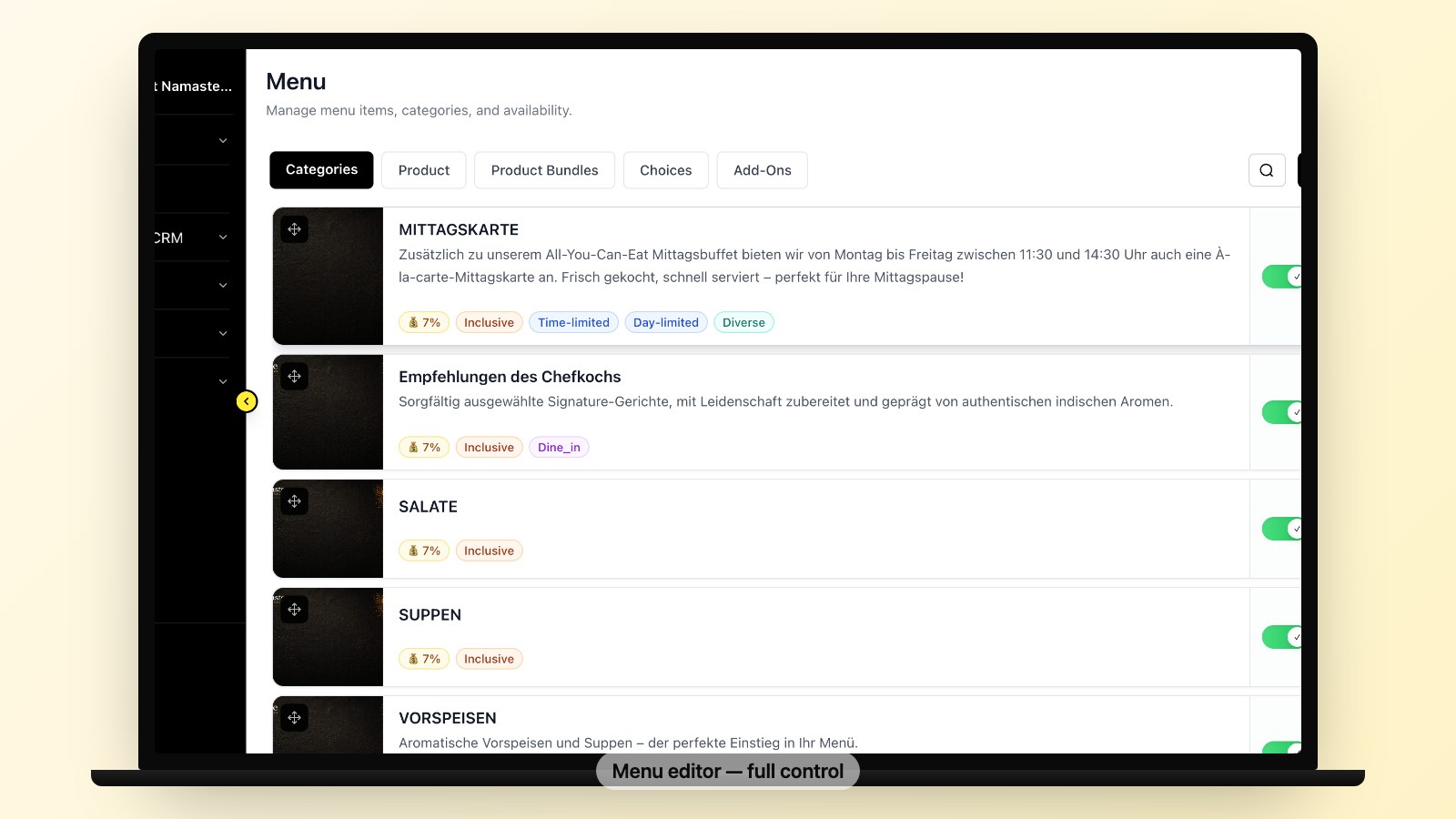
Save or export the menu if your account permits it. Record categories, items, descriptions, prices, modifiers, availability and combinations. If a suitable export is unavailable, document the details manually. Ask your new provider which formats and fields it can import; plan to rebuild anything it cannot transfer.
Step 2 — Collect your menu photos
Check whether photos are included in an export. Save original images you have rights to use, or ask GloriaFood support how to retrieve them. Match each image to its menu item and review it on the new page.
Step 3 — Save customer records
Check whether your account can export customer information and which fields it includes. Confirm with the new provider whether it can import those records and whether customer consent or other privacy requirements permit the intended use. Keep the file secure.
Step 4 — Document settings
Record delivery areas, fees, minimums, pickup and delivery hours, preparation times, promotions and relevant tax settings. Screenshots or written notes can help where a setting cannot be exported. Check local tax and service requirements with your adviser and provider.
Step 5 — Save order history and reports
Check which order reports and date ranges your account can export. Ask your accountant which records to retain and for how long. Confirm with the replacement provider whether historical orders can be imported; keep an accessible copy even if they cannot.
Plan your migration
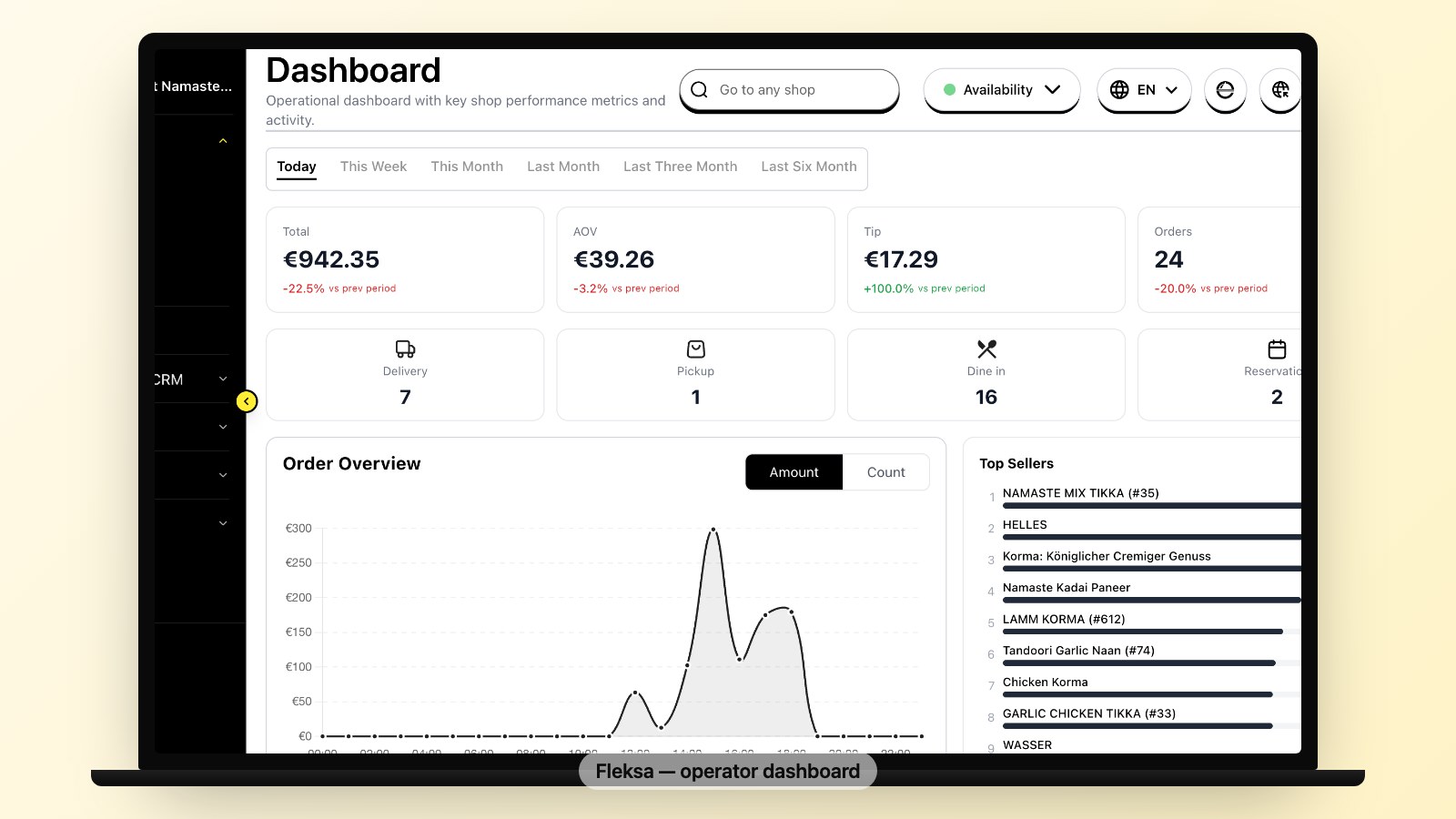
- Choose a provider. Compare written offers, including subscription, order, payment-processing and migration costs. Flex: 10% of eligible website and Google orders plus $0.50 per reservation, minimum $49/month. Fix: $199/month with 0% Fleksa commission. Payment processing, hardware and extras cost separately; applicable sales tax is extra. Actual savings depend on both providers' costs and your order volume.
- Build the new setup. Import supported data or rebuild it manually. Review menu items, prices, modifiers, photos, hours, delivery areas, taxes and payment methods.
- Check integrations. Confirm availability and compatibility of payment methods, POS, printers, kitchen displays, loyalty and social ordering for your country, plan and hardware before making a commitment.
- Test and train. Test the relevant ordering and payment flows, modifiers, confirmations, refunds and staff workflows in an appropriate test environment. Resolve issues before directing customers to the new page.
- Cut over and reconcile. Choose a quiet time, monitor both systems if parallel operation is supported, update links and QR codes, and reconcile outstanding orders and records. Confirm account closure and data access with GloriaFood before disabling or deleting anything.
Allow time for the size of your menu, integrations, provider availability and testing. Ask each provider for a migration plan and an estimate for your situation.
Switch your ordering links
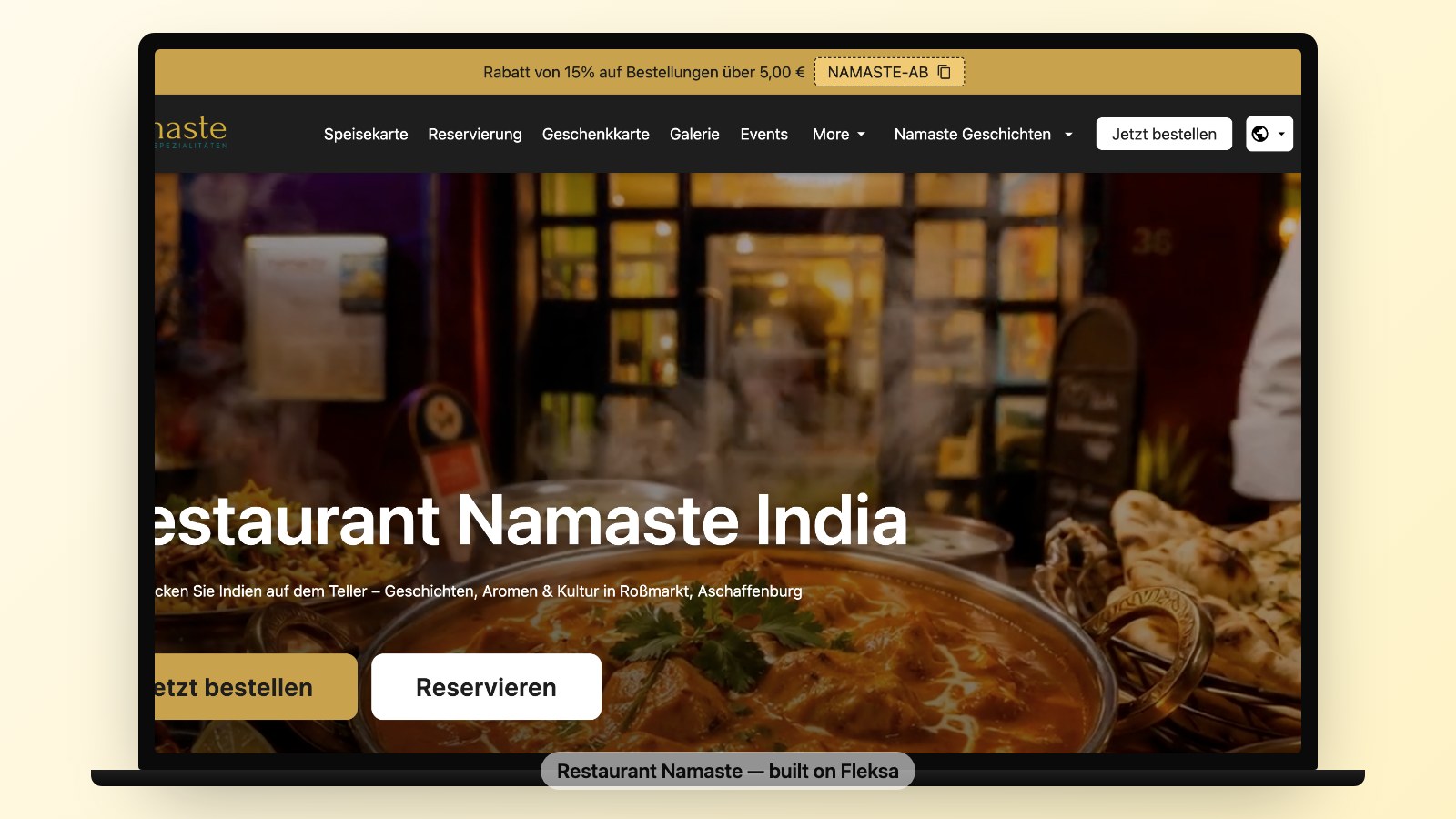
List every place customers can start an order, including your website, Google Business Profile, social profiles, printed menus and QR codes. Update links where those services allow it and test them on a phone and a computer.
If your cutover involves DNS or a website widget, ask whoever manages your domain and website to plan the change. Check DNS caching and any redirect options in advance; a GloriaFood-hosted address may not be under your control. Monitor both old and new paths where possible and prepare a fallback for customers who reach an old link.
Customer message template
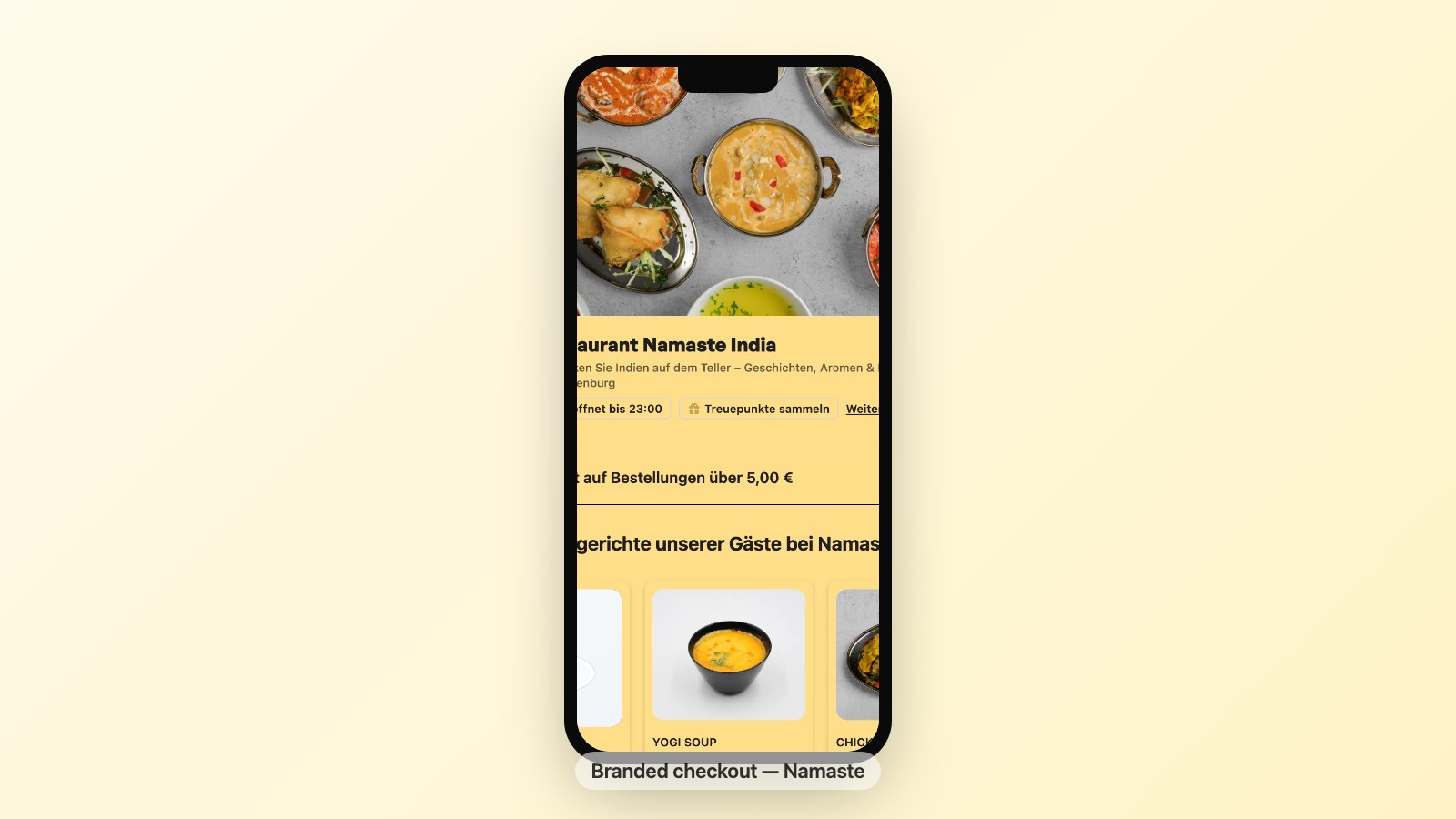
Adapt this message to your actual launch, and contact customers only where you have the necessary permission.
Subject: Our new online ordering link
Hi {customer first name},
We've updated the way you can order from {restaurant name}. Find our menu and place an order at {new ordering URL}.
If you've bookmarked our old link, please update it. Thank you for ordering with us.
{Owner name}, {Restaurant name}
Check your Google Business Profile, Facebook and other listings for old links. Available ordering buttons and integration options vary by platform and country. Reviews and loyalty data may be held in different services; check each provider's rules and whether data can be transferred.
Post-cutover checklist
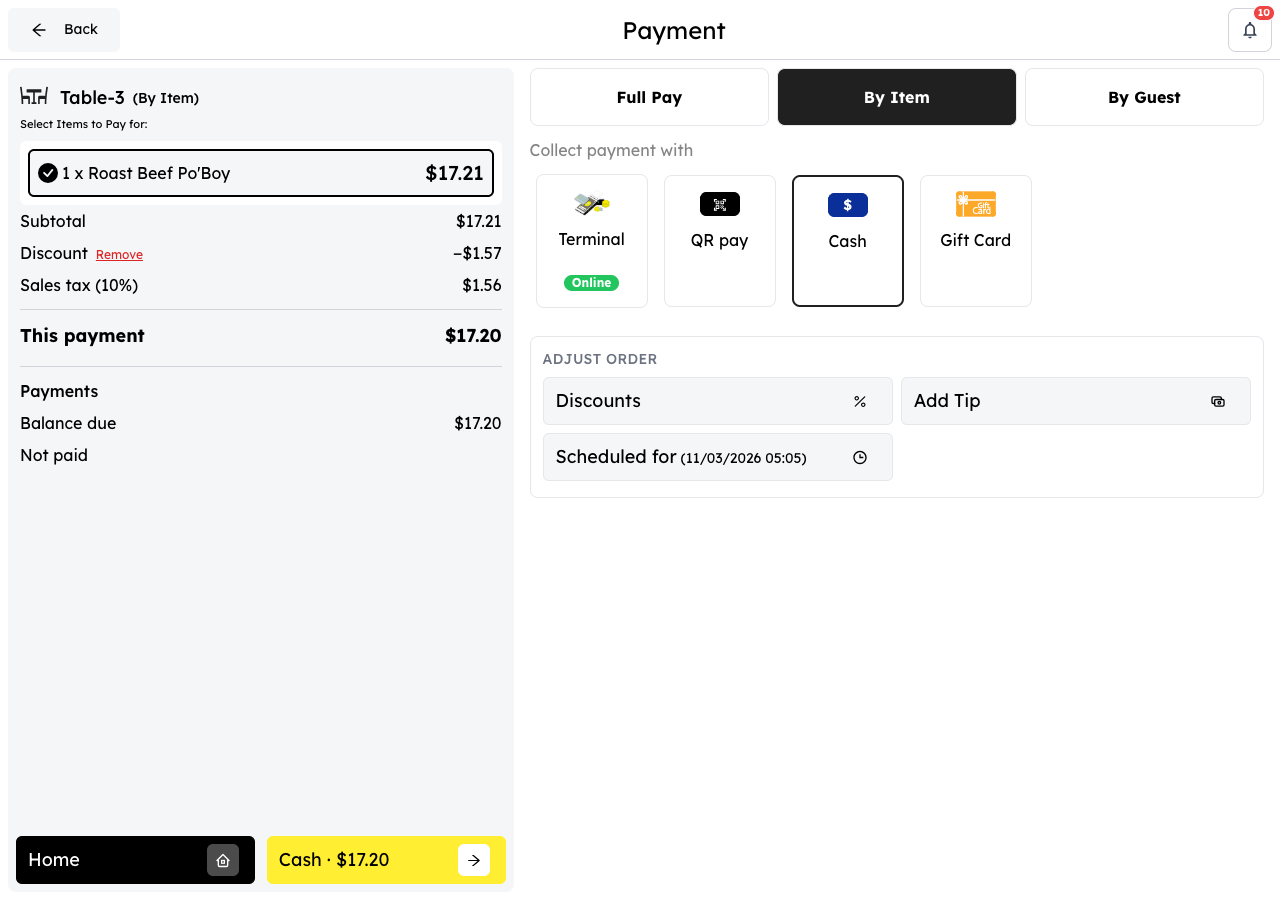
- Test the new ordering link and update relevant online listings, printed materials and QR codes.
- Check menu prices, modifiers, availability, taxes, delivery settings and confirmation messages.
- Confirm staff can receive and fulfil orders, and know how to handle refunds.
- Reconcile outstanding orders and retain the records your accountant requires.
- Confirm GloriaFood account closure and data-access arrangements before disabling or deleting the account.
Want to discuss your options? Contact Fleksa about your menu, migration support, available features and a quote for your restaurant.
FAQ
When does GloriaFood end?
GloriaFood's service update states April 30, 2027; Oracle's restaurant page schedules full end of service for March 31, 2027. The notices conflict. Check your account notices and ask GloriaFood support to confirm the applicable dates in writing. Plan around the earlier date while they remain unclear.
How long does migration take?
Timing depends on your menu, data, integrations, provider availability and testing. Ask your chosen provider for an estimate and allow time to resolve issues before cutover.
Can I transfer my menu, customers and order history?
Export options depend on your GloriaFood account, and import support depends on the receiving provider and data format. Confirm each type of data and any privacy requirements with the providers; prepare to rebuild unsupported items and keep required records separately.
Can I avoid losing orders during the switch?
Testing, a quiet cutover, monitoring and a fallback can reduce disruption, but they cannot guarantee that no orders are lost. Confirm whether parallel operation and redirects are supported for your setup.
What happens to my data after service ends?
Do not assume a retention period or immediate deletion. Check your account terms and ask GloriaFood support to confirm when your service and access to each record will end. Save the records you need while they remain available.