
Stripe Terminal & Tap-to-Pay
Guidance for configured card readers and Tap-to-Pay
Use the integrated card reader or Tap to Pay option configured for your restaurant and supported device.
Review draft: This guide was checked against local application source but has not yet been verified with a reader or payment on the current US QA build. Supported devices, markets, and payment options must be confirmed for your setup.
Before taking a payment
- Ask your manager which reader or Tap to Pay setup your restaurant uses and confirm the device is ready.
- Check that the POS and any separate reader have the connections required by your setup.
- Follow your restaurant's approved setup and test procedure. Ask support if the reader or payment option is unavailable; do not run an unapproved test payment.
Availability depends on the market, merchant account, device, app, and payment provider. Contact support for current compatibility and setup requirements.
Take a card payment
- Review the order and proceed to payment.
- Select the available integrated Terminal, Tap to Pay, or Card reader option appropriate to your setup. EC Cash can use a different workflow; do not assume it starts an integrated reader.
- Review the amount due after choosing the payment method and before confirming.
- Follow the prompts shown by the POS and reader, then check the resulting payment status and remaining balance.
If the reader disconnects or the result is unclear, do not immediately retry. Check the payment status and follow your manager's procedure or contact support to avoid collecting payment twice. Do not assume an offline payment will be queued or captured.
Split payments and receipts
Where split payments are available, review each selected share and payment method before proceeding, and check each result and remaining balance. See Payment Processing. Receipt options depend on the device and configuration; verify the receipt rather than assuming it printed.
Reader setup and troubleshooting
An authorized manager or technician can open Settings → Terminal Settings → Setup a Payment Terminal when the option is available.
Scroll across the screenshot if needed to see the marker.
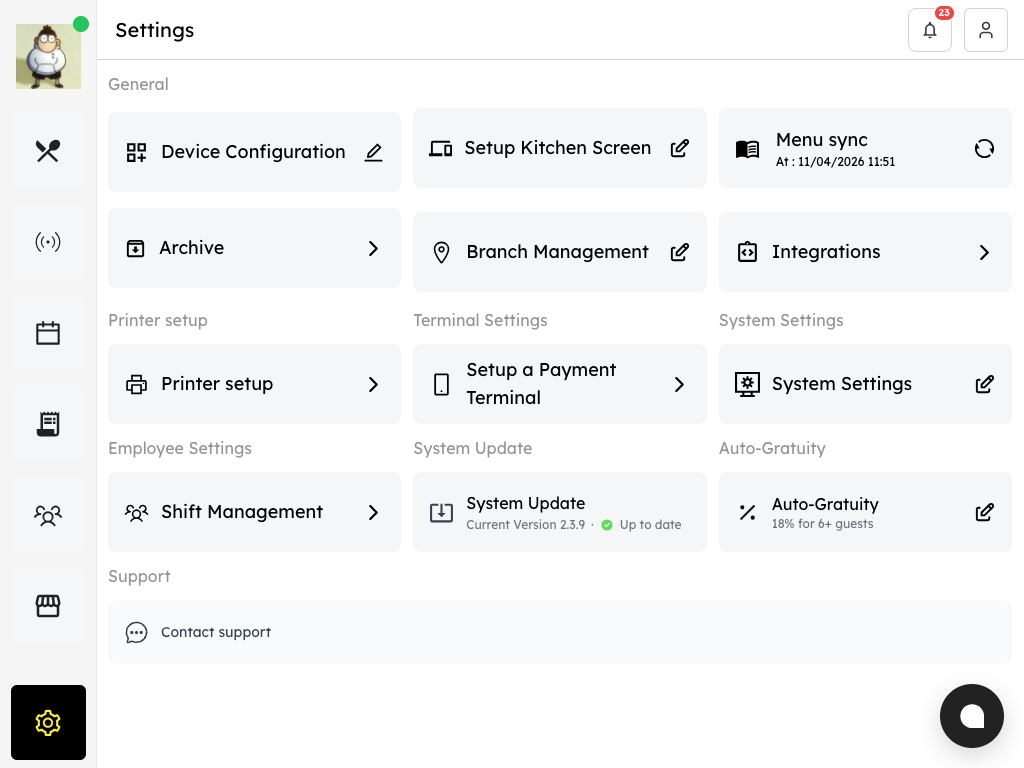
US QA review draft: find payment-terminal setup in Settings.
- Payment terminal: Open this option to review available terminal settings.
For a Bluetooth reader in the supported native app:
- Turn on the reader and keep it near the POS device.
- Select Reader +, then Scan for readers.
- Find the matching reader and select Pair. Check its connection status in the app.
For Tap to Pay, select Tap to Pay + and Connect Tap to Pay if offered, then check the connection status. Availability depends on the device, merchant account, and market. Internet-connected readers use a separate add-device flow with a location and activation code.
These setup paths come from local application source and still need current US QA and hardware verification. Check power and the relevant connection first. Record the device, approximate time, and any error for support; avoid sharing unnecessary customer or card information. Pairing, removing a reader, or changing settings can affect service and should follow your restaurant's procedure.