
Device Management
Configure POS device settings and peripherals
Your restaurant's POS device can use settings and peripherals configured for its role and location.
Review draft: The device-configuration overview was observed in US QA, but an earlier configuration read failed and these settings were not changed or verified. The remaining guide and physical hardware need current-build review. Settings and supported connections vary by device, permissions, and configuration.
Review device settings
Open Settings and select the relevant section available on your device. A manager or authorized technician should make changes to device configuration, printer profiles, or payment-terminal connections. Note the device and restaurant location before requesting help.
The US QA example below shows the overview only. Its displayed states are not proof of the device's intended or saved configuration. The panel was closed without changing a setting or selecting Save.
Scroll across the screenshot to see all four markers.
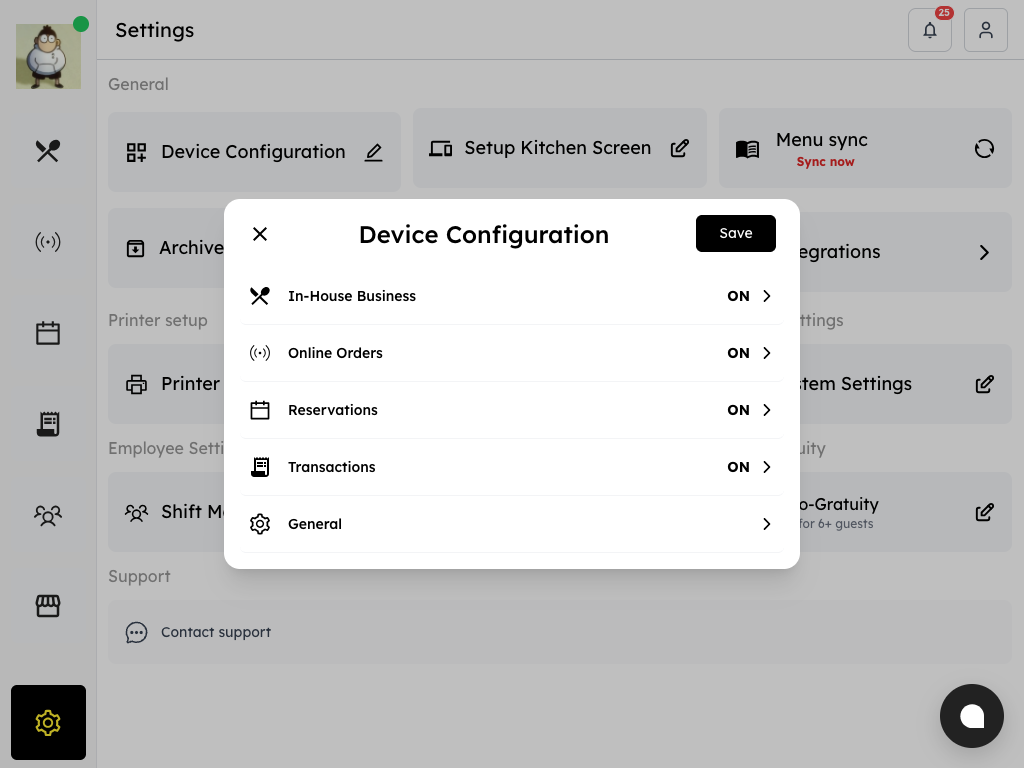
US QA review draft: device configuration overview; the displayed configuration was not verified.
- Close: Close the panel when leaving without changes.
- Categories: Review the service categories available on this device.
- Displayed states: Ask your manager to verify a state before relying on it or changing it.
- Save: Changes require authorization; Save was not used in this example.
Signing in on another device can end existing sessions. Coordinate with your manager before changing devices or using a shared account; see Authentication.
Check connected equipment
- Printers: Check the configured connection and printer profile. See Printing.
- Payment terminal: Follow your restaurant's approved terminal setup and test procedure. Do not assume a connection or payment method is available on every device.
- Cash drawer: Its behavior depends on the hardware and printer profile. Check the configured workflow rather than assuming it opens automatically after every cash payment.
Ask your manager or support before changing a connection, pairing hardware, or running a payment test.
App lock and connectivity
Where app lock is available and configured, follow your restaurant's procedure to lock and unlock the device. Keep PINs private and ask your manager for help if you cannot unlock it.
If the device loses its connection, check the network and follow your restaurant's interruption procedure. Do not assume every order, payment, or synchronization will complete offline; check the result before retrying and contact support if the state is unclear.
Troubleshoot safely
- Note the device, approximate time, and error shown.
- Check power and the relevant network or physical connections.
- Ask your manager or support for the next step. Clearing app or site data, reinstalling, changing settings, or resetting a device can affect locally stored state; do not do so without the approved procedure.
For owner or manager administration, see Partner Portal device settings. That guide has not yet been verified for the current US portal.