
Authentication
Login to Fleksa POS using email/password or device pairing code
Sign in to Fleksa POS using an authorized account or device code provided by your restaurant.
Review draft: The blank sign-in screens below were observed in QA; the full sign-in and recovery workflows need current-build review. Screens and access depend on the device and account.
Before signing in
Coordinate with your manager before signing in on another device. A sign-in can end other sessions using the account or device code; the app may do this before showing a session-selection screen. If a session list appears, ask your manager before ending a session you do not recognize.
Keep passwords, device codes, and PINs private. Use only credentials issued for your role and device.
Sign in with email and password
- Open Fleksa POS on the authorized device.
- Enter your account email and password.
- Select Login.
- Check that you are in the correct restaurant and that the views needed for your role are available.
This blank sign-in screen was captured before a shop was identified. It illustrates the generic QA entry screen, not a verified US account or a completed login.
Scroll across the screenshot if needed to see all three markers.
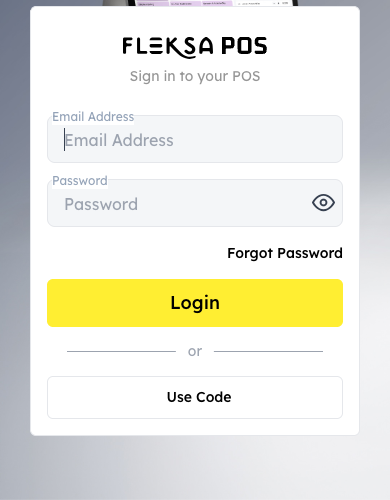
Generic QA entry screen with blank credentials, shown in a scrolled, shortened phone-width viewport.
- Account details: Enter the email and password issued for your role.
- Login: Select Login after entering your account details.
- Use Code: Choose this option if your restaurant issued a device code instead.
If the form reports that an email or password is missing, complete the required field and follow your restaurant's sign-in procedure. This generic QA example shows validation after selecting Login with both fields empty; no credentials were submitted.
Scroll across the screenshot if needed to see both markers.
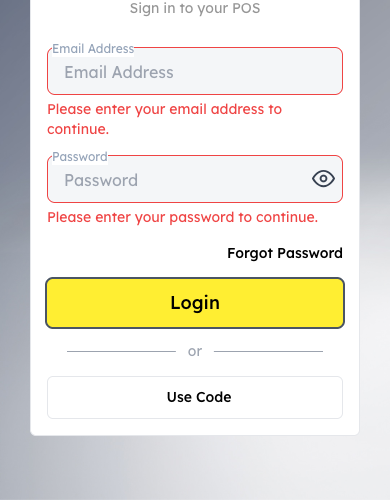
Generic QA entry screen in a scrolled, shortened phone-width viewport; no credentials were entered.
- Email message: The form asks for an email address.
- Password message: The form asks for a password.
Sign in with a device code
- On the sign-in screen, select Use Code.
- Enter the device code issued by your manager.
- Select Login and check that the correct restaurant opens.
The local app expects a 12-character code and formats it as you type. Ask your manager or support if the code is rejected; do not share it in a support message unless your organization's approved procedure requires it.
If the code field appears blank after switching sign-in modes, enter the intended code again before selecting Login. In QA, Login remained enabled after a previously entered synthetic value disappeared from view; the cause and broader behavior need product review.
Scroll across the screenshot if needed to see both markers.
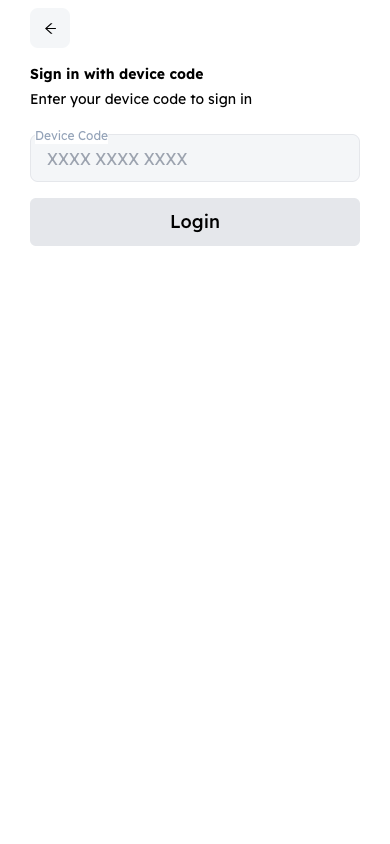
Generic QA entry screen: the example characters are a placeholder, not a device code.
- Device Code: Enter the code issued for your device without sharing it publicly.
- Login: Select Login after entering your device code.
Reset a forgotten password
- On the sign-in screen, select Forgot Password.
- Enter your account email and select Continue.
- Check your inbox and spam folder for reset instructions. If no message arrives, contact your manager or support.
- If the message arrives, follow the link to create and confirm a new password, then sign in.
Scroll across the screenshot if needed to see both markers.
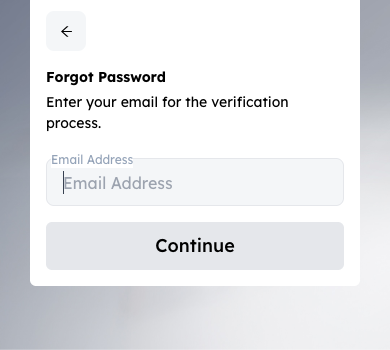
Generic QA entry screen in a scrolled, shortened phone-width viewport. No email was entered and no request was sent.
- Email Address: Enter the email for your authorized account.
- Continue: Follow your restaurant’s procedure to request recovery instructions.
Sign out
Use the Logout option shown in your user menu or account settings, and follow any confirmation. The location can differ by device. Signing out ends the current session; confirm the restaurant's handover procedure before signing out on a shared device.