
Table Management
Manage table layouts, assign orders, and handle table transfers
Use the Dine In floor plan to find a table, open its order, and move an order when guests change tables.
Review draft: One dine-in order was checked in a US test shop. Table transfers and table-status indicators still need verification. Your layout and available actions may differ.
Floor plan: visual example
This example shows the rooms and tables in a test shop. Table colors and their meanings have not been verified; ask your manager if a table's status is unclear.
Scroll across the screenshot to see all three markers.
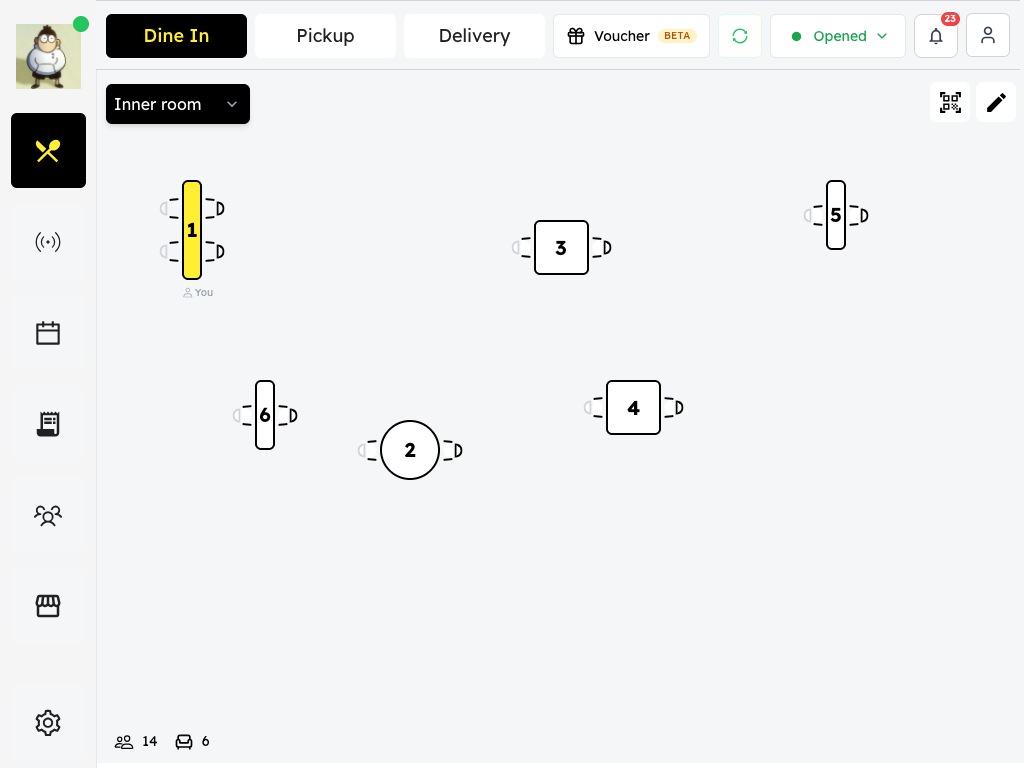
US QA review draft: one room's floor plan.
- Service tabs: Choose the available dine-in, pickup, or delivery view.
- Room selector: Choose the room whose tables you want to view.
- Tables: Review the table layout shown for the selected room.
Phone layout
On a phone, tables appear as cards in this example. Your layout may differ.
Scroll across if needed to see the full phone screenshot.
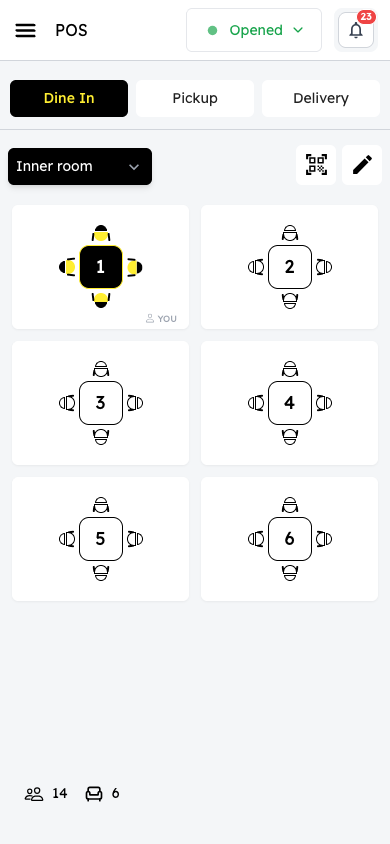
US QA review draft: phone layout for the same room.
- Service tabs: Choose the available service view.
- Room selector: Choose the room to view.
- Tables: Review the table cards shown for the selected room.
Find a table
- Open POS and select Dine In.
- If your restaurant has more than one room, choose the room you want to view.
- Review the tables shown in that room. Colors and icons can vary, so check the information shown for the table. Ask your manager if its status is unclear.
- The room summary can show the number and seating capacity of active tables in the selected room.
Open a table's order
- Select a table on the floor plan.
- Review the screen that opens. An available table normally opens the menu; a table with an order can open its existing order or checkout, depending on its state.
- If you are starting an order, add items and review the cart. See Menu Access for the item-selection steps.
Adding the first item can create an order. Depending on configuration, returning from the menu can also trigger a kitchen-print attempt; check the intended station before retrying.
Opening the menu does not by itself confirm that an order has been created or paid. Check the displayed order and payment status before proceeding.
Move an order to another table
When the table-transfer control is available for an existing table order:
- Open the order and select the swap-arrows control, if shown.
- Choose a different table that the app allows, and confirm with staff that it is available.
- Review the confirmation and confirm only if the destination is correct.
- Check that the transfer succeeded and the order appears on the intended table. If it fails, ask your manager or support for help.
Availability and exact labels need to be confirmed for your restaurant. Follow your restaurant's procedures before changing an active order.
Change service type
Use the available Dine In, Pickup, or Delivery tabs to switch the POS view. Your restaurant's settings determine which services are available.