
Live Orders
Real-time order tracking and status management
Use Live Orders to find an available order and review its details. The list and available actions depend on your restaurant's configuration, permissions, and the order's current status.
Review draft: The steps below have been checked against local application source, but have not yet been verified on the current US QA build. Screen labels and available actions may differ.
Find an order
- Open Live Orders from the navigation.
- Expand the relevant status group to see its orders. The local app includes New Orders, Kitchen, Processed, Done, and Cancelled groups.
- Select an order to view its details. On a smaller screen, the details may open on a separate page.
- Review the items, order type, timing, and payment information shown. The fields available can vary by order.
Scroll across the screenshot to see all four markers.
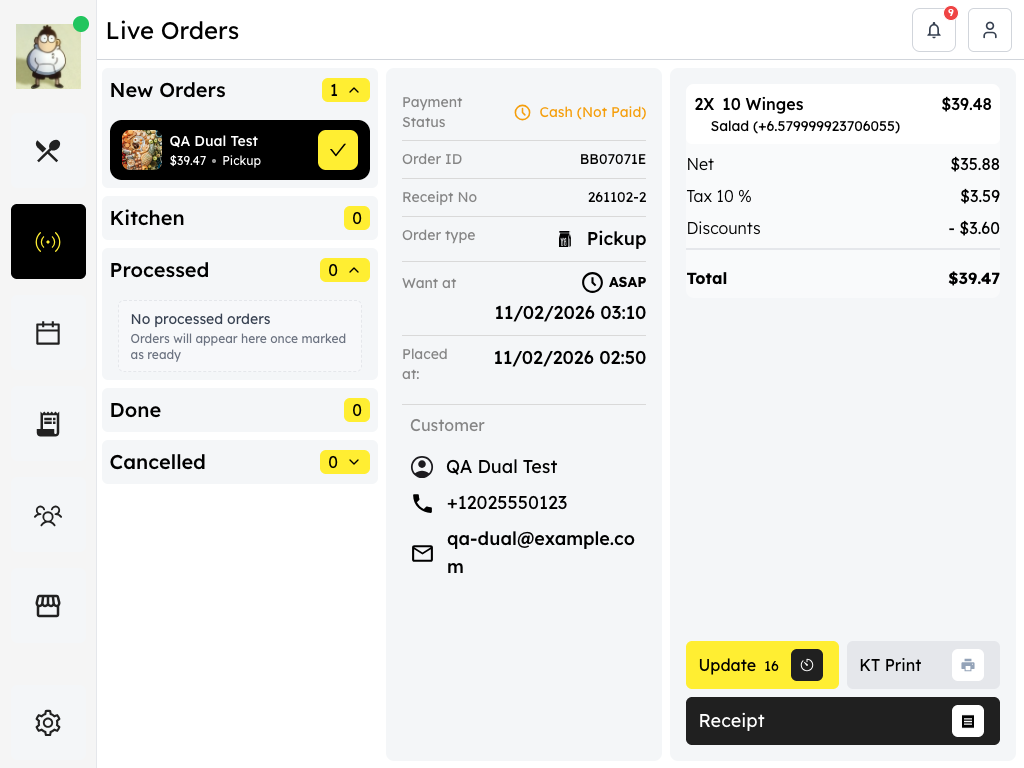
US QA example from November 2, 2026. The test image contains an item-price formatting issue; your screen and available actions may differ.
- Status groups: Expand a group to see the orders in it.
- Selected order: Select an order to review its details.
- Payment status: Check whether the selected order shows a payment status.
- Order actions: Available actions depend on the order and setup.
Opening Live Orders may automatically select an order and mark its notification as read; selecting an order may also mark it read. If the order is missing, check that you are in the correct shop and have a working connection; ask support for help if it still does not appear. The list does not necessarily include every order from every source.
Understand the status groups
The group shows the order's processing status. In the local app, Processed can include orders marked ready, picked up, or on the way; Done contains completed orders, while Cancelled also includes rejected orders. Check the details for the status shown on the particular order.
Order status and payment status are separate. Check the payment information on the order before assuming it has been paid. A completed status alone does not confirm that payment was collected or that a guest received the order.
Update or print an order
When an order has an available status action, review the order and action before selecting the control. Some controls may update the status immediately. Follow your restaurant's procedure and check the result. The action offered can depend on the order's status and source; do not assume every order has the same sequence of buttons.
The order detail view may offer KT Print and receipt options. Availability depends on the selected order and printer setup. If printing is unavailable or fails, check the printer connection and check the station for an existing ticket before retrying; ask your manager or support for help.