
Reservations
View and manage table reservations from the POS
Use Reservations to review booking requests and manage available actions for a guest's visit.
Review draft: These steps were checked against local application source but have not yet been verified on the current US QA build. Access, labels, and actions can vary by role, device, and restaurant configuration.
Reservations screen: visual example
This example shows an empty reservation view. No reservation or waitlist entry was submitted during the US QA review.
Scroll across the screenshot to see all four markers.
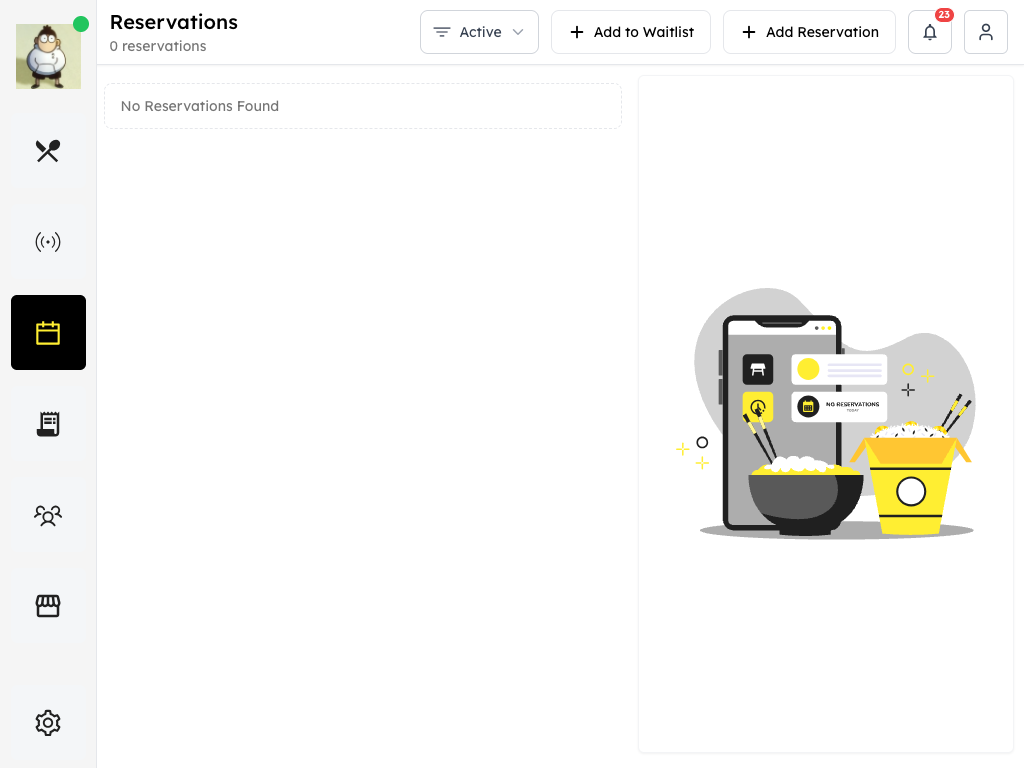
US QA review draft: an empty Reservations view.
- Filter: Review the selected reservation view.
- Waitlist: Open the waitlist form when available.
- Add Reservation: Open the reservation form.
- List: This example has no reservations in the displayed view.
Find and review a reservation
- Open Reservations from the navigation.
- Find the relevant reservation and select it to see its details.
- Review the guest's name, party size, date, time, and any contact information or notes shown.
- Check the displayed status and the actions available for that reservation.
Reservations do not all follow the same sequence. The local app recognizes statuses including requested, accepted, scheduled, assigned, declined, cancelled, completed, and waitlisted. Use the status and actions shown for the particular reservation; their availability can differ.
In this US QA example, the reservation filter offers All, Active, Today, and Upcoming. The Active view was empty at capture; the other views were not opened or checked.
Scroll across the screenshot to see both markers.
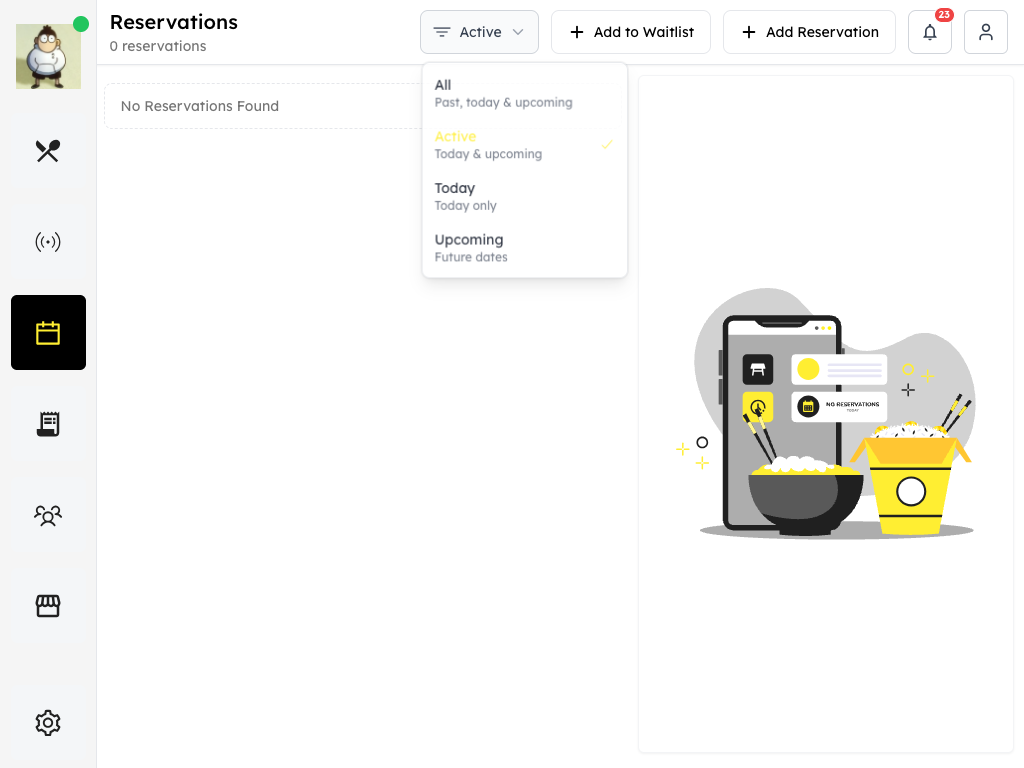
US QA review draft: reservation filter options.
- Filter: Open the filter to see the available views.
- Options: Choose the view that matches the dates you need to review.
Respond to a request
- Open the request and check availability for the requested time.
- Choose an available action, such as accepting or declining, and supply any information the app requests. A decline may require a reason.
- Submit the action if prompted, then check the resulting status or error message.
- Follow your restaurant's procedure for communicating with the guest. Whether a notification is sent automatically needs to be confirmed for your setup.
Some actions, including Accept, may update the booking immediately. Check the request before selecting them.
Assign a table
If an assignment action is available for the reservation, open it and choose the appropriate room and table. Review your selection, confirm the assignment, and check that the result is shown. Selecting a table alone may not complete the assignment. If the action is unavailable or fails, ask your manager or support for help.
Create a reservation
- Select Add Reservation.
- Enter the requested guest, party, date, time, duration, and room-preference details. The app will indicate which fields need attention.
- Review the details and select Create New, if shown. Check the resulting reservation and any table assignment before relying on them.
Creating or updating a reservation changes the restaurant's booking records. Follow your restaurant's procedure for confirming the details with the guest.
Scroll across the screenshot to see all four markers.
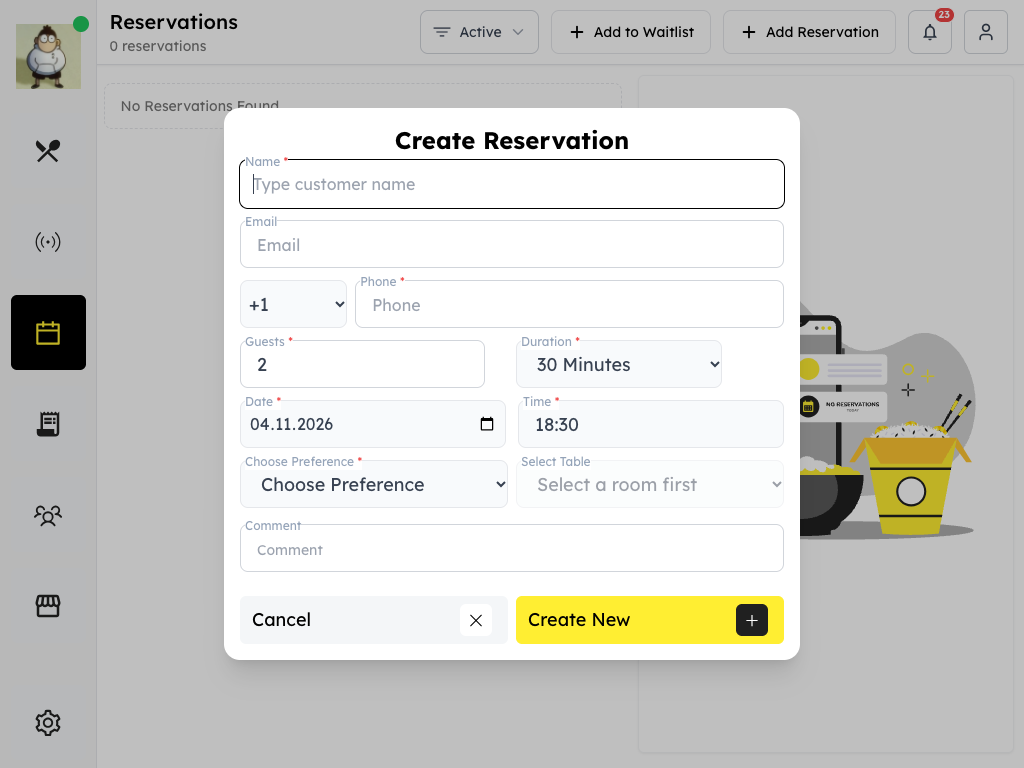
US QA review draft: the blank reservation form. No reservation was submitted.
- Guest details: Enter the information requested by the form.
- Visit details: Review the guest count, duration, date, and time.
- Preference: Choose the requested room preference and any available table.
- Create New: Review the details before creating the reservation.
Add someone to the waitlist
Where Add to Waitlist is available, open the form, enter the requested guest and visit details, and review them before submitting. Check the result and follow your restaurant's guest-contact procedure. Adding, seating, or removing a waitlist entry changes booking records.
Scroll across the screenshot to see all four markers.
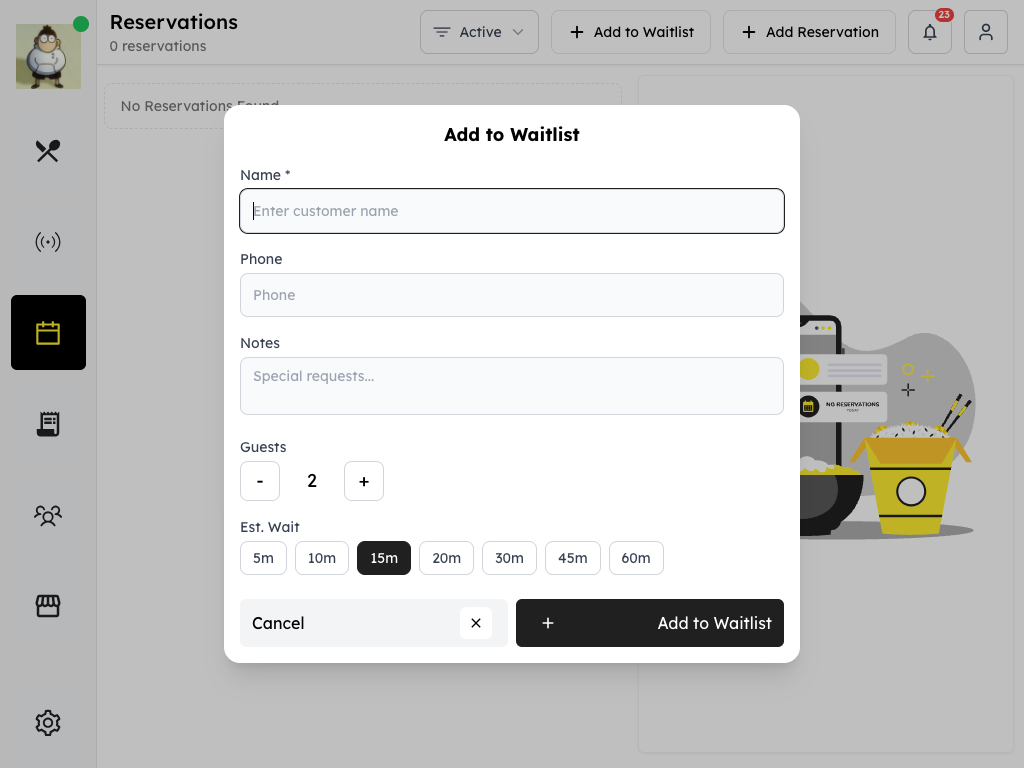
US QA review draft: the blank waitlist form. No entry was submitted.
- Guest details: Enter the requested name and any contact details or notes.
- Guests: Review the party size.
- Estimated wait: Choose the estimated wait shown in the form.
- Add to Waitlist: Review the details before adding the entry.