
Settings
Configure POS app settings and preferences
Use Settings to review the options available for your POS device and restaurant.
Review draft: The overview was observed in US QA; the instructions and individual settings have not been fully verified on that build. Sections and permissions vary by device and role.
Find a setting
- Open Settings from the POS navigation.
- Select the relevant section shown on your device. Depending on access and platform, sections can include device configuration, printer, terminal, and system settings.
- If an option is missing or unclear, ask your manager or support to check your access and device configuration.
Scroll across the screenshot to see all five markers.
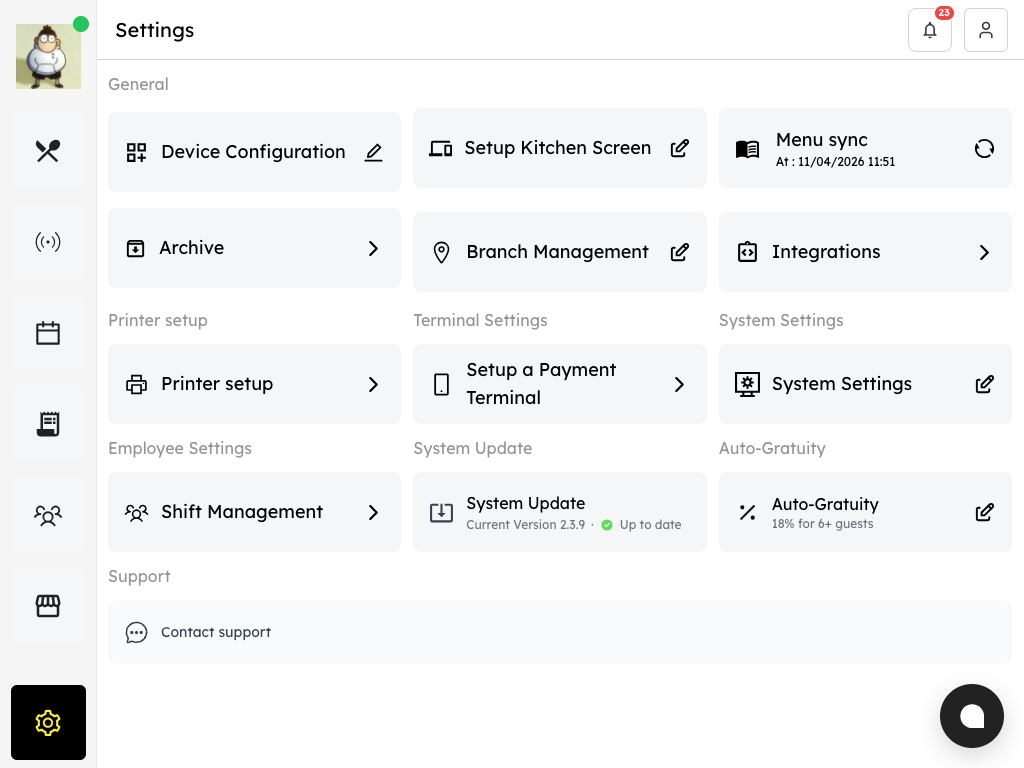
US QA review draft: available settings vary by device, role, and configuration.
- Device configuration: Review device-related options when your role permits.
- Printer setup: Open printer options for the configured device.
- Payment terminal: Find terminal setup if it is available on your device.
- System settings: Find system options available for this device.
- Support: Find the support entry point if you need help.
General settings overview
In the US QA example below, General shows confirmation, language, and time-format options. The panel labels the confirmation options as shop configuration; the scope and displayed values were not independently verified. It was viewed and closed without changing a control or saving. Check your restaurant's intended configuration with a manager before relying on or changing these settings.
Scroll across the screenshot to see all three markers.
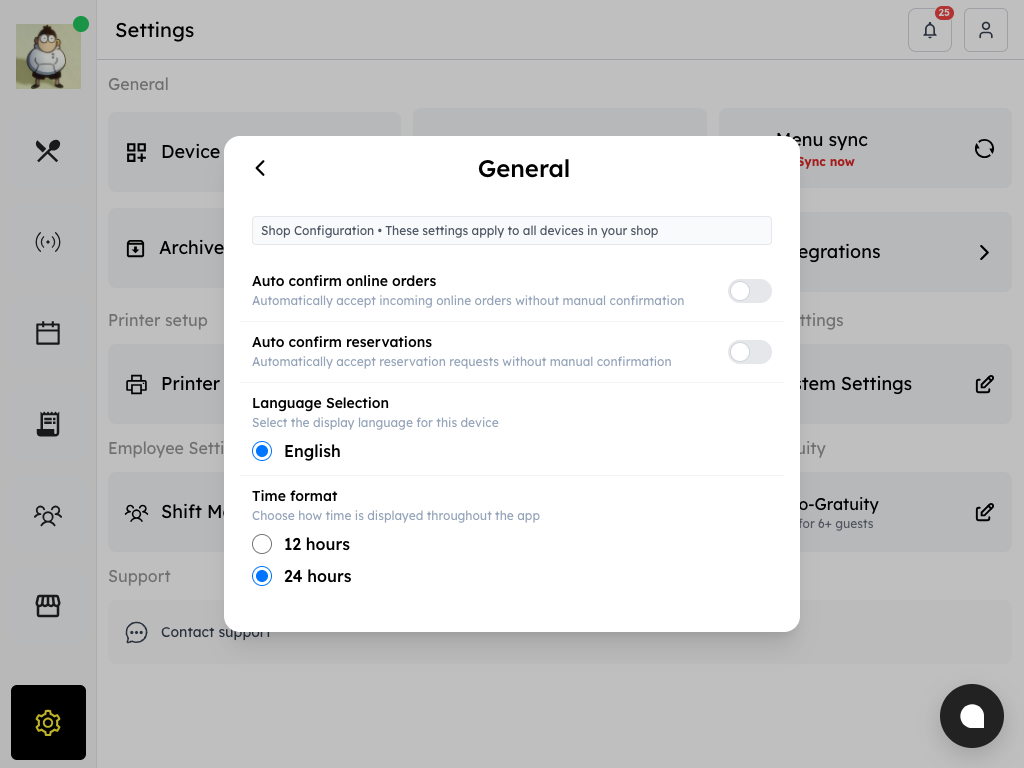
US QA review draft: General settings overview; displayed values were not verified.
- Confirmation options: Review the options shown for online orders and reservations.
- Language: Review the language shown and confirm its scope with your manager before changing it.
- Time format: The panel shows the available time-format choices.
Before changing settings
Only authorized staff should change configuration. Service availability, order or reservation confirmation, printer routing, and terminal settings can affect restaurant operations. Confirm the intended device, shop, and change with your manager first.
Some settings apply to a device and others to the shop. Save when prompted and check the result; do not assume every device inherits the same settings or that a reinstall restores them.
Common tasks
- For printer connections and routing, see Printing.
- For device and connection guidance, see Device Management.
- For service availability, see POS Operations.
- For account access and sign-out, see Authentication.
If settings do not save or behavior is unexpected, note the device and error and ask support for help. Do not clear app or site data or reinstall as a routine troubleshooting step without an approved procedure; local state can be affected.