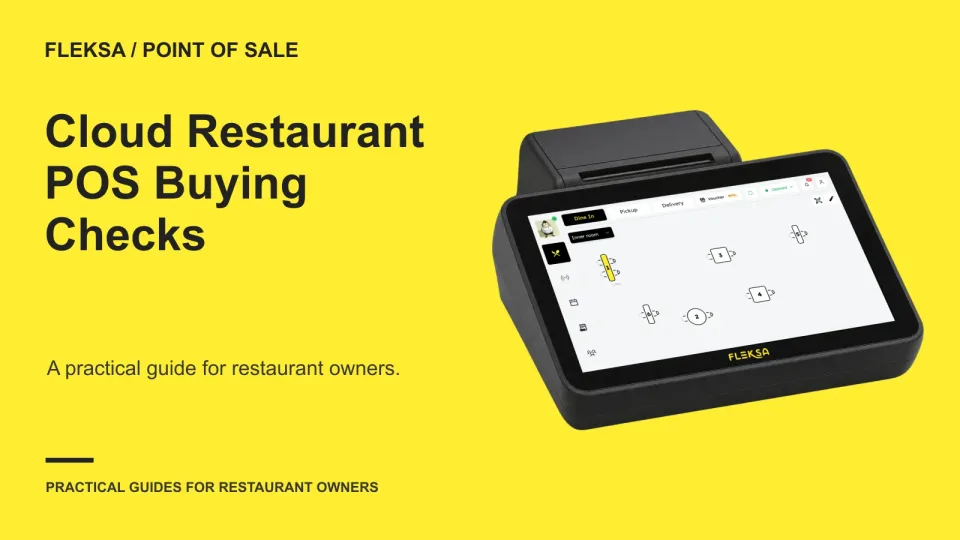
A cloud based restaurant POS can be a good fit if you need access to information across devices or locations and have a workable plan for internet interruptions. The buying decision turns on what the particular system can do during an outage, how devices share information, and whether support is available when your restaurant needs it.
Don't assume that a cloud label means orders, printers, or card payments will keep working without internet. Ask each vendor to demonstrate your service workflow and explain its limits before you sign.
How a cloud restaurant POS works
Think of a cloud POS as a combination of restaurant devices, a local network, and software services accessed over the internet. A server might enter an order on a terminal or handheld device. Depending on the setup, that information may reach another device, a kitchen screen or printer, and a remote service that stores or reports on the order.
Those pieces do not necessarily depend on the same connection. Your local network connects devices inside the restaurant; your internet connection links the restaurant to outside services. A working Wi-Fi signal does not by itself prove that the internet is available, and an internet outage does not automatically tell you which local functions will stop.
Local operation means work a device or network can perform at the restaurant. Synchronization is the process of bringing information into agreement between devices or services. Cloud reporting generally means reports are available through an online service, subject to the system's permissions and connection requirements.
Ask where an open order is held if the connection drops, what happens when it returns, and how staff can spot a conflict or duplicate. Also ask how current remote reports are during and immediately after an interruption. A report that is delayed can still be useful, but it should not be mistaken for a complete live view.
Cloud and traditional systems both come in different configurations. For the broader architecture decision, see the cloud POS versus traditional POS comparison. Neither category alone guarantees reliable service or offline payment acceptance.
Check the system against a real shift
Write down the tasks your staff must complete during your busiest period: opening a check, adding modifiers, sending an order to the kitchen, moving or splitting a check, taking payment, and closing out. Add any online ordering or location-level reporting you actually use. Give the same list to every vendor.
The table below turns common concerns into acceptance checks. Decide which results are essential for your restaurant before watching a demonstration.
| Service condition | Ask the vendor to show or explain | What to decide |
|---|---|---|
| Internet interruption | Which order, kitchen, and payment functions remain available; how records recover | Whether the remaining workflow and your backup are workable |
| Several devices | How an order appears on another device and how conflicting edits are handled | Whether staff can coordinate without losing track of a check |
| More than one location | Location permissions, menu changes, and separate and combined reports | Whether managers see and change only what they should |
| Busy service support | Contact channels, hours, escalation, and expected response terms | Whether help is available during your actual opening hours |
Plan for an outage before it happens
Ask the vendor to distinguish a lost internet connection from a failed router, power outage, and device failure. Each can affect a different part of the setup. For example, a backup internet connection may help when the primary service fails, but it will not power a dead terminal. Ask who supplies and configures any backup, what it costs, and whether it supports the payment equipment as well as the POS.
Have a written fallback for taking orders and communicating with the kitchen if the system cannot perform a required task. Decide who records payments or unpaid checks and who reconciles the records afterward. If the vendor offers offline card handling, ask about approval, storage, limits, later submission, and the risk of a payment being declined. Do not treat an offline order as proof of an approved card payment.
Use a safe simulation, then consider a live pilot
For a practice demonstration, use a vendor-provided sandbox or other isolated test environment. Have two staff members work with a sample order, including a modifier and a change to the check. Ask the vendor to simulate the relevant connection interruption and show what each device displays before and after recovery. Confirm first that the exercise cannot create a real payment, guest message, or courier dispatch.
A live service pilot is different: real orders and payments may be involved. If you choose one, agree on its scope, staff responsibilities, support contact, and fallback process in advance. Keep the pilot small enough that the team can reconcile orders and payments afterward. A demonstration is not evidence that your own network or staff workflow has already passed a live-service test.
Check access across devices and locations
List the terminals, handhelds, printers, and kitchen displays you want to use. Ask which exact models and network arrangements the vendor supports, what happens when one device disconnects, and whether adding a device changes the subscription or support charge. Do not assume your existing hardware will work.
For multiple locations, ask whether a menu change can be made for one store without affecting another. Have the vendor show how permissions work for an owner, a location manager, and a cashier. Confirm whether reports can be viewed by location and together, and whether a manager away from the restaurant needs a separate login or paid access.
Compare the full operating quote
A monthly software price is only one part of the decision. Request a written quote for the same number of locations and devices from each vendor. Include setup, hardware, subscriptions, support, updates, payment processing, and any services you need for your normal workflow. Ask which amounts are fixed, which vary with usage, and which apply only when something goes wrong or changes.
Here's a hypothetical quote comparison for one restaurant over 12 months. It is not a Fleksa price or a vendor offer. Option A has $600 in setup and hardware plus $120 per month in software and support: $600 + $1,440 = $2,040. Option B has $300 in setup and hardware plus $160 per month: $300 + $1,920 = $2,220. On these assumptions, A is $180 less for the first year.
Those totals include the stated fixed setup, hardware, software, and support costs. They exclude variable processing fees, connectivity, additional devices, and exception costs such as replacement equipment or after-hours assistance. If A charges extra for support during your busiest hours while B includes it, the comparison needs those terms and costs before you choose. The lower quoted subscription alone does not establish the lower all-in operating cost.
Ask for payment processing to be quoted separately, including the basis for any variable charges and other payment-related fees. Compare those figures using your own expected payment mix; processing fees are not the same as total POS operating cost. Ask whether you must use a particular processor and what changes if you want to switch.
For current Fleksa pricing, consult the plans page; pricing details were checked in November 2026. For another way to examine recurring and indirect costs, read the guide to when a no-monthly-fee POS costs more.
Protect access to your data and support
Before committing, ask for a sample export of the information you would need to run the business or move to another system. That may include menu items and modifiers, sales summaries, order history, and customer records where applicable. Check the file format, whether the data is readable, and whether important details appear as separate fields rather than being buried in notes.
Ask who can authorize an export, whether there is a charge, and how long you retain access after cancellation. Also ask what happens to your data when the agreement ends. Give any proposed contract terms to a qualified adviser if you need help assessing their legal or tax treatment.
Support deserves the same detail. Ask whether help is available during weekends and late shifts, which issues are covered, and how an urgent outage is escalated. A contact number is useful only if someone can help during your service hours. Clarify who handles the POS, payment device, internet connection, and printer when a problem crosses suppliers.
Finally, ask how updates are scheduled, whether staff must take action, and whether an update can affect connected devices. Identify who at your restaurant receives notices and checks the setup afterward. Remote management is convenient only if access is controlled: ask about individual staff accounts, permissions, and the process for removing access when someone leaves.
Choose a vendor and plan the changeover
Toast lists a restaurant POS, hardware, online ordering, payments, kitchen display systems, and integrations. Square offers restaurant point of sale and related payment and order tools. Fleksa offers a restaurant POS connected with direct ordering, reservations, and related tools. These descriptions are starting points, not proof that any system meets your outage, hardware, or contract requirements.
Use one requirements sheet for all three or any other shortlist. Mark each requirement as essential or optional, record what the vendor demonstrated, and note what must be confirmed in the written quote. If your restaurant has frequent outages and cannot operate using the available fallback, reject a system that fails that requirement even if its remote reporting looks attractive.
For a changeover, start with a restaurant-approved reference menu. Check categories, modifiers, quantities, availability, and totals in the new setup. Compare the floor setup with how your staff actually work. Fleksa's POS page describes onboarding guidance for preparing the menu and floor; ask what help and migration work are included in your quote.
Schedule staff practice separately from live service, using an isolated environment that cannot charge a card, message a guest, or dispatch a courier. Agree on a cutover time, a way to track open checks, and a fallback if the new setup needs attention. Reconcile orders and payments after the change. No migration plan should assume that lost orders or interruptions are impossible.
Bring your requirements sheet, device list, sample menu, and busiest service hours to a demonstration. Review the Fleksa restaurant POS system and request a demonstration against those requirements, including your outage and support questions.
Frequently asked questions
Can a cloud POS work without internet?
Some functions may work locally, but the answer depends on the product and setup. Ask specifically about orders, kitchen communication, payments, and recovery after reconnection.
Do I need new hardware for a cloud POS?
Not necessarily. Provide the vendor with the models you own and ask which are supported, what configuration they need, and what replacement or additional devices would cost.
Can I see reports for more than one restaurant?
Ask each vendor to demonstrate separate and combined reports, access permissions, and any additional location charges. Confirm how reporting behaves when a location loses connectivity.