
How to Set Up Opening Hours
Review and update your restaurant's opening hours in the Partner Portal
Use Shop Timing in the Partner Portal to review your restaurant's regular hours.
Review draft: The settings below were viewed in a US QA shop, but hours were not changed or saved. Your options may differ; the screenshots need review before publication.
Setting Regular Hours
- Sign in to the Partner Portal and open Settings.
- Choose Shop Timing, then review the Timings tab.
- Check each day's time range. Use the controls shown for any authorized changes.
- Review the details before selecting Save, then check the resulting hours.
Scroll across the image to see both markers.
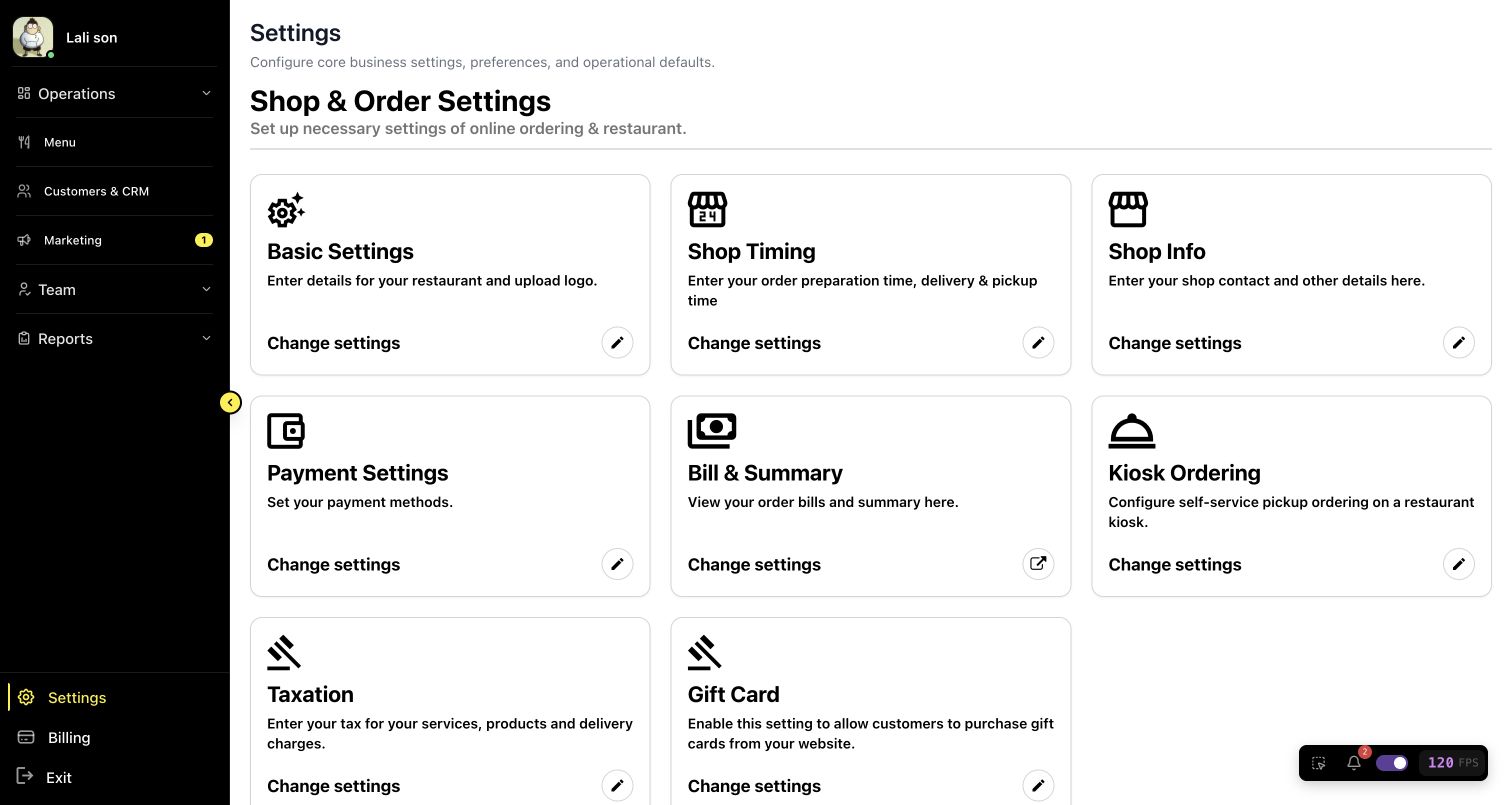
US QA review draft: open Shop Timing from Settings.
- Settings: Open Settings from the sidebar.
- Shop Timing: Open the timing settings.
Scroll across the image to see all three markers.
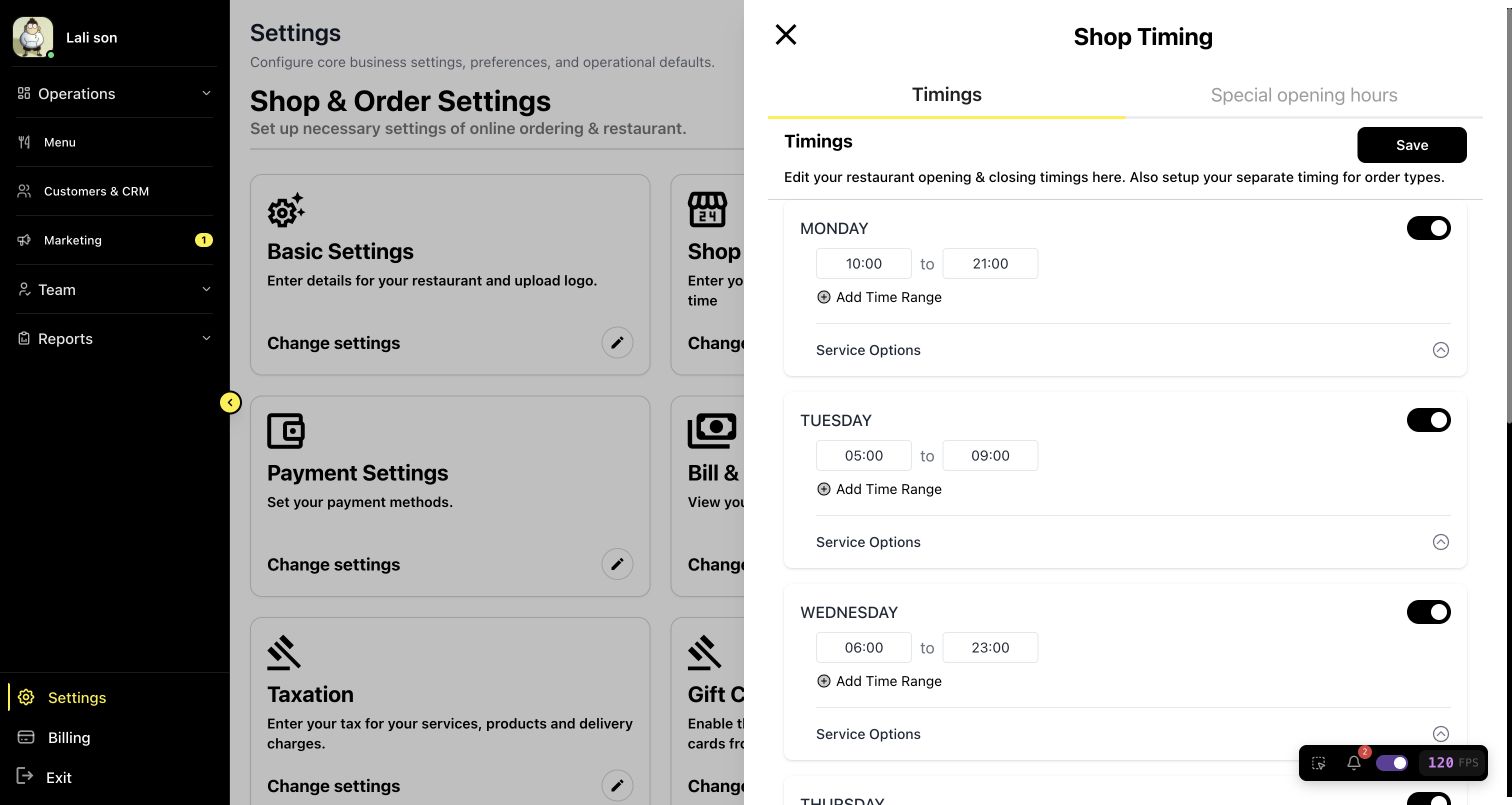
US QA review draft: example hours; no changes were saved.
- Timings: Review regular hours in this tab.
- Day and hours: Check each day and its time range.
- Save: Review changes before saving.
Setting Holiday Hours
The QA screen also showed a Special opening hours tab. The steps and effect of special hours were not tested; ask your manager or support how your restaurant handles holidays before making a change.
Timezone Settings
If the displayed hours do not match your restaurant's local time, ask your manager or support to check the timezone and settings.
How Hours Affect Your Channels
Availability can depend on your restaurant's setup. After a change, check the relevant ordering channels and follow your restaurant's procedure if the hours do not appear as expected.