
Integration Settings
Third-party platform connections and integrations
Integration Settings connects your restaurant to third-party platforms including delivery services, POS systems, order aggregators, and Google services.
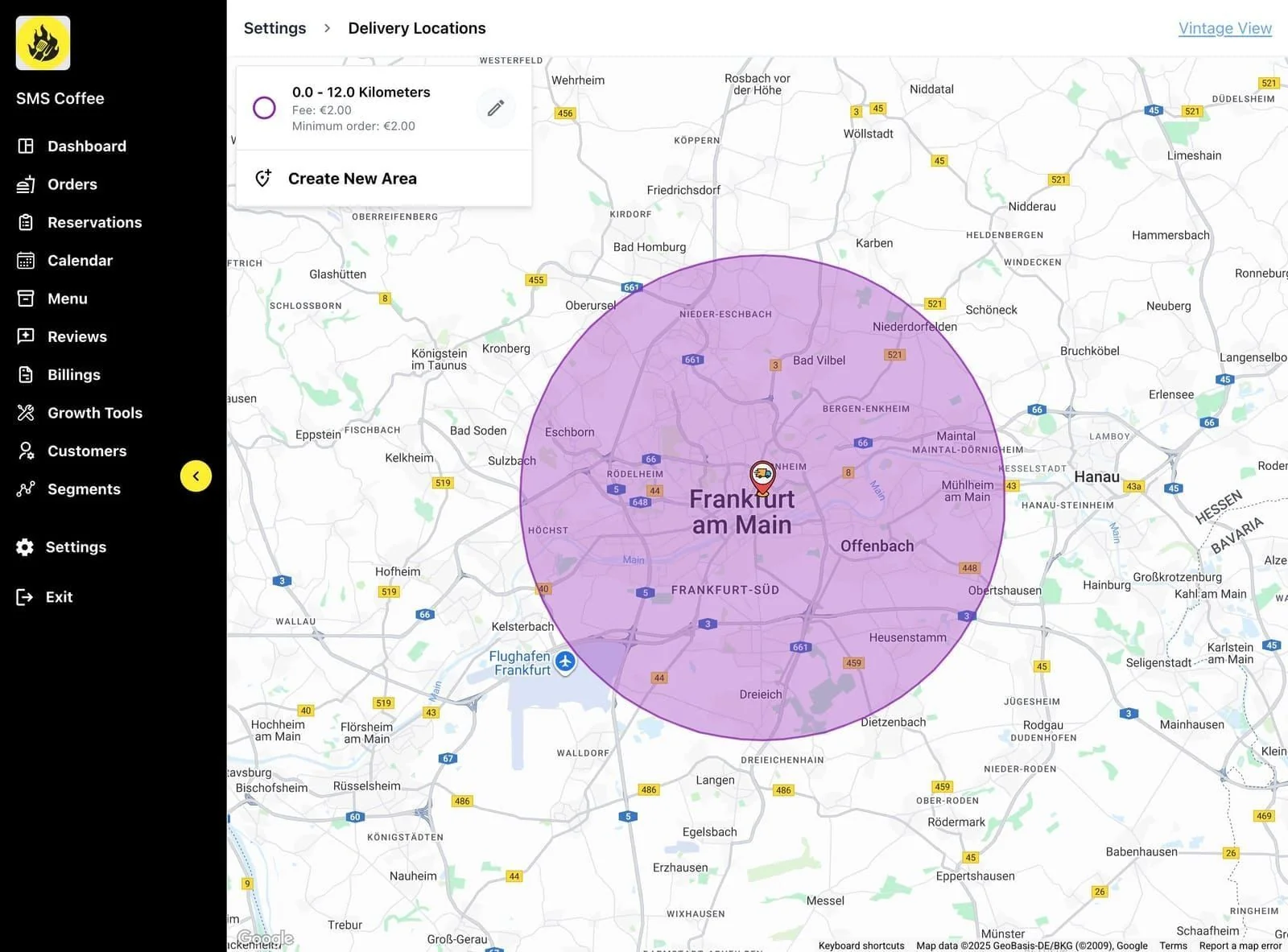
Accessing Integrations
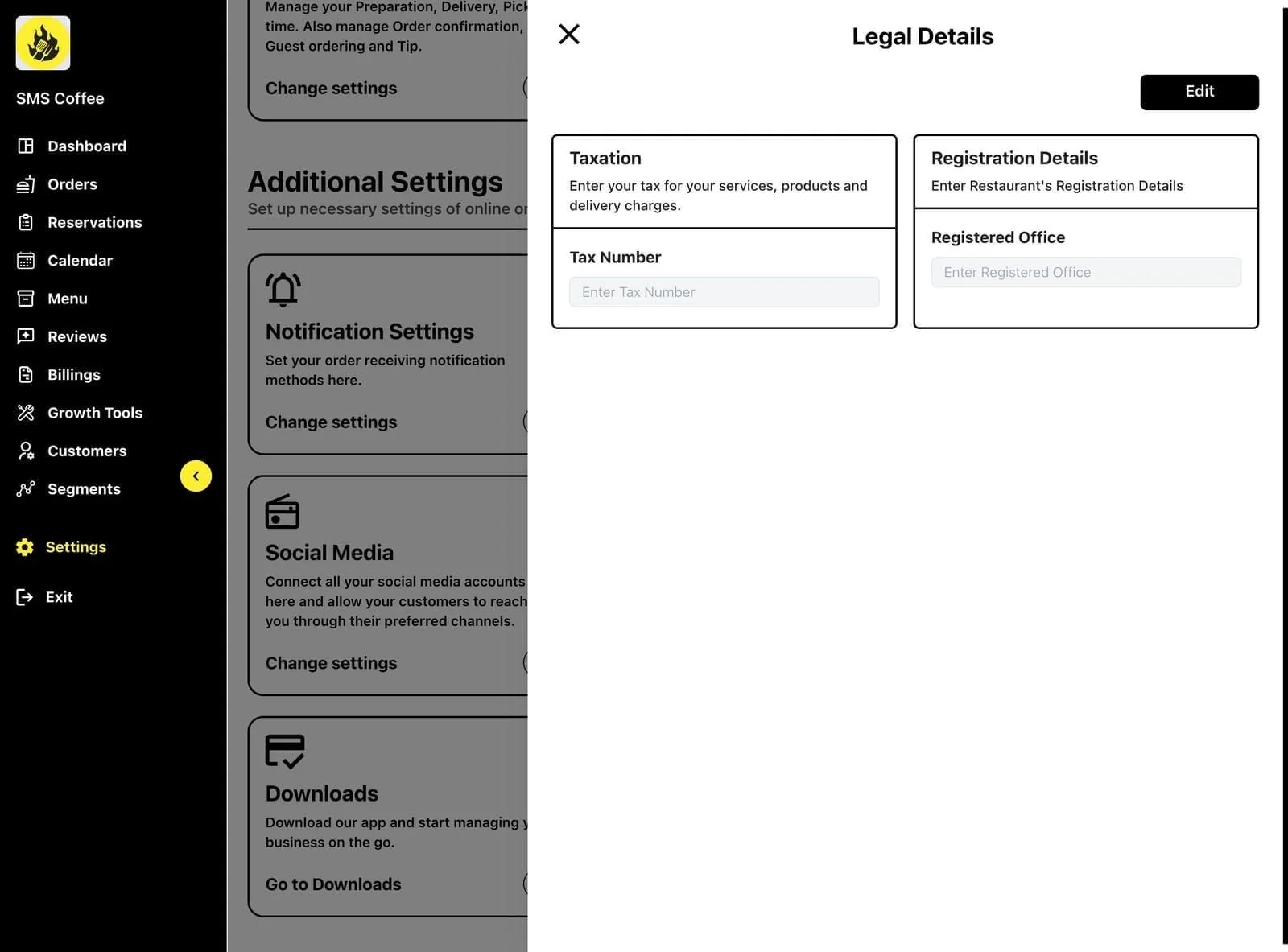
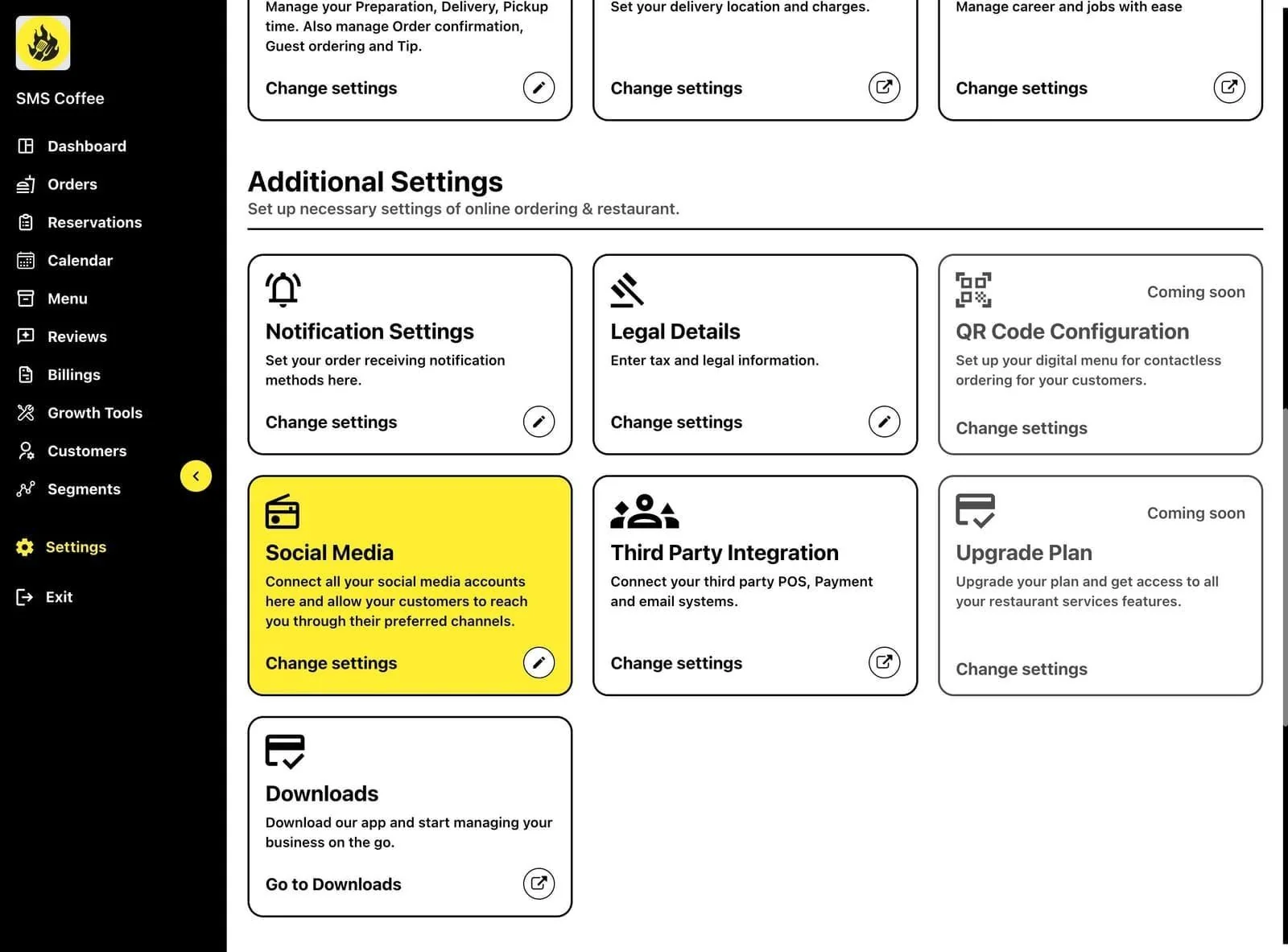
Step 1: Click Settings in the sidebar
Step 2: Click Integrations
Step 3: View all available integrations
Step 4: Click any integration to configure
Available Integrations
| Integration | Type | Description |
|---|---|---|
| Google Orders | Order Source | Accept orders from Google |
| External POS | POS | Connect supported POS systems |
| First Delivery | Delivery | Delivery service |
| Ordering channels | Orders | Bring supported orders together |
| Win Order | POS | Order management |
| RWG | Reservations | Google Reserve |
| vGrub | Delivery | Delivery platform |
Google Orders Integration
Connect to Google Food Ordering:
Step 1: Find Google Orders in the list
Step 2: Click Connect
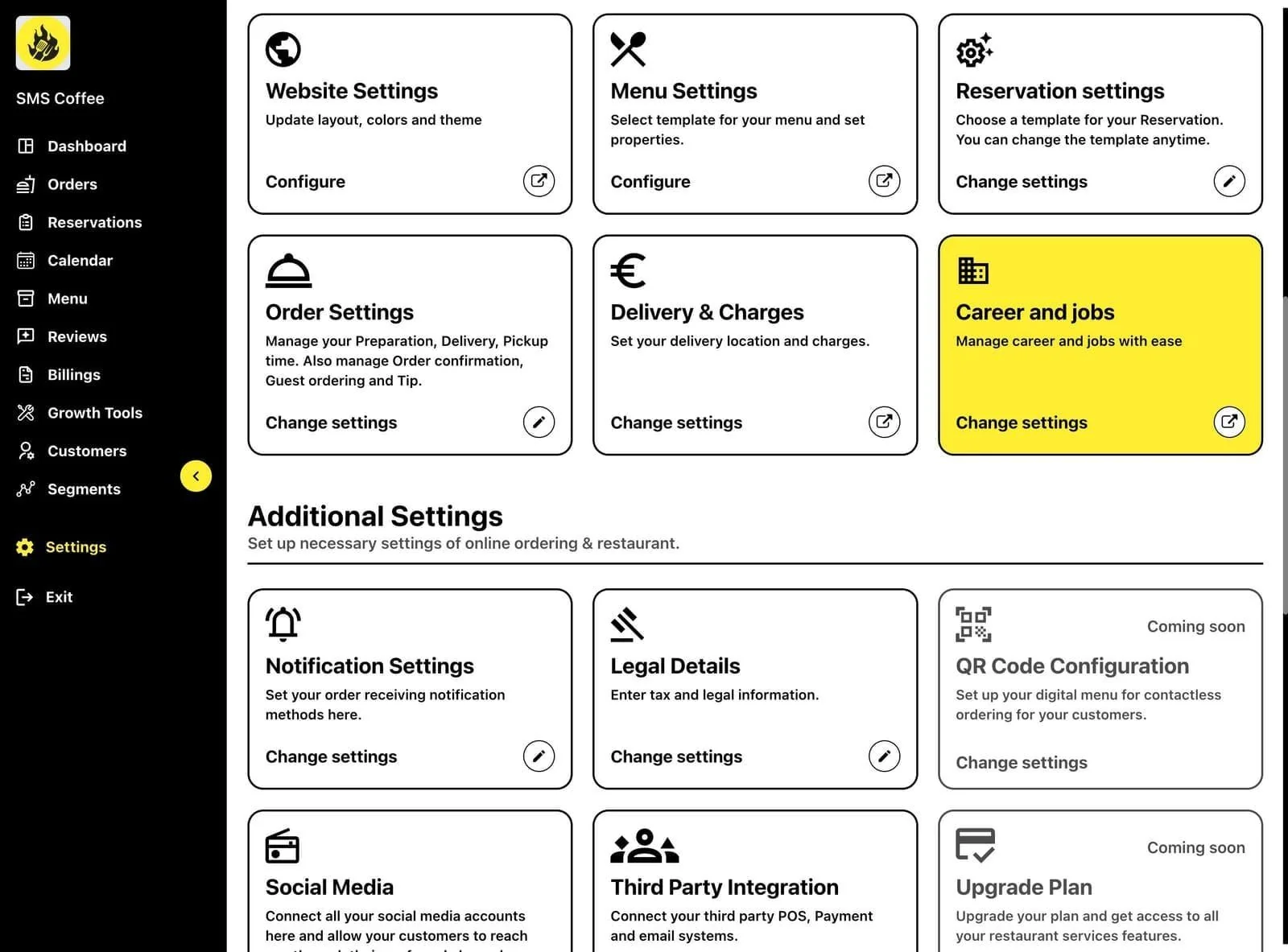
Step 3: Sign in with your Google account
Step 4: Select your business location
Step 5: Configure menu sync settings
Step 6: Enable the integration
Step 7: Orders from Google appear in your dashboard
External POS connections
Contact Fleksa support to check compatibility and configure your existing POS connection.
First Delivery Integration
Connect delivery service:
Step 1: Find First Delivery
Step 2: Click Connect
Step 3: Enter your First Delivery account details
Step 4: Configure delivery settings:
- Auto-assign drivers
- Delivery zones
- Notifications
Step 5: Save and enable
Third-party ordering connections
Contact Fleksa support to connect supported ordering channels and configure the order workflow for your restaurant. Availability depends on your market and setup.
Win Order Integration
Connect Win Order POS:
Step 1: Find Win Order
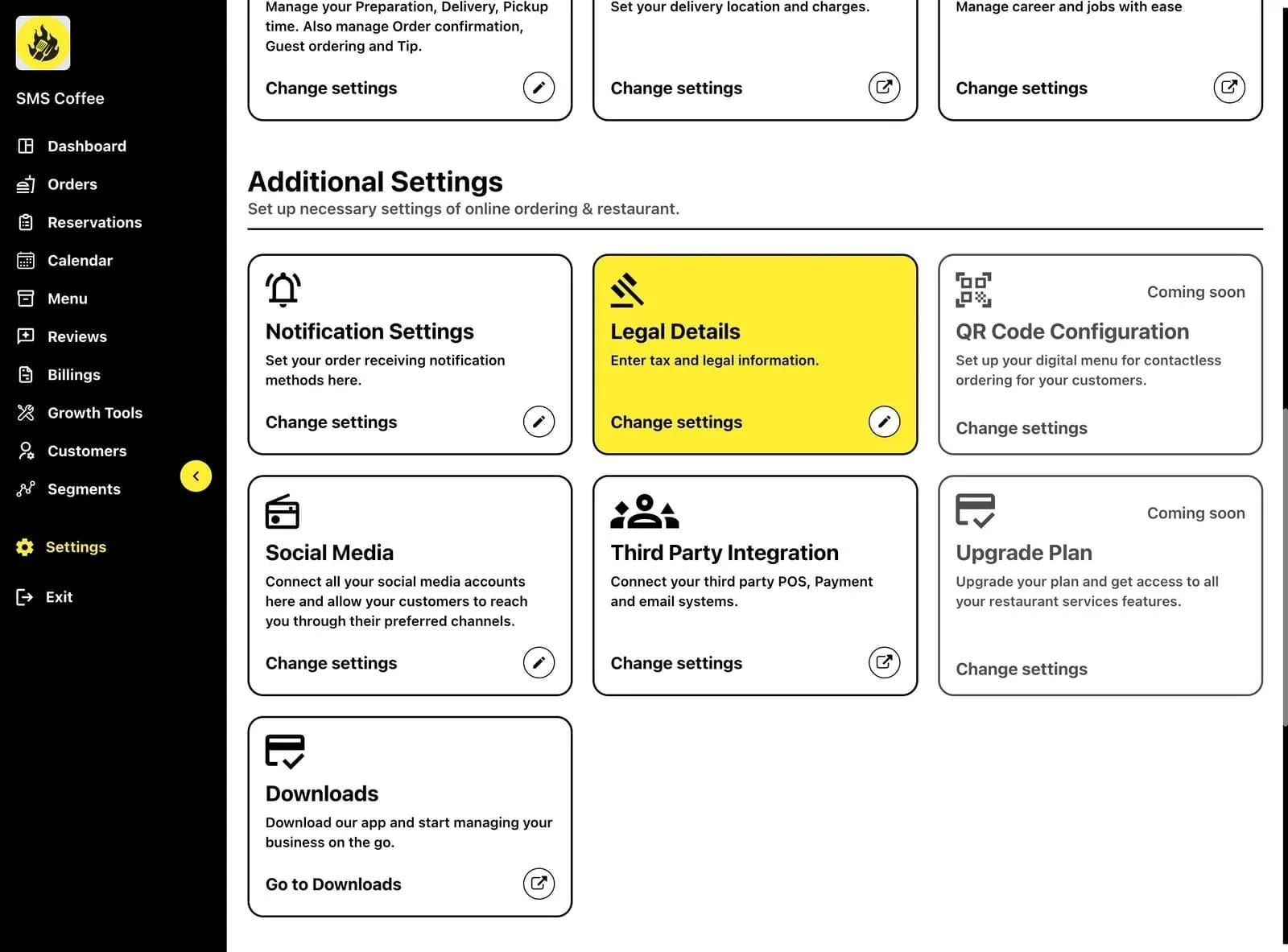
Step 2: Click Configure
Step 3: Enter API credentials
Step 4: Test connection
Step 5: Enable sync
RWG Integration (Google Reserve)
Accept reservations through Google:
Step 1: Find RWG
Step 2: Click Connect
Step 3: Link your Google Business Profile
Step 4: Configure reservation settings:
- Available times
- Party sizes
- Table allocation
Step 5: Enable Google Reserve
Reservations from Google appear in your reservation system.
vGrub Integration
Connect to vGrub delivery platform:
Step 1: Find vGrub
Step 2: Click Connect
Step 3: Enter vGrub credentials
Step 4: Sync menu
Step 5: Configure order settings
Step 6: Enable integration
Managing Integration Status
Check if integrations are working:
| Status | Meaning |
|---|---|
| Connected | Active and working |
| Error | Connection issue |
| Disabled | Turned off by user |
| Pending | Awaiting setup completion |
Troubleshooting Integrations
Connection Failed
Step 1: Check your credentials are correct
Step 2: Verify the third-party service is available
Step 3: Try disconnecting and reconnecting
Step 4: Contact support if issues persist
Orders Not Syncing
Step 1: Verify integration status is "Connected"
Step 2: Check for error messages
Step 3: Verify menu is properly mapped
Step 4: Test with a small order
Menu Sync Issues
Step 1: Check menu mapping configuration
Step 2: Verify all required fields are filled
Step 3: Re-sync menu manually
Step 4: Check for item restrictions
Disabling an Integration
Step 1: Find the integration
Step 2: Click the settings/gear icon
Step 3: Toggle Enabled to OFF
Step 4: Confirm disable
Integration will stop sending/receiving data.
Removing an Integration
Step 1: Find the integration
Step 2: Click Disconnect
Step 3: Confirm removal
Step 4: Credentials are removed
Integration Notifications
Get alerts for integration issues:
Step 1: Go to Settings > Notifications
Step 2: Enable integration alerts
Step 3: Choose notification method (email/push)
Step 4: Save settings
Best Practices
Setting up:
- Test each integration before going live
- Start with one platform at a time
- Verify menu sync is correct
- Train staff on order sources
Ongoing maintenance:
- Monitor integration status daily
- Check for sync errors
- Update credentials before they expire
- Keep integrations up to date
Troubleshooting:
- Document integration credentials securely
- Know support contacts for each platform
- Have fallback plans for outages