
Reports & Analytics
Sales, item, category, transactions and compliance reports with exports. Includes Sales & Compliance, Item Sales, Transactions and more (some conditional on country and feature flags).
Use Reports to find sales, item, category, and transaction information for your restaurant. The reports available depend on your location, permissions, and setup.
Review draft: The example below is from a vGrubs staging guide dated October 12, 2026. Reports and exports were not opened or verified in the current US QA review. The remaining older steps need product review before publication.
Find a report
- Open Reports from the sidebar, then choose Reports Home if shown.
- Choose the report for the question you need to answer: sales, individual transactions, items, or categories.
- Check the date range and filters before comparing figures. Ask your manager or support if the report you need is unavailable.
Scroll across the screenshot to see all four markers.
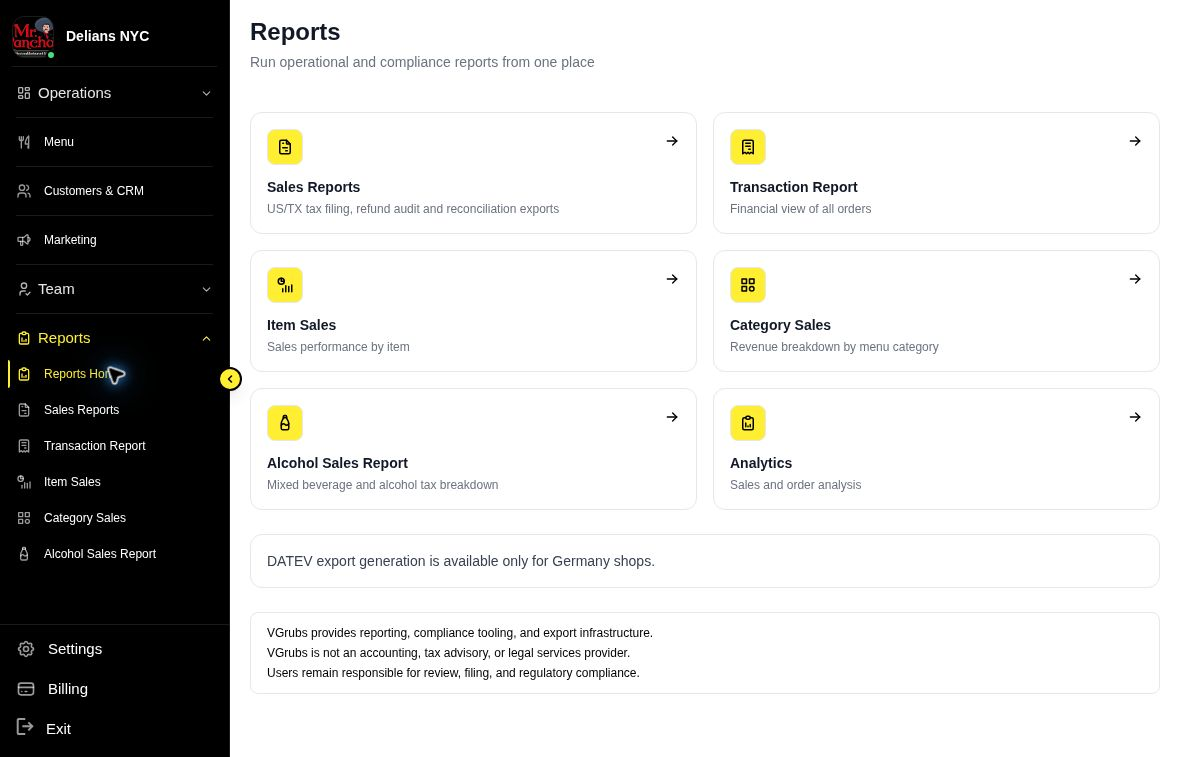
Staging example: available reports can differ by restaurant and market.
- Sales Reports: Review sales reports available to your restaurant.
- Transaction Report: Find individual payment activity.
- Item and Category Sales: Choose an item or category report to review menu performance.
- Analytics: Open the broader analytics view when available.
Dedicated Reports (Current App)
- Sales Report — Overall revenue, breakdowns by payment method, order type, channel, trends and exports.
- Item Sales Report — Per-item quantity, revenue, top/under-performers for menu decisions.
- Category Sales Report — Sales grouped by menu categories.
- Transactions Report — Individual payment transactions, refunds, reconciliation.
- Alcohol Sales Report (US/TX) — Specialized alcohol volume/tax report (only visible for qualifying US/TX shops).
- Shop Activity / Audit Log, Profile, Downloads, Payout Details, Invoices & Billing Summary, Onboarding status — available under Reports or user menu.
Select a report above for more detail.
Sales & Compliance (DE + US/TX)
For German shops this surfaces the DATEV Export:
Step 1: Go to Reports (or Sales & Compliance).
Step 2: Select the DATEV / compliance export option.
Step 3: Choose date range and generate the file.
Step 4: Download and import into your accounting software (DATEV).
US/TX shops see the Alcohol Tax report for regulatory compliance in addition to standard sales reports.
General Report Features (All Reports)
Date Range Selection
Step 1: Use the date picker at the top of any report.
Step 2: Choose presets (Today, This Week, This Month, Last 3 Months, etc.) or set a custom range.
Step 3: The view and all numbers update automatically.
Exporting Data
Most reports have an Export button (CSV, Excel, PDF). The exported data matches the current filters and view.
Key Metrics Commonly Available
- Total Revenue / Net Revenue
- Number of Orders
- Average Order Value (AOV)
- Breakdowns by channel, payment method, order type
- Trends over time (daily/weekly charts in several reports)
Related & Deep Dives
- Sales Report (detailed)
- Item Sales Report (detailed)
- Transactions Report (detailed)
- Main Reports & Analytics overview (links to all atomics)
Note: Exact available reports and columns depend on your shop country, enabled report modules (reports_*_enabled flags), and user permissions (SHOP_REPORT_ACCESS). Some older "Billing Reports" or generic analytics views have been replaced or augmented by the dedicated reports listed above.
For financial reconciliation also see Payout Details and Invoices.
- This Quarter
- Custom Range
Step 3: For custom range, select start and end dates
Step 4: Click Apply
Exporting Reports
Step 1: Generate the report you need
Step 2: Click Export button
Step 3: Choose format:
- CSV - For spreadsheets
- Excel - Formatted workbook
- PDF - Printable report
- DATEV - German accounting
Step 4: Download the file
Revenue Breakdown
View revenue by category:
By Order Type
- Delivery revenue
- Pickup revenue
- Dine-in revenue
By Payment Method
- Cash payments
- Card payments
- Online payments
- Gift card redemptions
By Source
- Website orders
- POS orders
- Google orders
- Third-party integrations
Comparison Reports
Compare periods to track growth:
Step 1: Select primary period
Step 2: Enable comparison
Step 3: Select comparison period:
- Previous period
- Same period last year
Step 4: View difference metrics:
- Percentage change
- Absolute change
- Trend direction
Tax Reports
For accounting and compliance:
Step 1: Navigate to Reports > Tax
Step 2: Select tax period
Step 3: View tax breakdown:
- Sales by tax rate
- Total tax collected
- Tax by category
Step 4: Export for accountant
Dashboard Analytics
Quick metrics on your dashboard:
Step 1: Go to main Dashboard
Step 2: View KPI cards:
- Total Orders
- Revenue
- Average Order
- New Customers
Step 3: See trend indicators (up/down arrows)
Step 4: Click any card for detailed view
Performance Insights
Identify patterns and opportunities:
Best Selling Items
- Top products by revenue
- Most ordered items
- Trending items
Peak Hours
- Busiest times
- Order distribution by hour
- Day-of-week patterns
Customer Insights
- New vs. returning
- Customer lifetime value
- Order frequency
Scheduled Reports
Automate report delivery:
Step 1: Create a report
Step 2: Click Schedule
Step 3: Configure:
- Frequency (daily, weekly, monthly)
- Recipients (email addresses)
- Format (CSV, PDF)
Step 4: Click Save Schedule
Reports will be emailed automatically.
Best Practices
Daily:
- Check yesterday's totals
- Compare to typical day
- Note any anomalies
Weekly:
- Review week-over-week trends
- Analyze by order source
- Track customer metrics
Monthly:
- Generate monthly summary
- Export for accounting
- Review year-over-year
- Identify growth areas
Detailed Sub-Reports
For in-depth analysis, dedicated reports are available directly in the Reports section:
- Sales Report: Overall sales performance, breakdowns by payment method, order type, trends, and exports.
- Item Sales Report: Per-item sales (quantity, revenue), top/underperformers, menu optimization insights.
- Category Sales Report: Sales grouped by menu categories to see which sections drive revenue.
- Transactions Report: Individual transactions, payments, refunds for reconciliation and cash flow tracking.
- Shop Activity / Audit Log: Detailed log of all shop activities and changes for audit and troubleshooting.
- Profile Settings: Manage personal account details, password, and preferences.
- Downloads: Access apps, software, and resources for operations.
- Payout Details: Breakdown of individual payouts and settlements.
- Invoices & Billing Summary: View invoices, billing history, and payment summaries.
- Onboarding Wizard Flows: Guided setup for plans, Stripe, and initial configuration.
These focused views complement the overview and are included in the Intercom KB export for easy reference.
Country & Brand Specific Reports and Notes
- DE DATEV Export: Available in the main reports or dedicated datev sub for German accounting compliance. See DATEV Export or the datev link in the index for steps.
- US/TX Alcohol & Compliance Reports: Dedicated Alcohol Sales Report (US/TX) for tax and regulatory tracking. Includes volume, revenue, tax calculations; combine with main sales for full view. Always verify local rules.
- Multi-Brand Considerations (Fleksa, eezpos, vGrubs): Reports may support brand-specific views or aggregation depending on setup. Check shop configuration for brand filters; dual pricing (if enabled) affects item prices but is typically handled in sales data without separate addition.
- Dual Pricing Notes: For CARD-ONLY or similar, increased dual price is embedded in item prices (subtotal); not added separately. CARD-ONLY applies only to card payments; $0 for cash/EC cash. DIVERSE items exempt. See sales reports for breakdowns.
These notes ensure ops users handle country-specific compliance and brand variations correctly. Expand as needed for other regions.
Automations
Set up trigger-based automated email and SMS sequences (welcome, re-engagement, birthday, post-order) to engage customers without manual work.
Alcohol Sales Report (US/TX)
Specialized report for alcohol tax and sales compliance in applicable US regions (e.g. Texas). Track volume, revenue, and tax for regulatory reporting.