
Order Management
Review and filter available restaurant orders
Use Orders to review the orders available to your restaurant. The order sources and actions shown depend on your setup.
Review draft: The status tabs and one filtered test order were observed in US QA. Order details and actions were not tested; older steps and screenshots on this page still need product and privacy review before publication.
Scroll across the image to see all three markers.
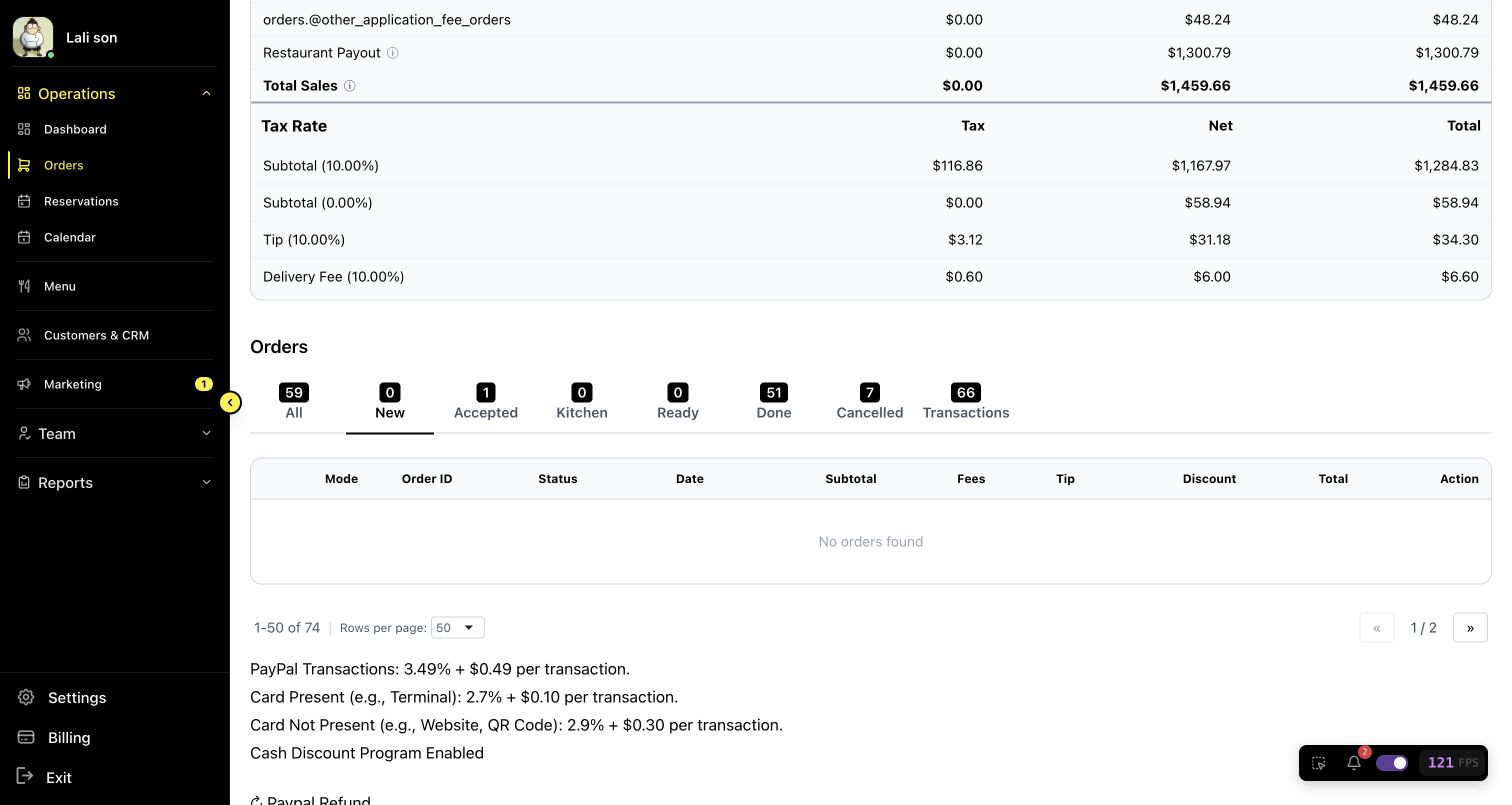
US QA review draft: no orders are displayed in the selected New view. Other views can contain orders.
- New: This status view is selected in the example.
- Other views: Choose another status view when needed.
- Order list: No rows appear in the selected view.
Viewing All Orders
Step 1: Click Orders in the sidebar
Step 2: Choose a status view or search for the order you need.
Step 3: Review the information shown in the matching row, such as order ID, status, date, and total.
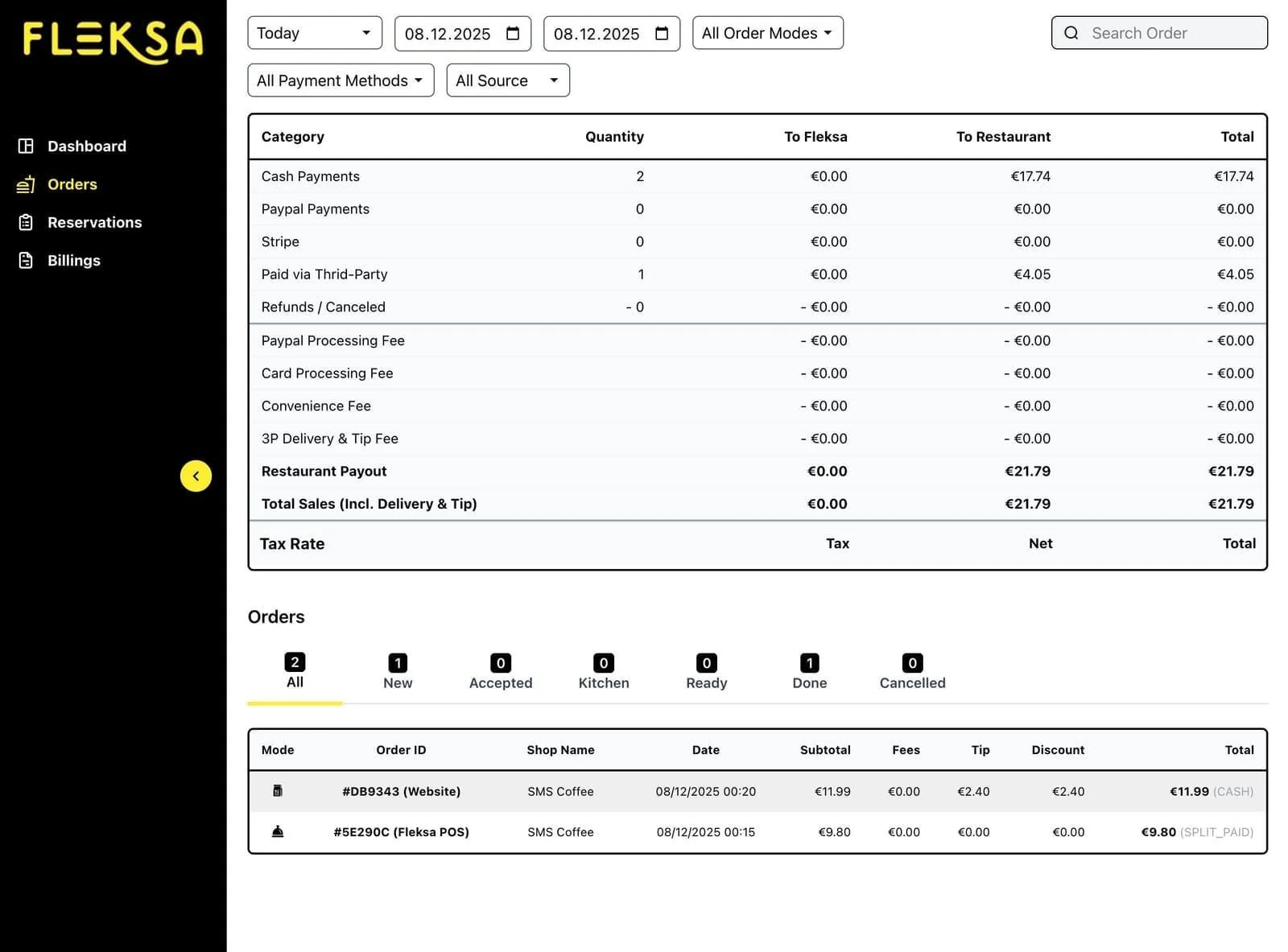
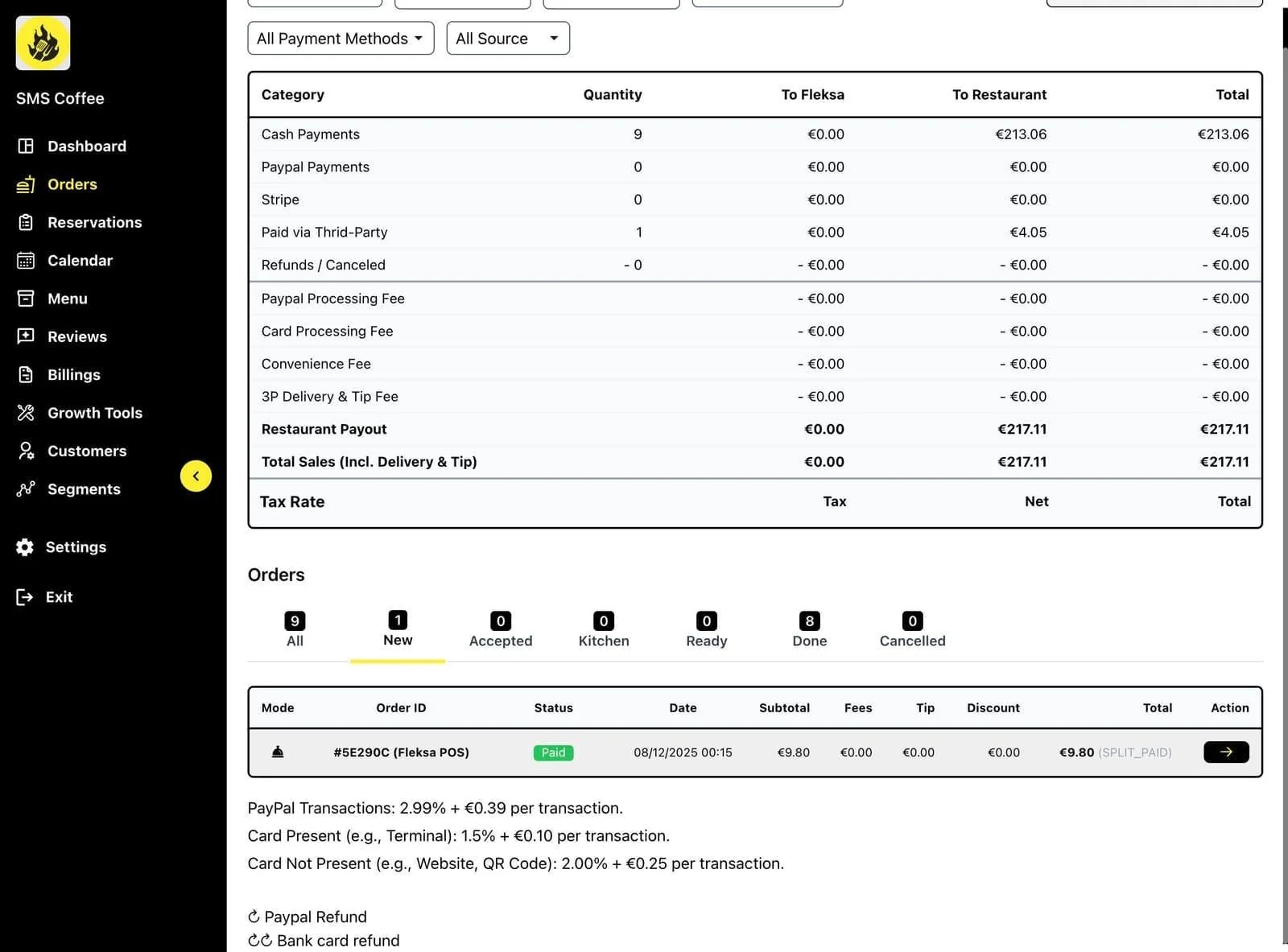
In this US QA example, a search shows one test order. The summary above the list is for the wider selection, not just that matching row.
Scroll across the image to see all four markers.
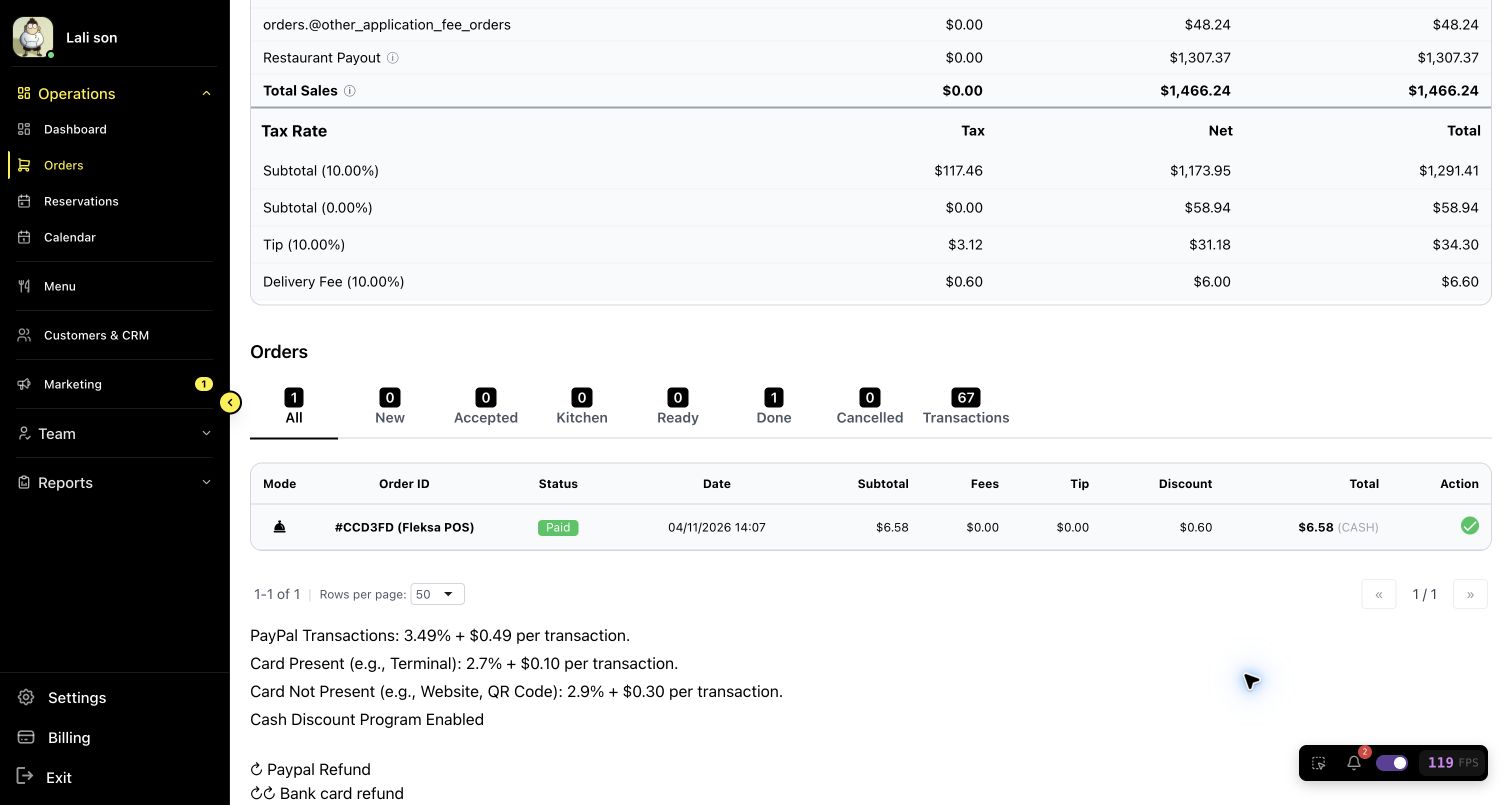
US QA review draft: one test order in the filtered list.
- Status views: Choose a view such as All or Done.
- Order: Find the matching order in the list.
- Payment status: The example order is marked Paid.
- Total: Review the amount and payment method shown.
Filtering Orders
By Date Range
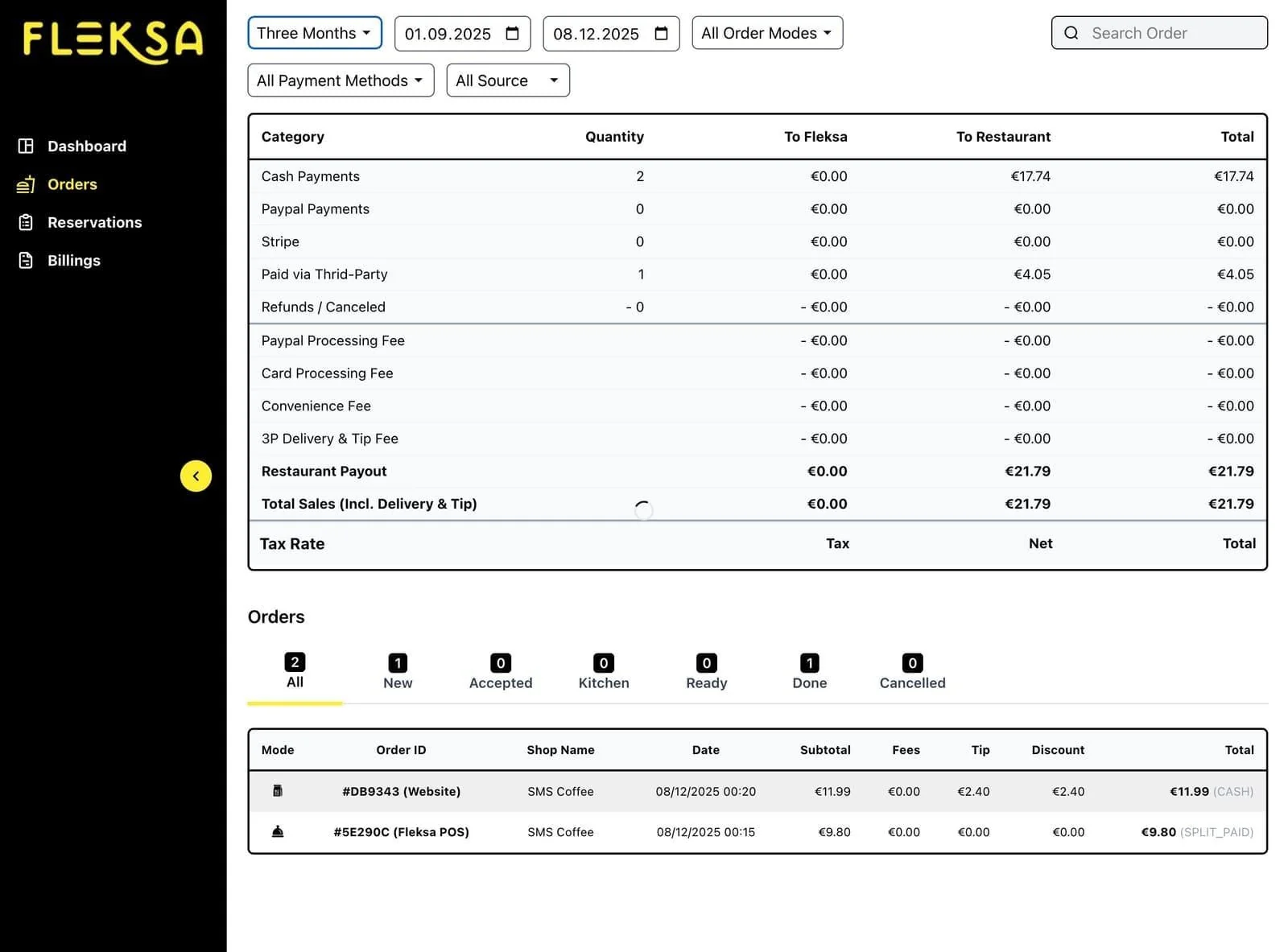
Step 1: Click the date filter at the top
Step 2: Select a preset range or choose custom dates:
- Today
- Yesterday
- Last 7 Days
- Last 30 Days
- Last 3 Months
- Custom Range
By Order Type
Step 1: Click the Order Type filter
Step 2: Select the order mode:
- Delivery - Orders for delivery
- Pickup - Customer pickup orders
- Dine-in - In-restaurant orders
By Payment Method
Step 1: Click the Payment filter dropdown
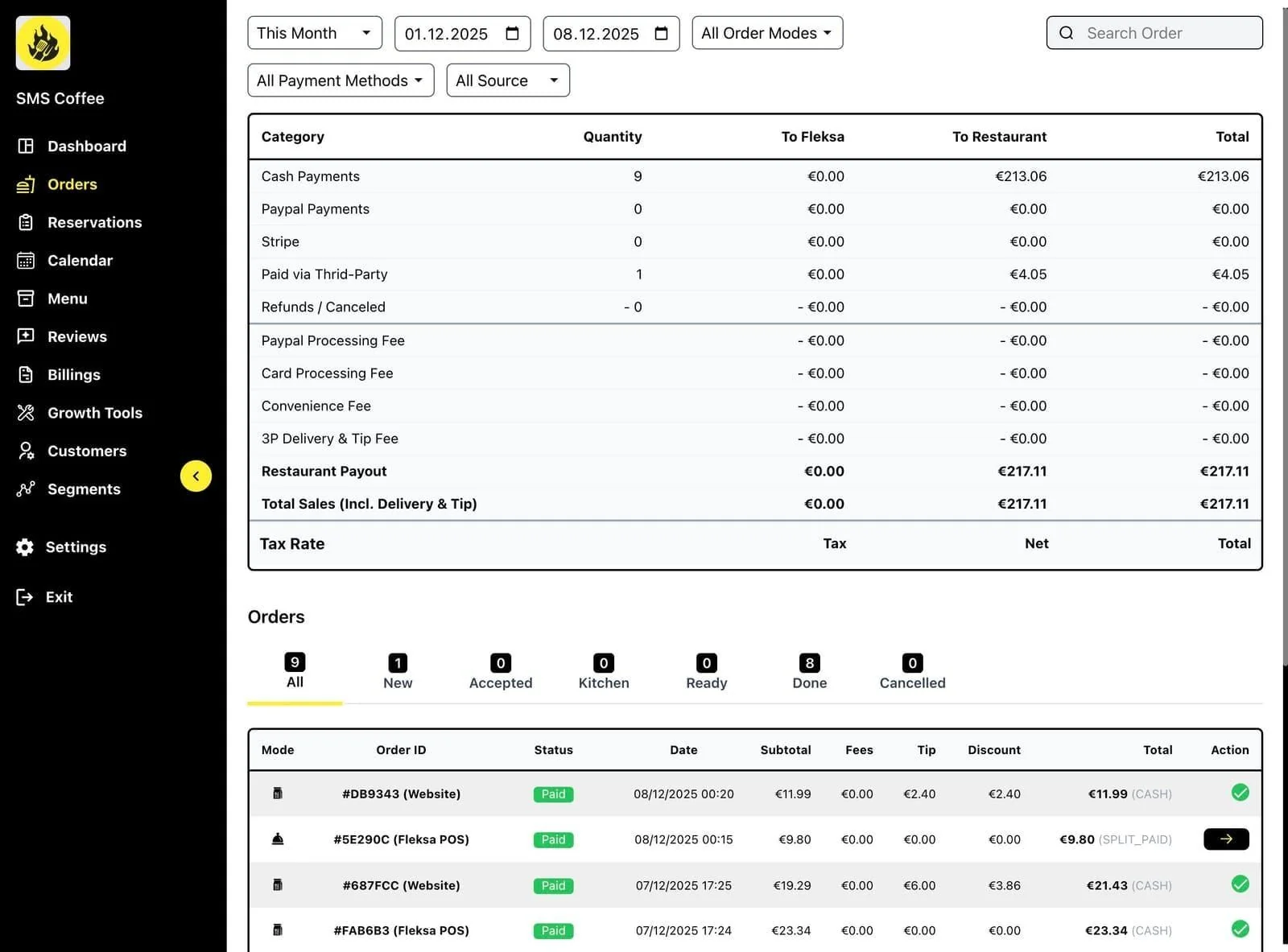
Step 2: Select payment type:
- Cash
- Card (EC Card)
- Stripe
- PayPal
- Gift Card
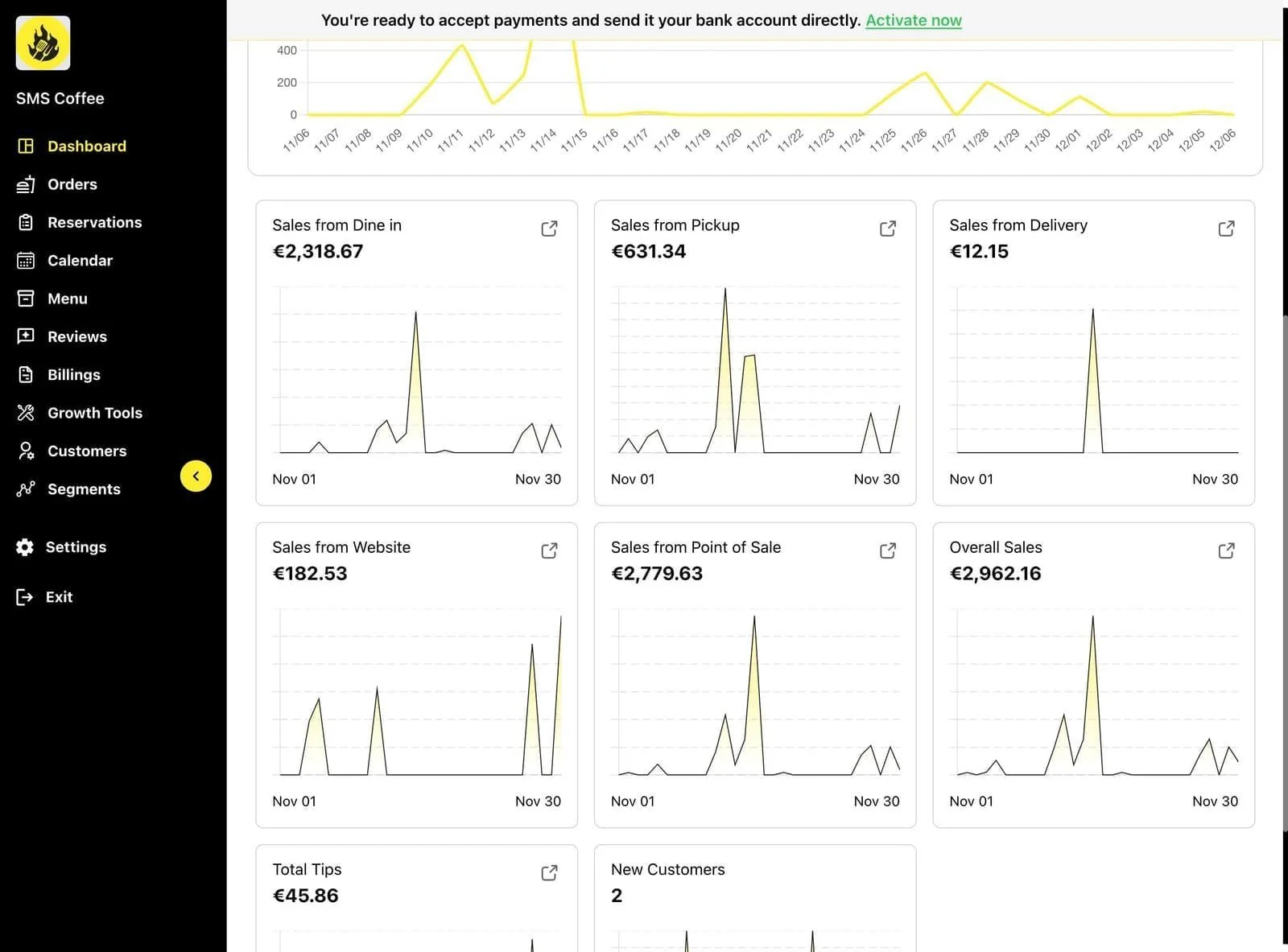
By Status
Choose a status tab to review that view. An empty view does not establish that there are no orders in other statuses or date ranges.
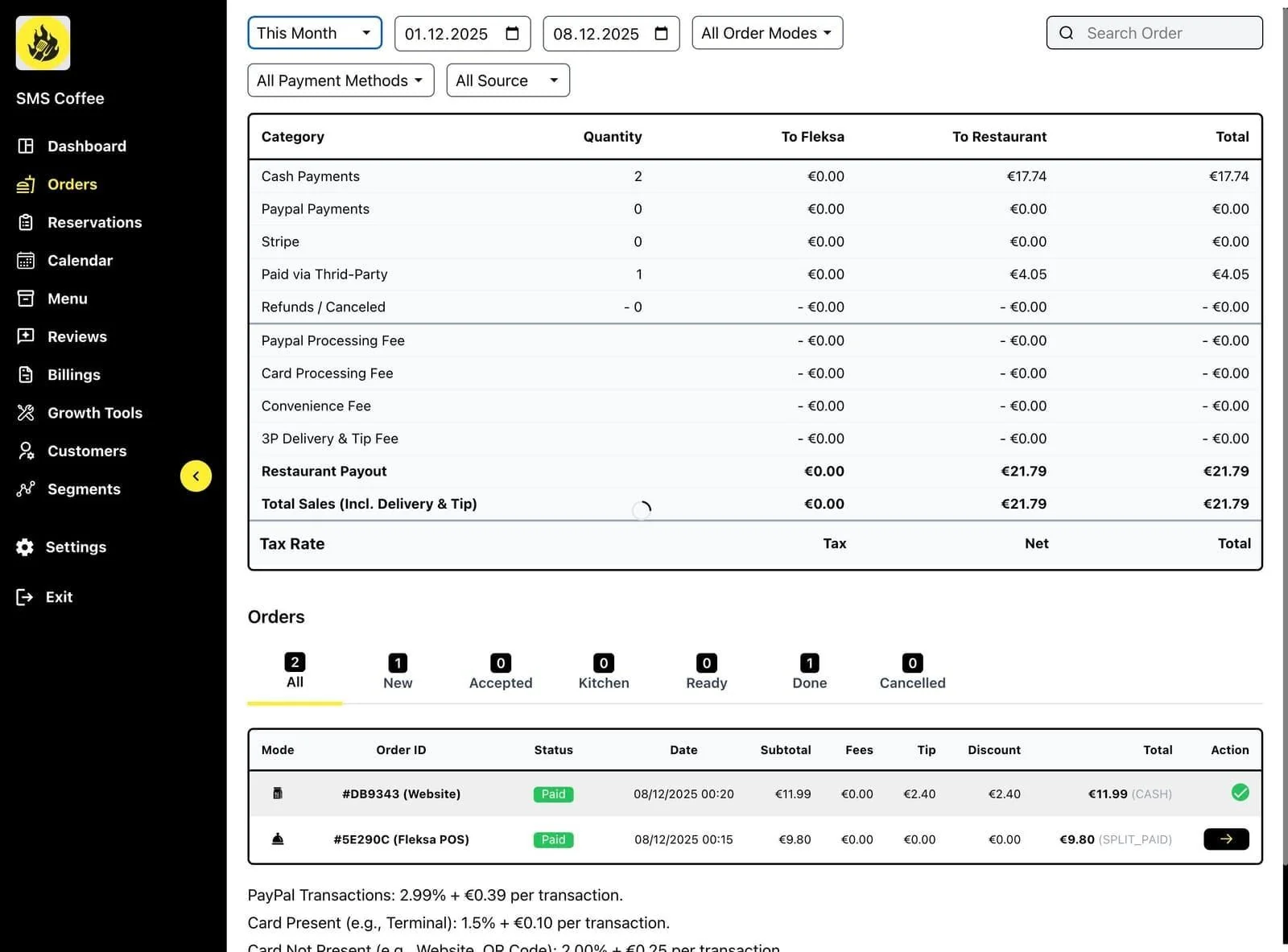
Order Status Overview
In the US QA example above, the available views include All, New, Accepted, Kitchen, Ready, Done, and Cancelled. Select a view to see its orders; the available labels can differ by setup. Check an order's details for its actual status and payment information.
Payment Summary
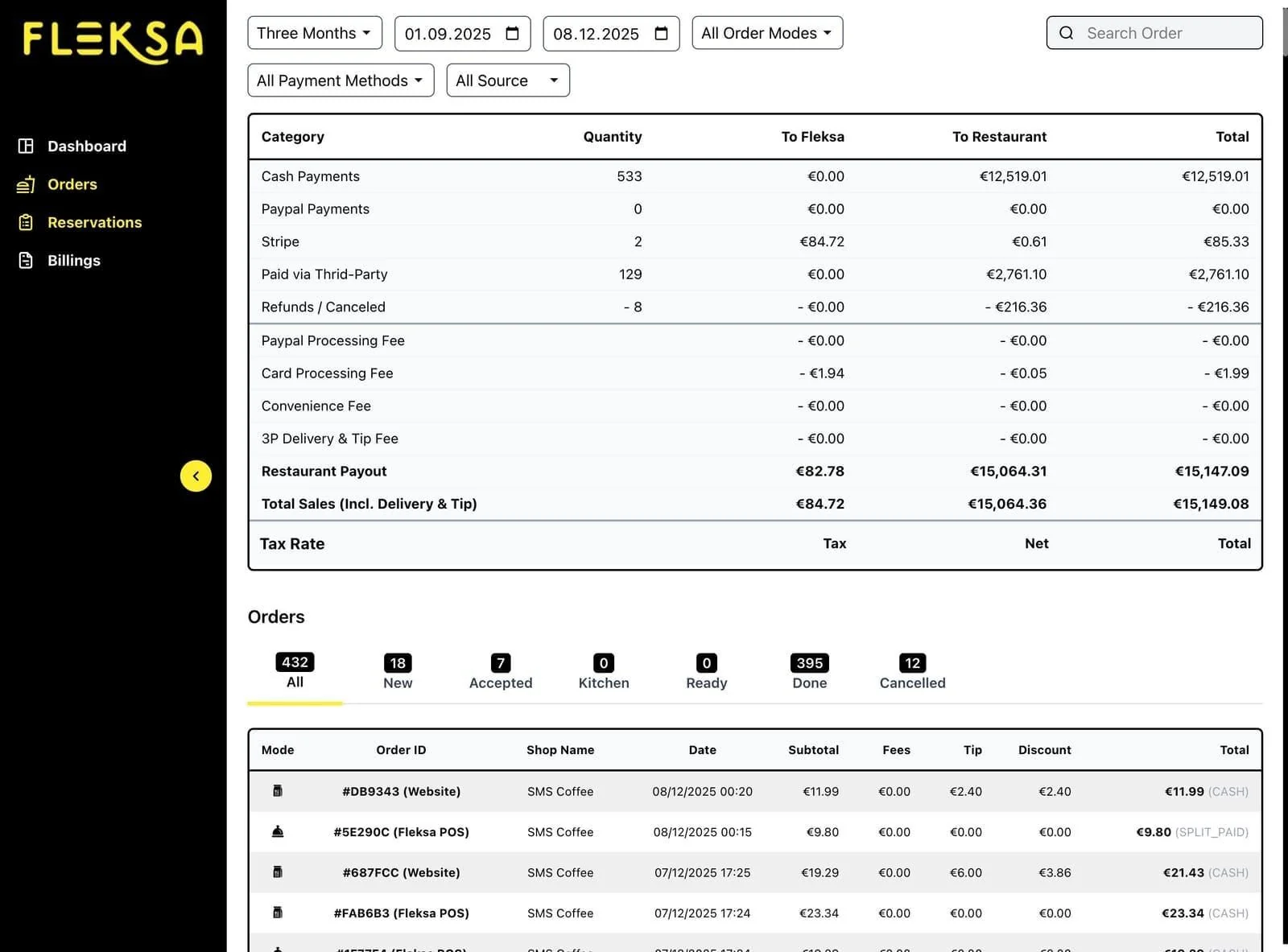
The orders page shows a payment breakdown:
This summary shows:
- Total by payment method
- Cash vs. card split
- Online payment totals
Viewing Order Details
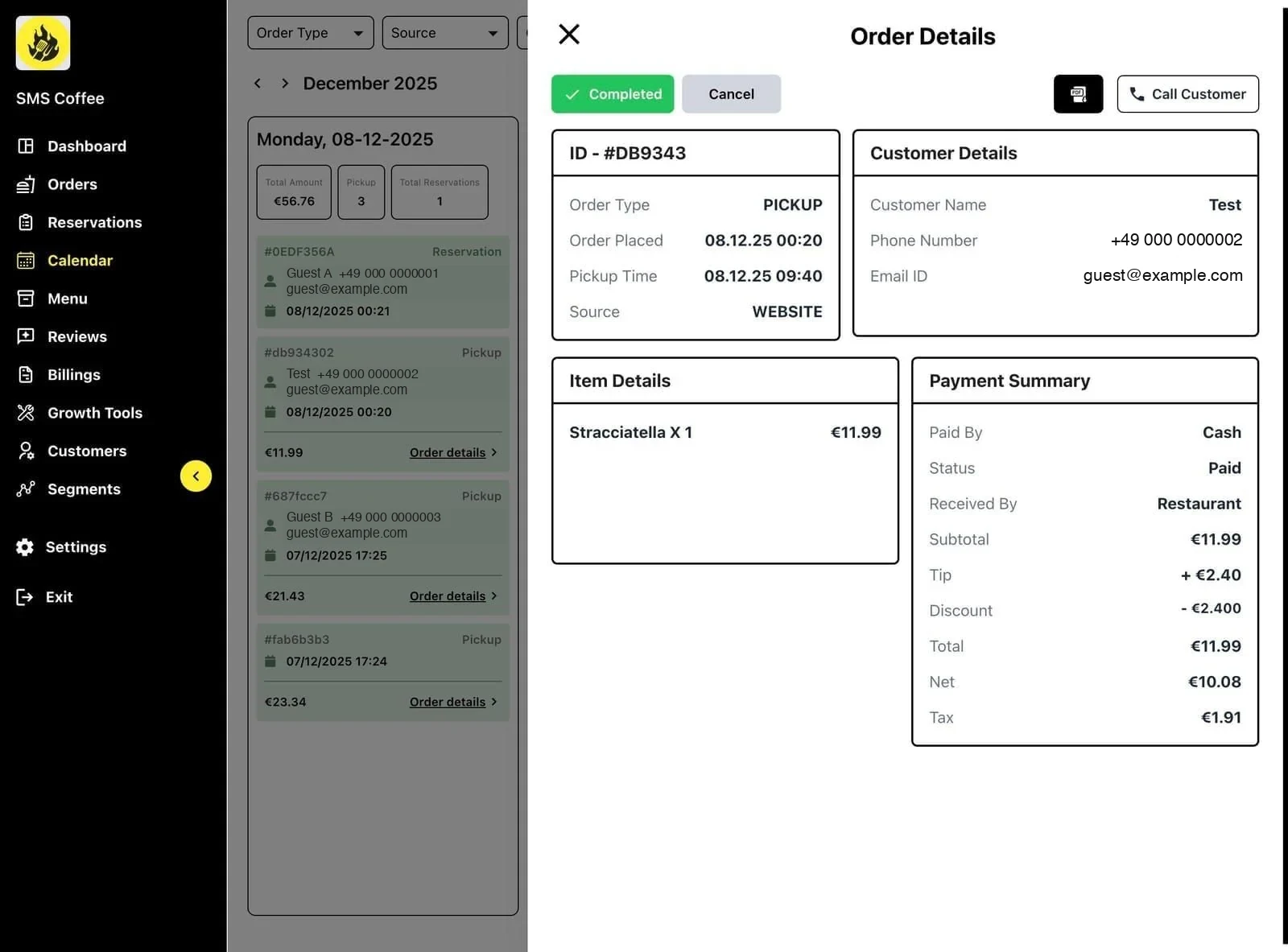
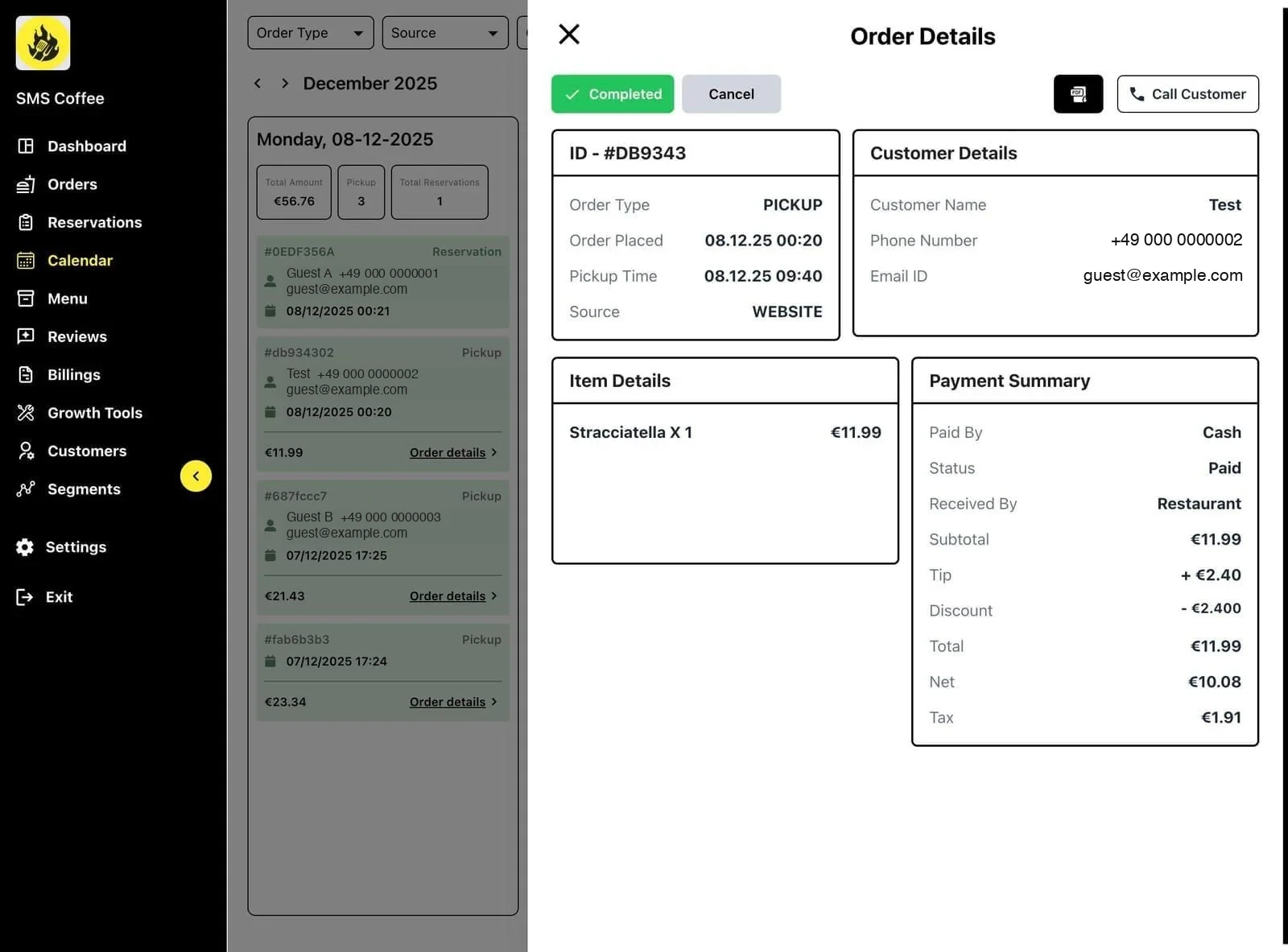
Step 1: Click on any order row in the list
Step 2: The order details panel opens
Step 3: View complete order information:
- Customer name and contact
- Delivery address (if applicable)
- Order items with quantities
- Item modifications and notes
- Payment method and amount
- Order timestamps
Step 4: Take actions from the detail view:
- Update status
- Print receipt
- Contact customer
- View customer profile
Order Sources
Orders come from multiple channels:
| Source | Description |
|---|---|
| Website | Your Fleksa website |
| POS | Payperse-Waiter POS orders |
| Google Food Ordering | |
| Third-party channels | Orders from supported integrations |
Calendar View
See orders and reservations on a calendar:
Step 1: Click the Calendar view option
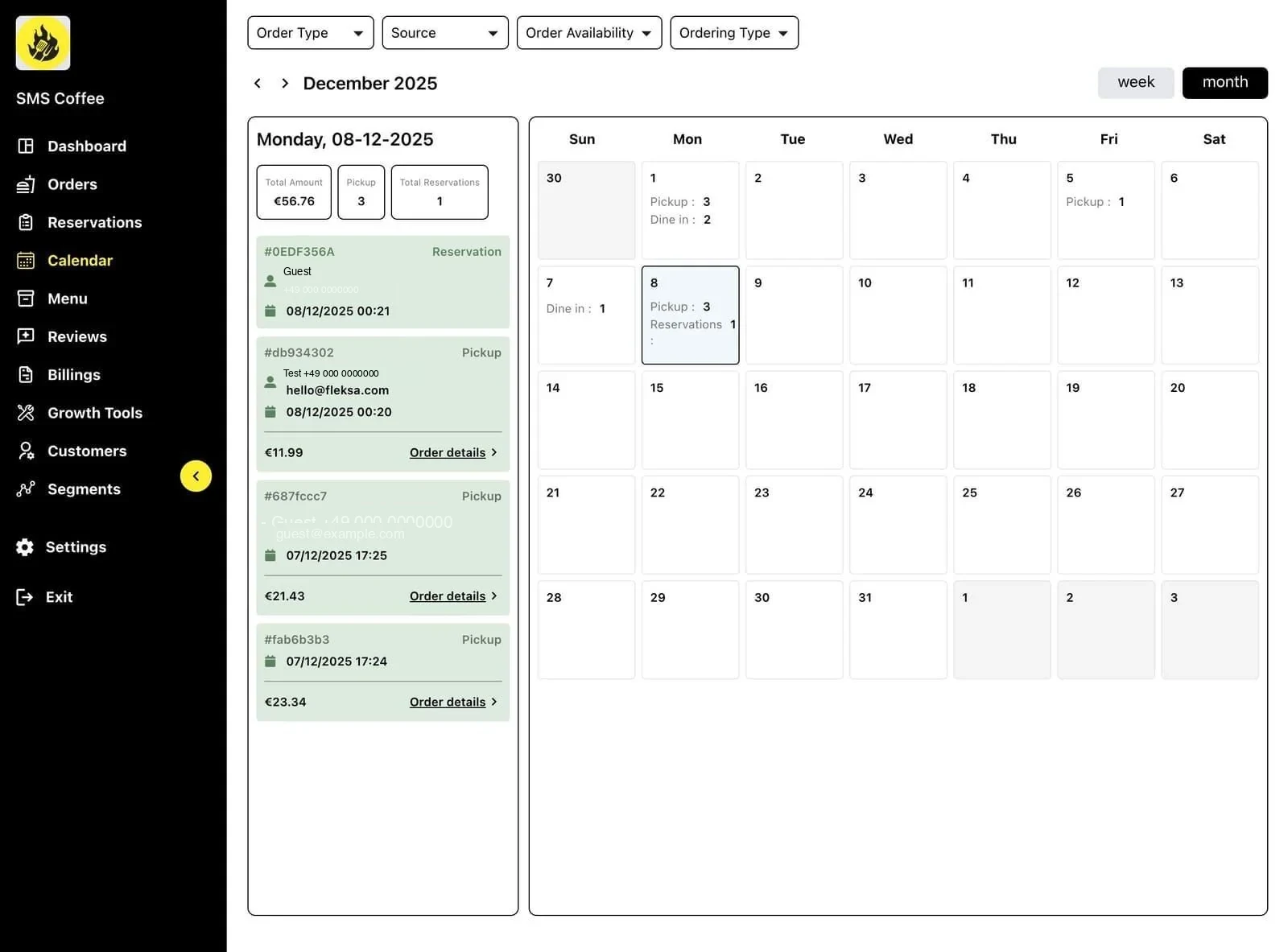
Step 2: Choose view type (Day or Week)
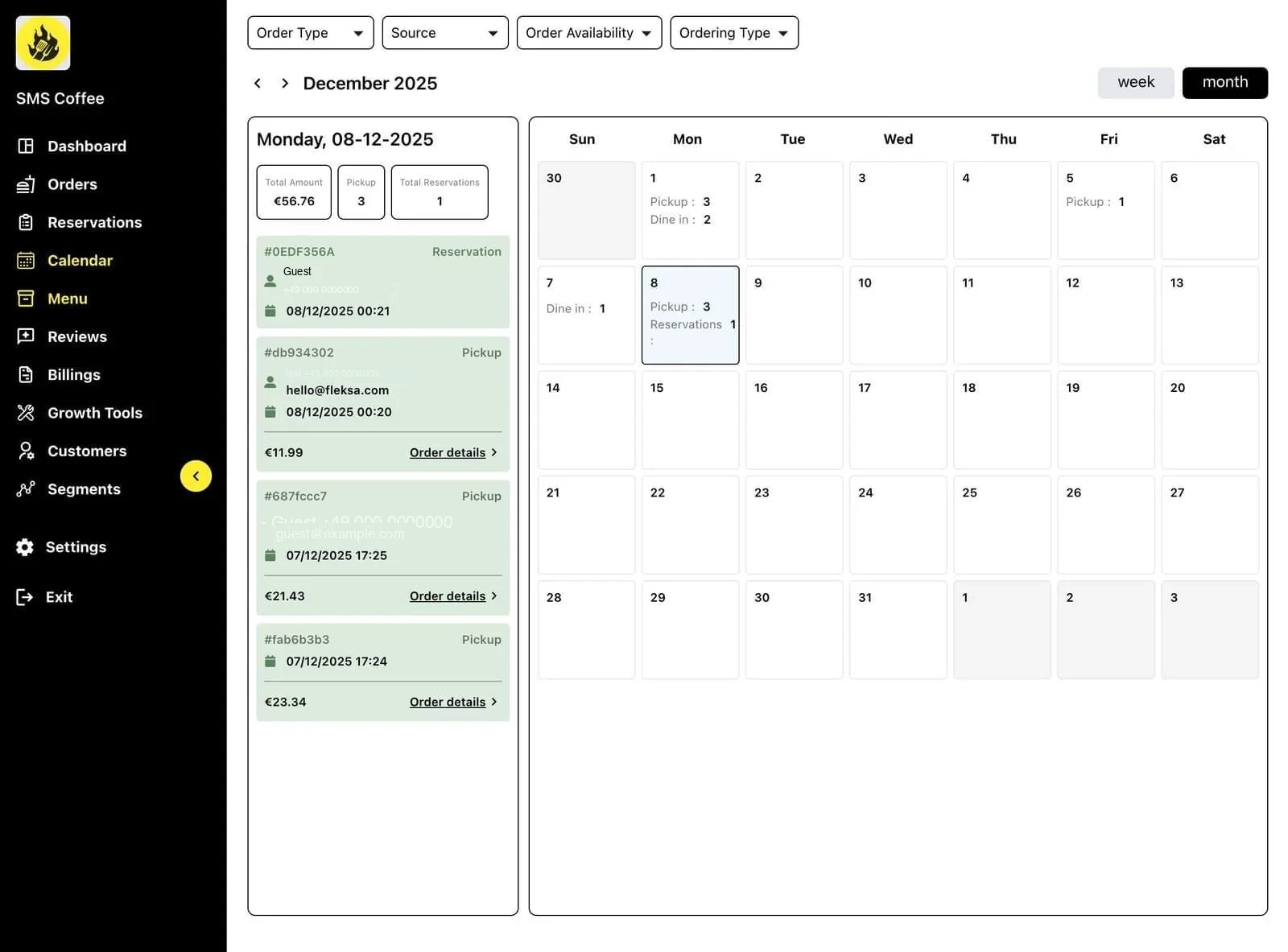
Step 3: Apply filters to show specific order types
Step 4: Click any order to view details
Exporting Orders
Step 1: Apply desired filters
Step 2: Click the Export button
Step 3: Choose format (CSV, Excel)
Step 4: Download the file
Best Practices
Monitoring orders:
- Check for pending orders frequently
- Update statuses promptly
- Investigate any stuck orders
Using filters:
- Use date filters for reporting
- Filter by source to track channel performance
- Check payment methods for reconciliation
Troubleshooting:
- Review order timeline for issues
- Check customer contact for delivery problems
- Verify payment status matches actual payment