
Restaurant/Shop Dashboard
Shop overview with KPIs, orders, revenue, and quick actions
Use the dashboard to review the information shown for your restaurant and open other tasks from the sidebar.
Review draft: This dashboard was viewed in US QA, but the figures and date-range calculations were not reconciled. Older screenshots and actions on this page need product and privacy review before publication.
Scroll across the image to see all three markers.
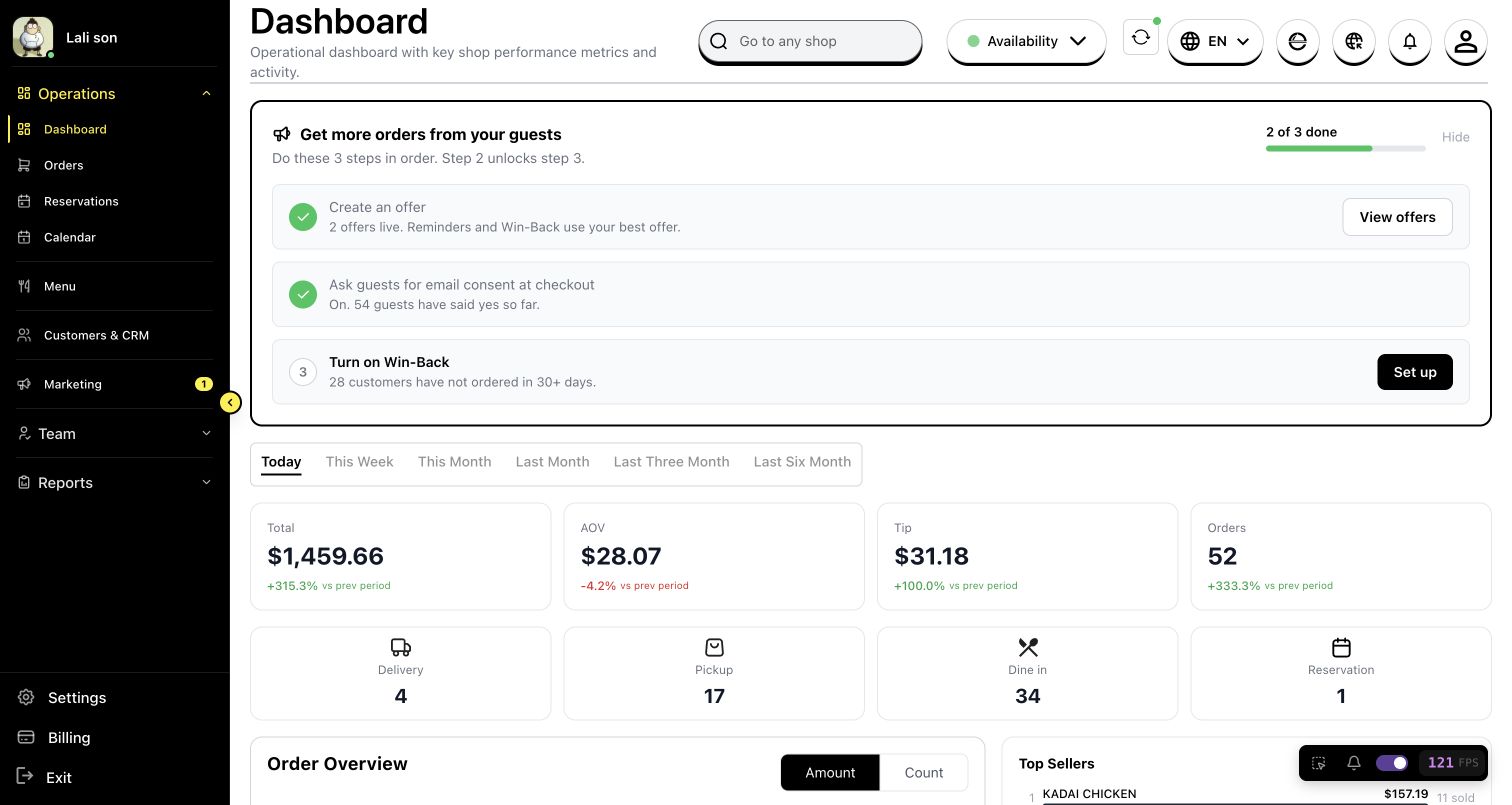
US QA review draft: values are examples and have not been reconciled.
- Navigation: Open a task such as Orders from the sidebar.
- Period: Choose a displayed time period.
- Summary: Review the figures shown for that period.
Dashboard Overview
The example shows cards labeled Total, AOV, Tip, and Orders, along with other restaurant information. The cards available to you can vary.
Changing Time Period
Select a period such as Today or This Week from the tabs shown above the summary cards. Check the displayed period before using the figures.
Managing Service Availability
Control when your restaurant accepts orders:
Opening Delivery Service
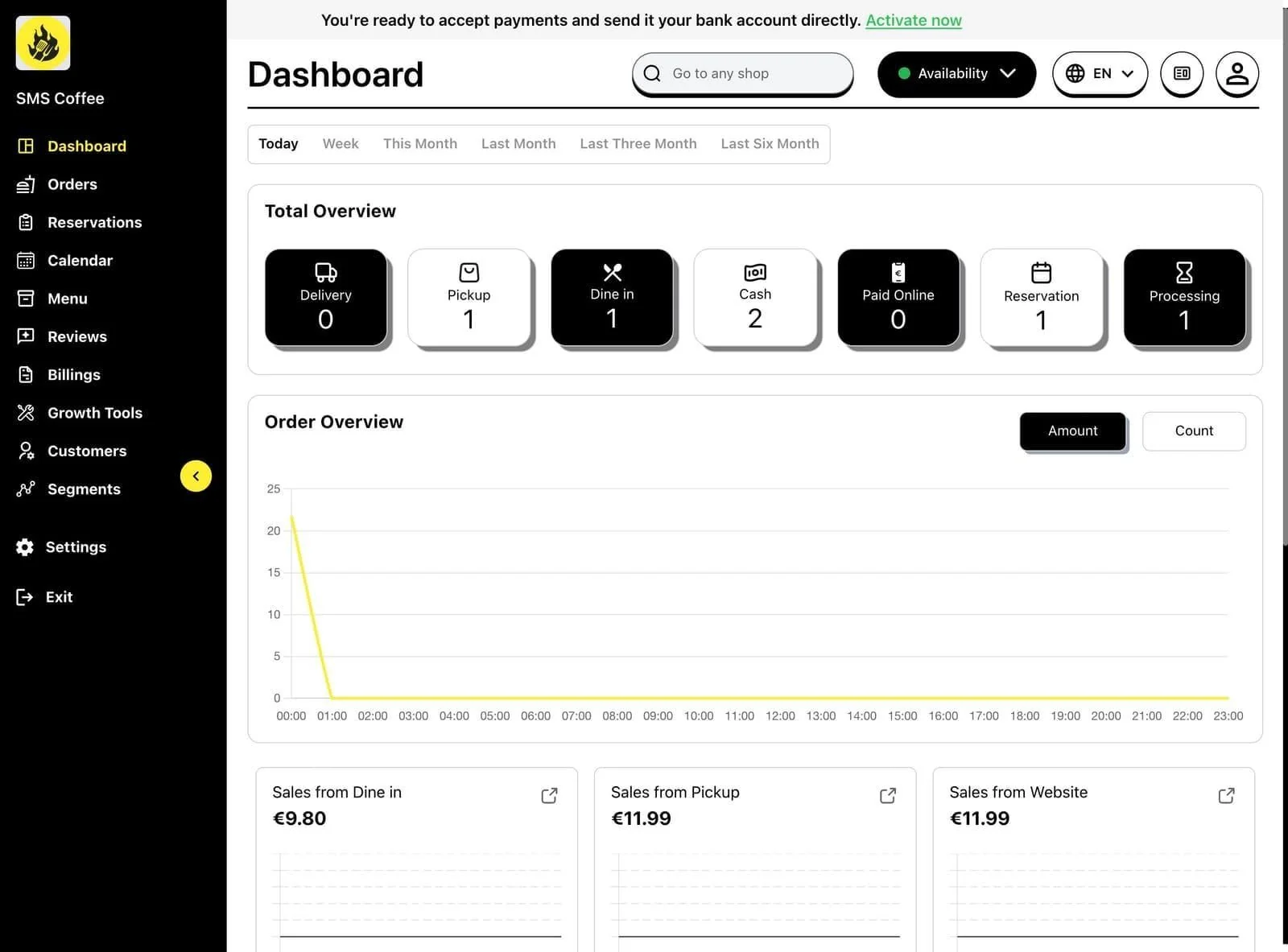
Step 1: Click the Availability dropdown in the top bar
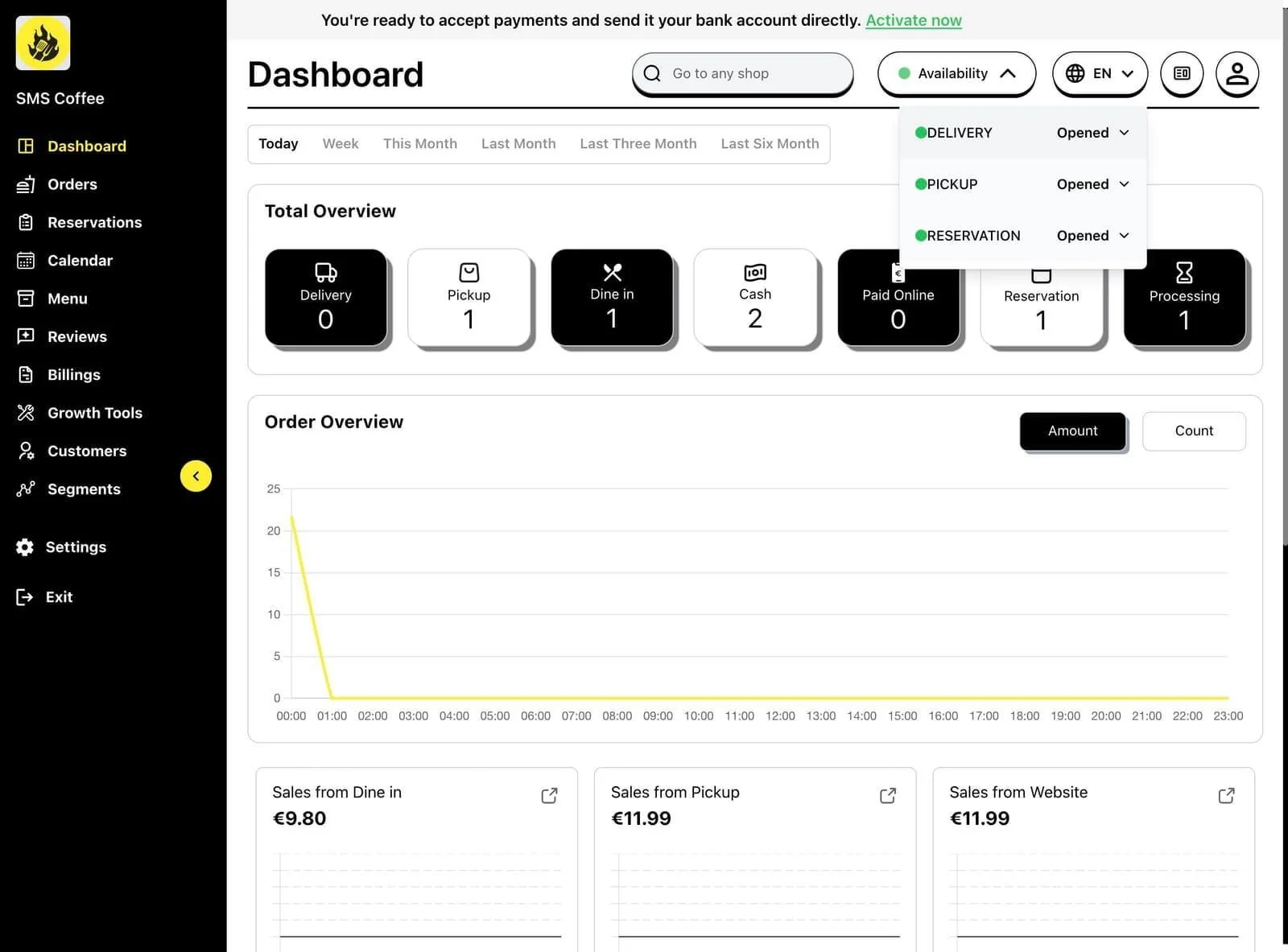
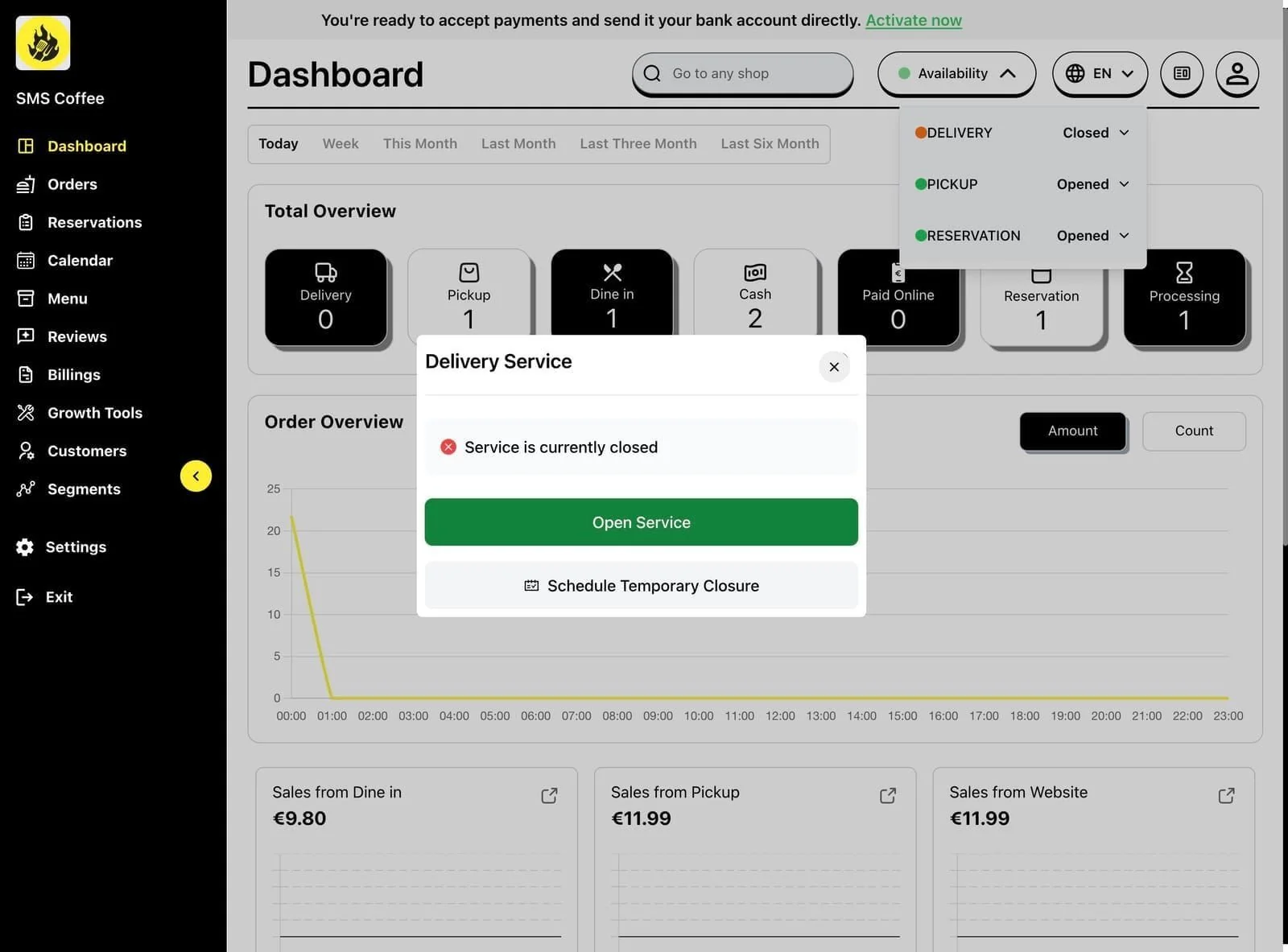
Step 2: Click on Delivery to open the delivery modal
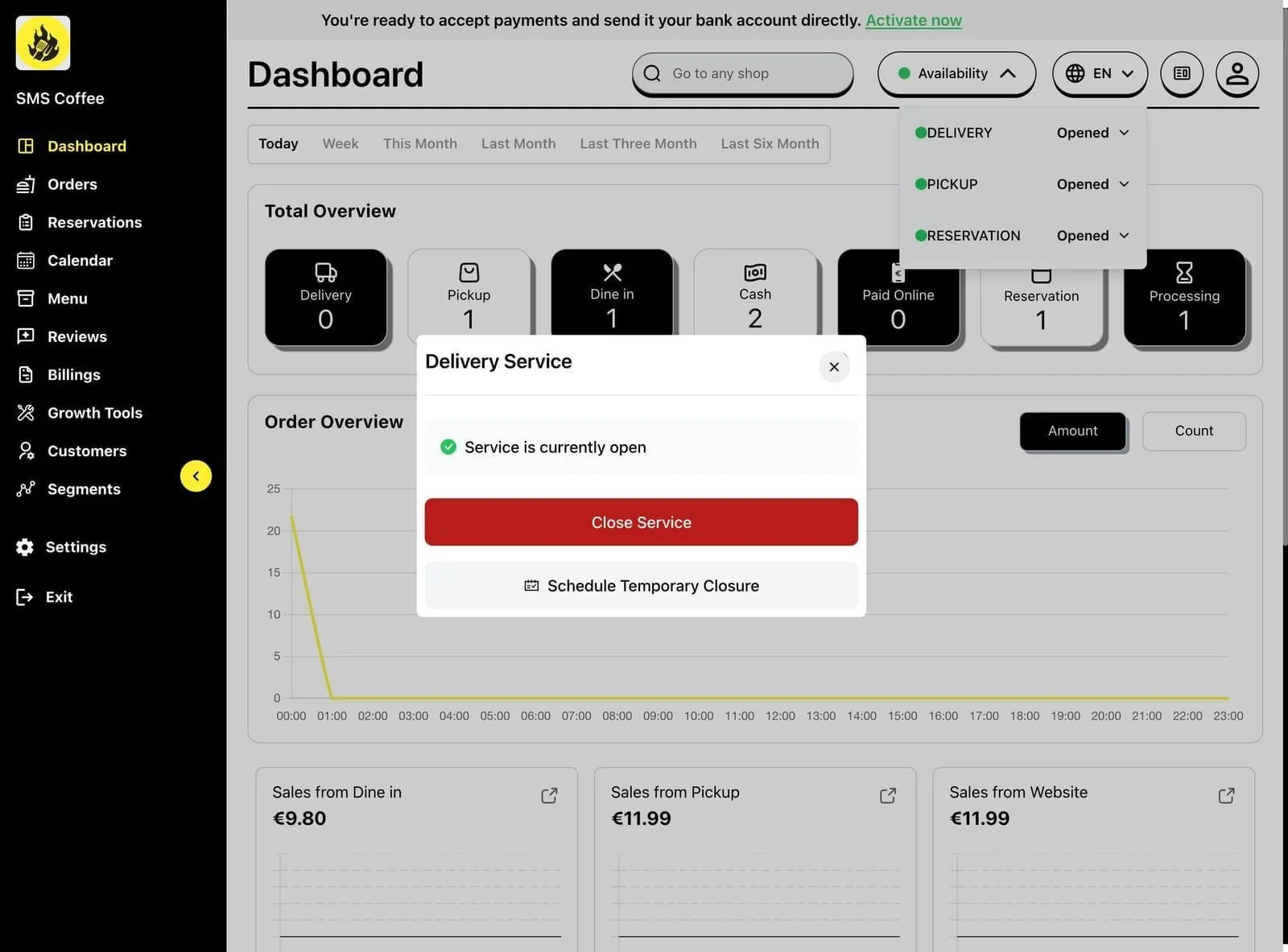
Step 3: Toggle delivery service ON
Step 4: Set the opening duration (until closing time or custom)
Step 5: Click Save
Closing Delivery Service
Step 1: Click the Availability dropdown
Step 2: Click on Delivery
Step 3: Toggle delivery service OFF
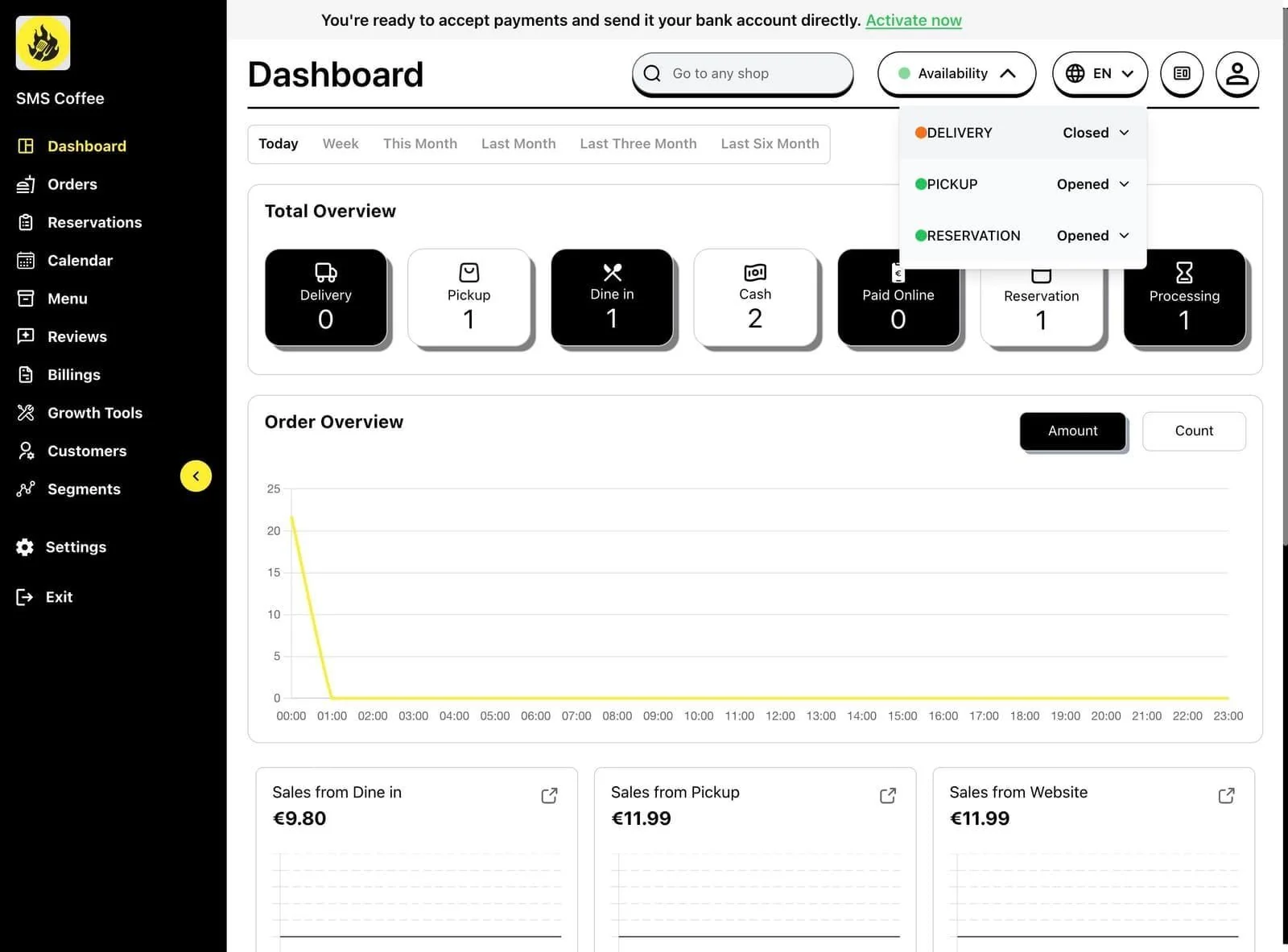
Step 4: Select when to reopen (automatically tomorrow or manual)
Step 5: Click Save
Managing Pickup Service
Step 1: Click the Availability dropdown
Step 2: Click on Pickup
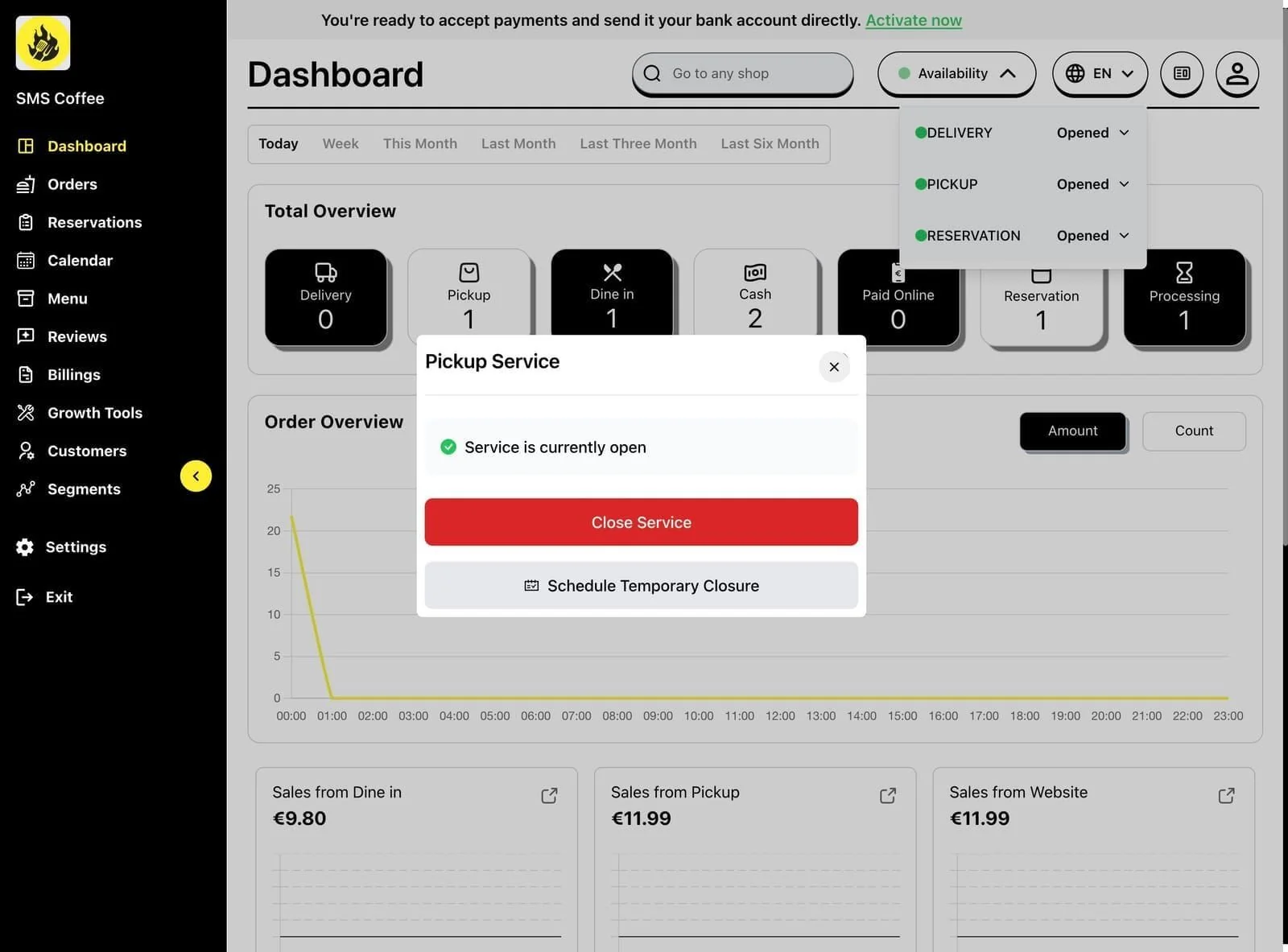
Step 3: Toggle pickup service ON or OFF
Step 4: Set availability options
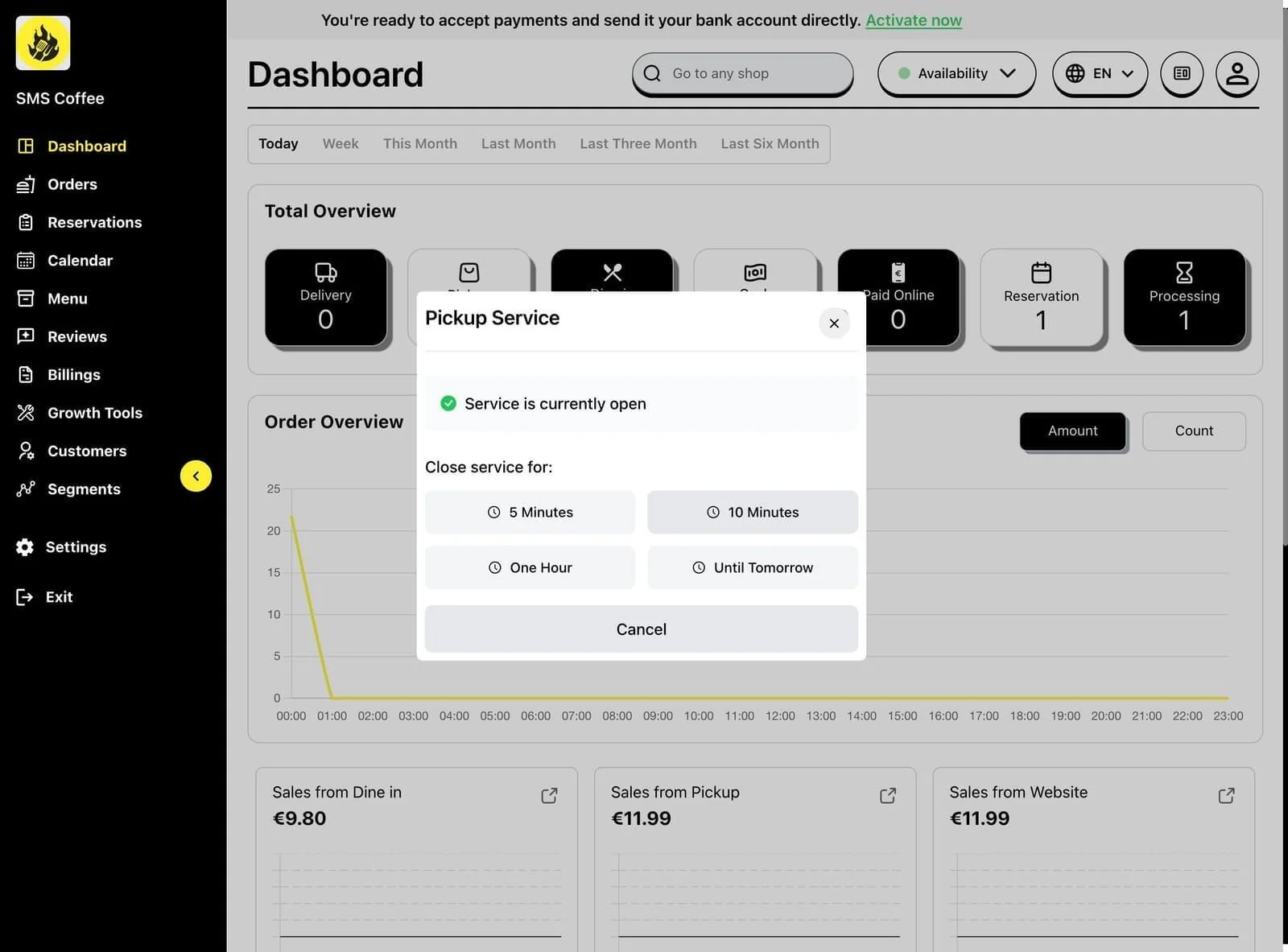
Step 5: Click Save
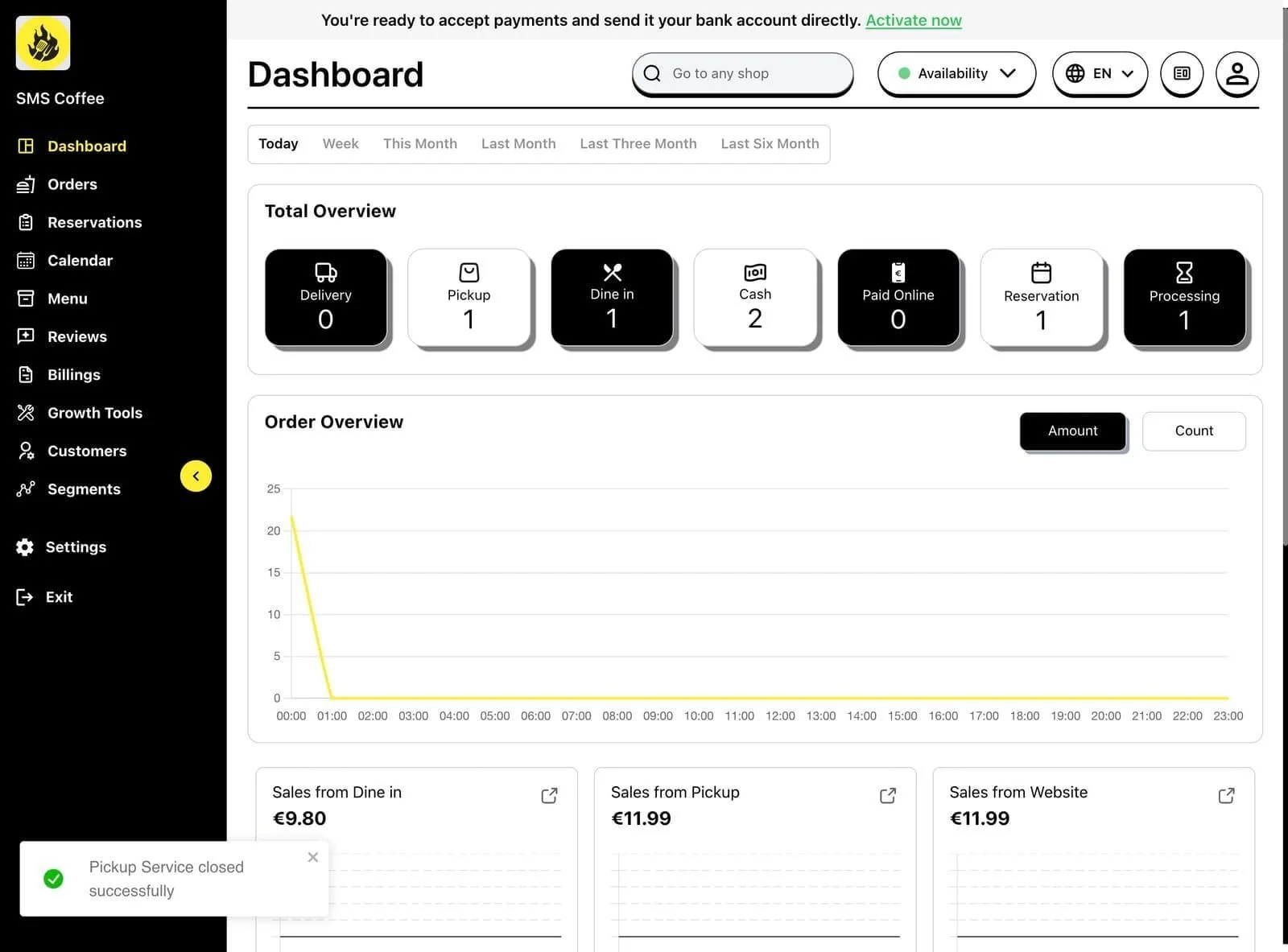
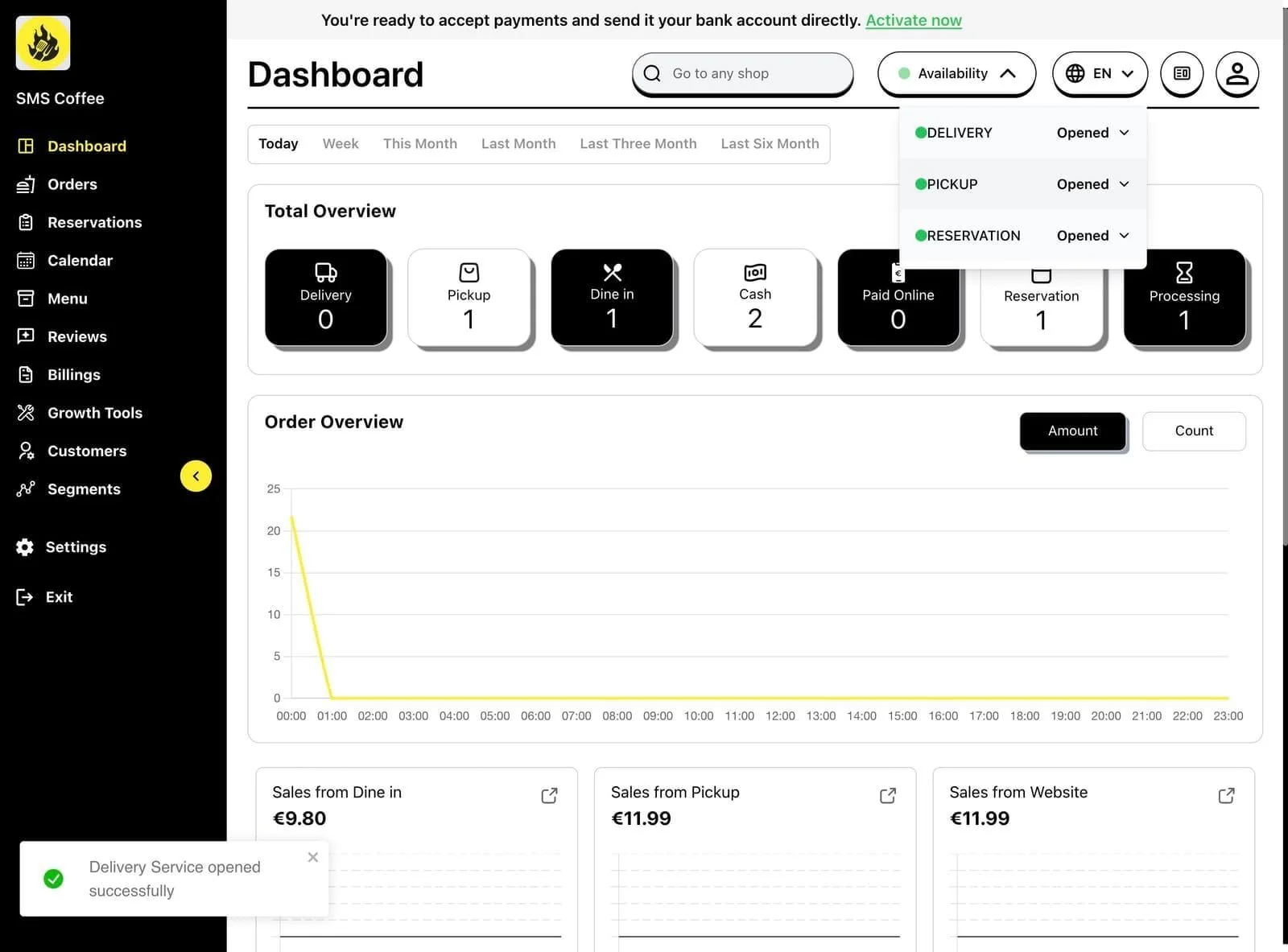
Notification Toast Messages
When you make changes, you'll see confirmation toasts:
These notifications confirm your action was successful.
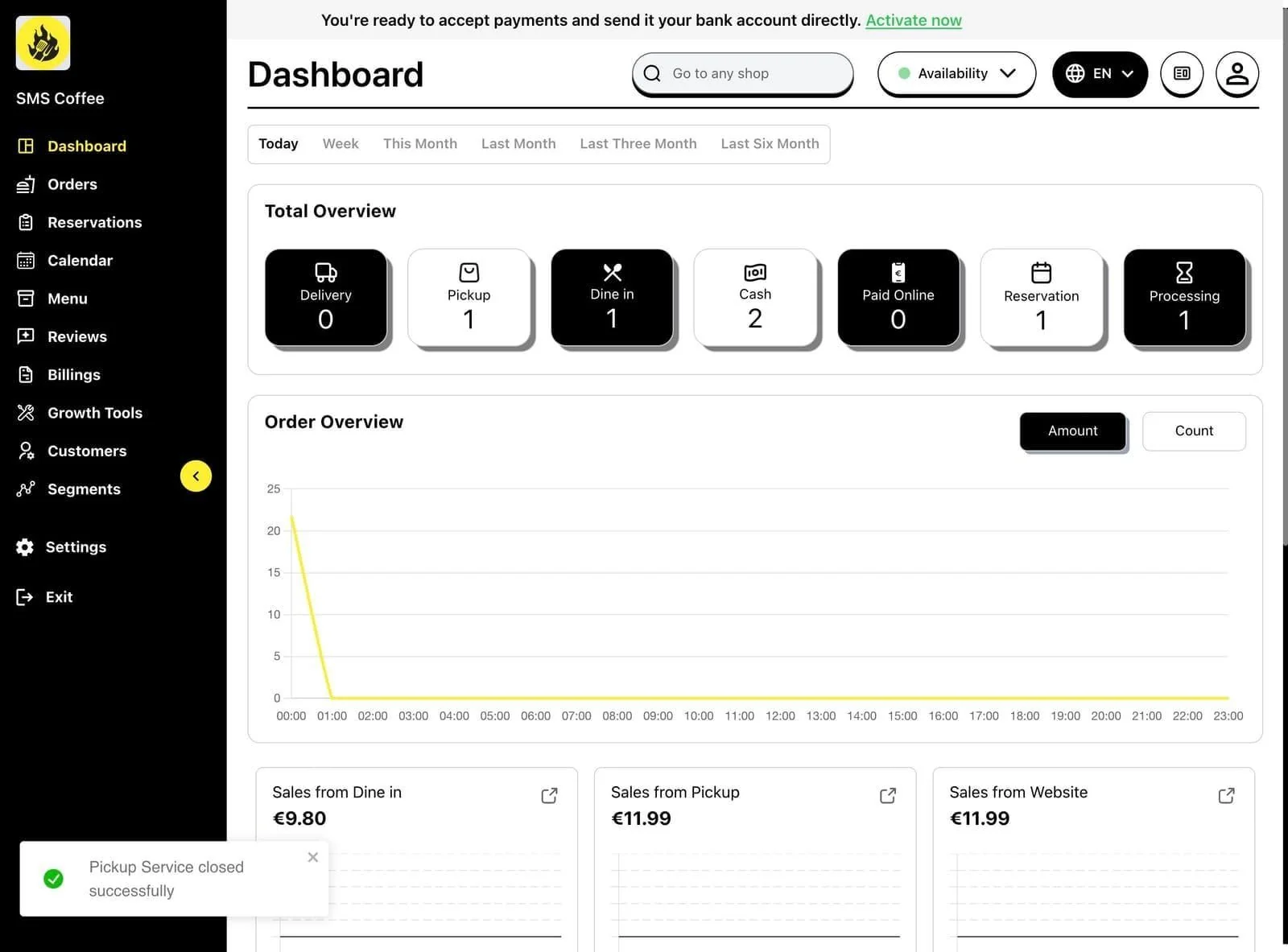
Changing Language
Step 1: Click the language dropdown in the top navigation
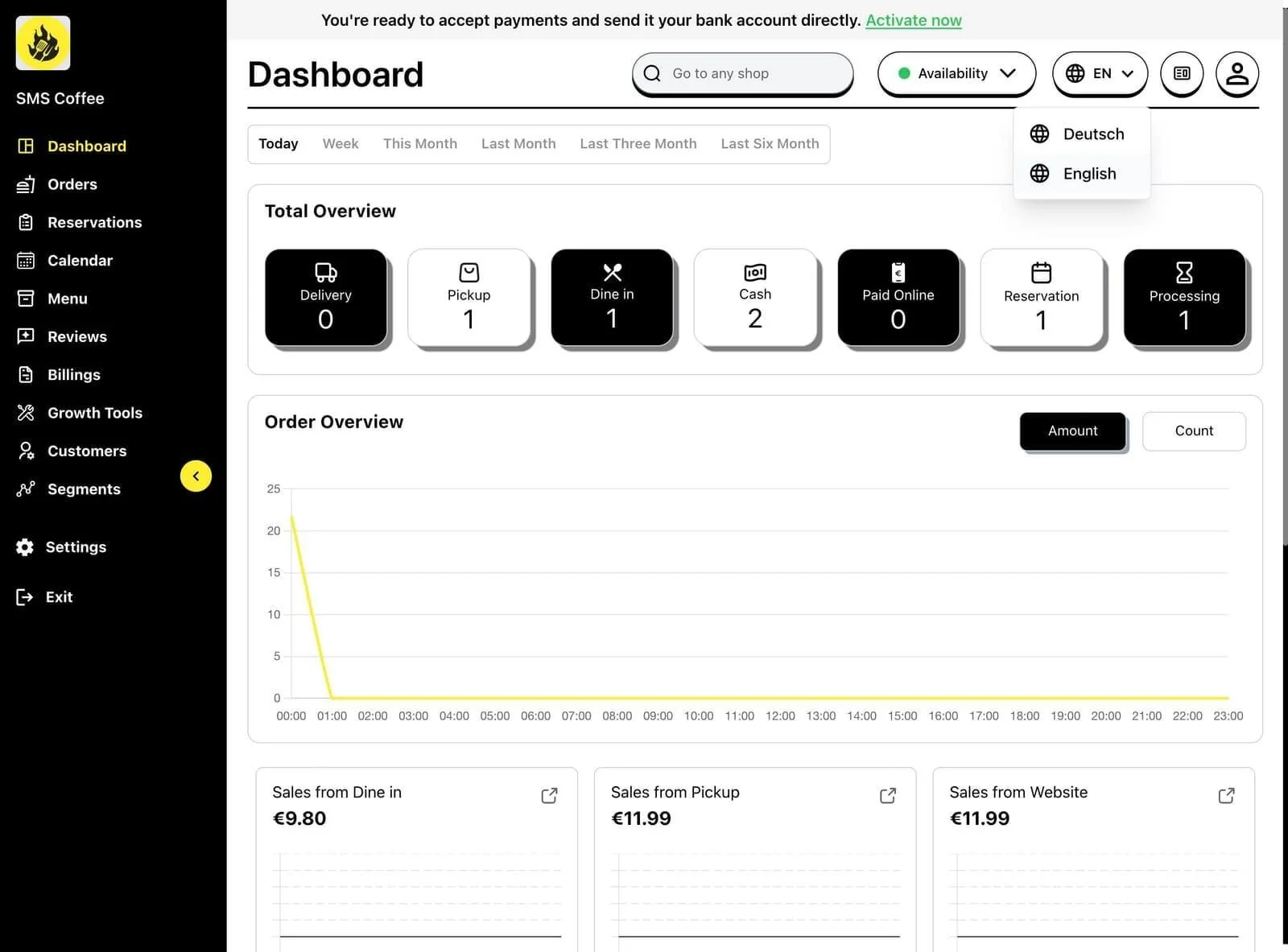
Step 2: Select your preferred language (English, German, etc.)
Step 3: The interface updates to the selected language
Viewing Your Menu
Quick access to your menu from the dashboard:
Step 1: Click Menu in the sidebar
Step 2: Browse categories and products
Step 3: Click any item to edit
Key Metrics Explained
| Metric | What It Shows |
|---|---|
| Total | Amount shown for the selected period |
| AOV | Average order value shown on the dashboard |
| Tip | Tip amount shown |
| Orders | Order count shown |
The exact calculation and included orders for these figures have not been verified in this review.
Quick Actions
From the dashboard you can quickly:
- View Orders - Click the orders count to see order list
- Check Reservations - See today's bookings
- Edit Menu - Navigate to menu management
- View Reports - Access detailed analytics
Best Practices
Morning check:
- Verify service availability is correct
- Check yesterday's final numbers
- Review today's reservations
During service:
- Monitor active order count
- Watch for any alerts or notifications
- Check if you need to pause services
End of day:
- Review daily revenue
- Compare to previous days
- Note any issues or trends